
When your MacBook Pro refuses to turn on, the most reliable first fix is often the simplest: a forced restart. Press and hold the power button for 10 full seconds. Just count it out. Then, let go and press it again like you normally would. More often than not, this one move clears up minor firmware glitches that keep your Mac from starting up.
What To Do First When Your MacBook Pro Is Unresponsive
We’ve all been there. That gut-wrenching moment you press the power button on your MacBook Pro and get… nothing. No startup chime, no glowing Apple logo, just a cold, dead screen. Before you jump to conclusions about a catastrophic failure and an expensive repair bill, take a breath. The vast majority of these cases are solved with a few basic checks.
Most of the time, the culprit isn't a fried logic board but something much simpler, like a power issue or a temporary software hiccup. By working through these initial steps, you can often diagnose and fix the problem yourself in minutes. This is the exact process we, and other technicians across Hamilton, walk our clients through first.
Before diving into anything complex, let's cover the essentials with a quick checklist.
Initial Troubleshooting Checklist
| Check | Action | Why It Matters |
|---|---|---|
| Power Source | Verify the wall outlet works with another device. | Eliminates the possibility of a dead outlet being the problem. |
| Charger & Cable | Inspect for any fraying, kinks, or damage. Try a different charger if possible. | A faulty charger or cable is a very common cause of no-charge issues. |
| Charging Port | Look inside the MacBook's USB-C port for lint or debris. | Gunk buildup can easily prevent a solid connection for charging. |
| Forced Restart | Press and hold the power button for 10 seconds, then press again normally. | This forces a reset of the Mac's power controller, clearing many startup glitches. |
| Peripherals | Disconnect all external devices (drives, hubs, monitors). | A faulty accessory can prevent the Mac from completing its boot sequence. |
Running through these five points will solve a surprising number of "dead Mac" scenarios.
Check Your Power Source and Connections
The first place to look is always the most obvious, and the one we all forget: the power supply. Is your MacBook Pro actually getting any juice? It’s easy to blame the Mac when the real issue is a bad power adapter, a frayed USB-C cable, or even just a faulty wall socket.
Give your charger and cable a quick once-over. Are there any visible signs of wear and tear, like exposed wires or bent connectors? If you can, try a different wall outlet you know is working. Better yet, if you have access to another charger and cable, swap them in to see if that brings your Mac back to life. Sometimes the connection is just loose, so make sure it's seated firmly in both the power brick and the Mac's port.
Pro Tip: Those USB-C ports are magnets for dust and pocket lint. If the cable feels a bit loose or won't click in properly, grab a can of compressed air and give the port a quick, gentle blast. You'd be surprised how often a tiny piece of debris is the only thing standing between you and a working Mac.
The Ten Second Power Button Press
If you're confident the power supply is fine, this next trick is the single most effective thing you can do for an unresponsive Mac. Press and hold the power button—which is also the Touch ID button on newer models—for a solid 10 seconds.
This isn't a normal shutdown. It forces a hard reset of the low-level firmware that manages power functions. Once you've held it for the full 10 seconds, release the button, give it a moment, and then press it again briefly to turn it on. Don't be surprised if the Apple logo pops right up.
This flowchart gives you a simple visual guide for these first few actions.
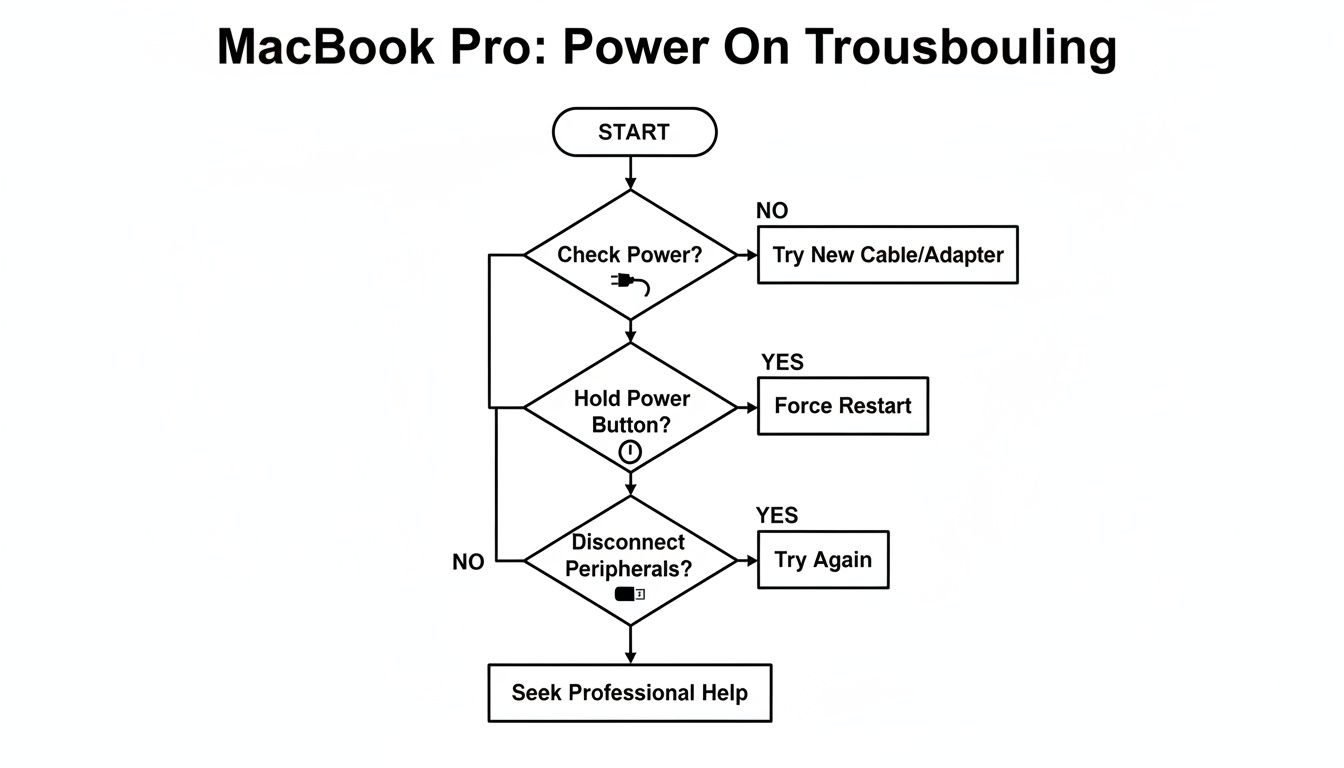
Seriously, following this simple sequence—checking power, doing the 10-second hold, and disconnecting peripherals—solves the problem for a huge number of people without any technical skills needed.
Disconnect All Accessories
Sometimes, your Mac is perfectly fine, but an accessory it's connected to is not. A misbehaving external hard drive, a dodgy USB hub, a printer, or even an external monitor can throw a wrench in the startup sequence and stop macOS in its tracks.
The solution is simple: unplug everything. Disconnect every single cable and device from your MacBook Pro, leaving only the power adapter connected. Now, try turning it on again.
If it boots up properly, you've found your culprit. You can start plugging your devices back in one by one until the problem reappears, which will tell you exactly which accessory is causing the headache. This process of elimination is key to figuring out if the problem lies with the Mac itself or something else.
Data from Apple and independent repair shops in Hamilton between 2018 and 2024 consistently shows that power-related faults and firmware glitches are the top two reasons a Mac won't start. If your Mac went dark after a power outage, you might be worried about your files; you can find helpful tips for recovering unsaved documents after a computer crash or power cut. But if these initial checks don't get you anywhere, it may be time for some more advanced steps, and you might need a professional to fix the computer.
Digging Deeper with Model-Specific Resets
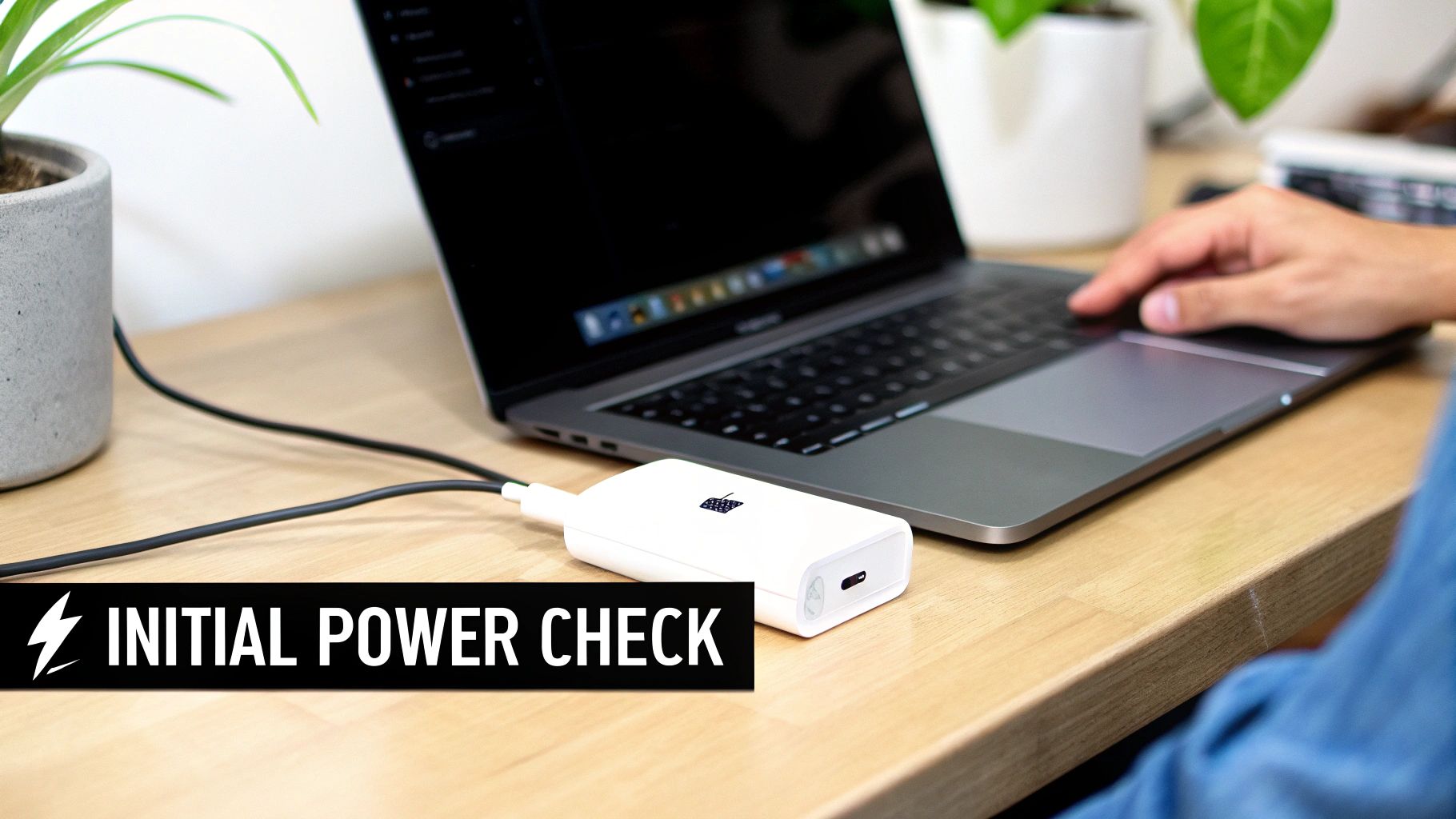
If the basic power checks didn't bring your MacBook back to life, don't worry just yet. Sometimes the problem is a bit more stubborn—a firmware glitch that needs a more specific kickstart. When a MacBook Pro is not turning on, the next thing we always try is a reset tailored to its specific brain: the processor.
These aren't just random button combinations. They target the low-level systems that handle power, charging, and startup routines. The key is knowing which Mac you have, because the fix for an older Intel-based model is completely different from what you'd do for a newer M1, M2, or M3 machine.
The Go-To Fixes for Intel MacBook Pro Models
For any MacBook Pro made before 2020, you're likely dealing with an Intel chip. For over a decade, two classic resets have been the secret weapon for technicians in Hamilton and around the world: the SMC reset and the NVRAM/PRAM reset.
Resetting the System Management Controller (SMC)
Think of the SMC as the physical brain of your Intel Mac. It's a tiny chip on the logic board that controls tangible functions—things like battery charging, the cooling fans, and even what happens when you press the power button or close the lid. When this chip gets its wires crossed, you can see all sorts of weird issues, including a MacBook that plays dead.
For most modern Intel MacBooks with the T2 security chip, here’s the magic sequence:
- First, make sure the Mac is completely shut down.
- On the built-in keyboard, press and hold these three keys: Control (^) + Option (⌥) + Shift (⇧) on the right side.
- While still holding them, press and hold the Power button as well.
- Keep all four keys held down for exactly 7 seconds, then let go.
- Wait a few seconds, then press the power button like you normally would.
On older Intel Macs without the T2 chip, the process is very similar but uses the Shift key on the left side. This simple sequence forces the SMC to reboot and reload its factory settings, which often clears the exact glitch that's preventing your Mac from starting up.
A Technician's Insight: We see it all the time here in Hamilton. A client comes in, convinced their MacBook needs a major, expensive repair. But in a surprising number of cases, a quick SMC reset is all it takes to bring the machine roaring back to life. It’s a powerful fix for a seemingly dead laptop.
Resetting the NVRAM/PRAM
Next up is the NVRAM (Non-Volatile Random-Access Memory), or PRAM on really old Macs. This is your Mac's short-term memory for essential settings it needs at startup, like screen resolution, speaker volume, and which drive to boot from. While it's less likely to cause a total "no power" situation, corrupted NVRAM can definitely stop a Mac from booting correctly.
Here’s how to clear it:
- Make sure the Mac is fully powered off.
- Press the Power button, and immediately press and hold these four keys: Command (⌘) + Option (⌥) + P + R.
- Hold them until you hear the startup chime a second time, or if your Mac doesn't have a chime, until the Apple logo appears and disappears twice. Then you can let go.
This wipes the slate clean on those startup settings, forcing your Mac to find everything it needs from scratch.
The New Rules for Apple Silicon Macs
Got a MacBook Pro with an M1, M2, M3, or newer chip? Forget everything you just read. On these Apple Silicon machines, the SMC's duties have been absorbed directly into the main chip. The old resets are totally obsolete.
Apple designed these newer Macs to be smarter about self-regulating their power states. So, when an Apple Silicon MacBook Pro is not turning on, the "reset" is much simpler.
- The 10-Second Hold: This is your main tool. Press and hold the power button for a full 10 seconds to ensure it's truly off. Release it, wait a moment, and then press it again to turn it on.
- The Power Cycle: If that fails, unplug the charger. Close the lid and leave it for 30 seconds. This gives the internal circuits a moment to fully discharge. Then, plug the charger back in and try the power button again.
These actions essentially force the M-series chip to re-evaluate and recalibrate its power settings. If it still won't respond after this, the problem is likely something that needs a technician's eye. To get a better sense of what comes next, you can learn more about our MacBook repair process in our step-by-step guide. It walks you through exactly what to expect when you bring your device to a local expert.
How to Tell If It’s a Display or Power Problem
One of the first hurdles we have to clear when a MacBook Pro won't turn on is figuring out what we're actually dealing with. Is it truly dead, with no power at all? Or is it running just fine, but the screen is black, making you think it's off? Telling the two apart is the most important first step toward getting it fixed.
Before you jump to the worst-case scenario (like a fried logic board), let's run through a few simple sensory checks. These are the exact same things we do first here in our Hamilton shop to get a quick read on a machine.
Listen for Signs of Life
Even with a totally black screen, your MacBook often gives away little clues that it's actually awake.
Press the power button, then get close and just listen. Do you hear the gentle whir of the cooling fans starting up? On some older models with traditional hard drives, you might even hear the faint spinning or clicking of the drive itself.
Any of these sounds are a fantastic sign. It means the Mac is getting power and trying to boot, and the problem is almost certainly with the display, not the entire computer.
Another dead giveaway is the keyboard. Tap a key—does the backlight come on? How about the Caps Lock key? If you press it and its little indicator light turns on and off, you've just confirmed the system is alive and responsive. The issue isn't power; it's just that you can't see anything.
The External Monitor Test
The absolute best way to know for sure is to connect your MacBook to an external monitor or even your TV. This test completely bypasses the built-in screen and tells you in seconds if the Mac’s brain is working.
- Grab the right cable or adapter (usually USB-C or HDMI) and hook your MacBook up to another display.
- If the Mac is on, your desktop should pop up on the external screen.
- Success! If you see an image, you've officially diagnosed a display-related problem.
This is a huge step. It confirms your logic board is working and, most importantly, your data is likely safe. The fault is isolated to the display panel itself, the cable connecting it, or the backlight circuit. It still needs a professional repair, but it's a much more defined (and often less expensive) problem than a full-on power failure. If you're in this boat, our guide on computer monitor repair can give you a better idea of what to expect next.
We see this all the time here in Hamilton. A client will bring in a "dead" MacBook, we'll plug it into one of our test monitors, and their desktop appears instantly. The look of relief on their face when they realize their files are safe is priceless.
Try the Flashlight Test
What if you don't have an external monitor handy? There's one more classic technician's trick you can pull out: the flashlight test. Sometimes, the screen is receiving an image, but the backlight that makes it visible has died.
Take your MacBook into a dark room and turn it on. Now, grab a bright flashlight and shine it directly at the screen, moving the beam around at different angles. Look very closely. Can you see a super-faint, ghost-like image of your desktop or the login screen?
If you can make out icons or windows, you've confirmed a backlight failure. The display is working, but it has no light source, so you can't see it under normal conditions.
These simple diagnostic steps are surprisingly effective. For users across Hamilton, performing these quick checks—listening for sounds, testing an external display—often solves the mystery and can save an unnecessary trip to a repair shop. When they don't work, however, it's a pretty clear sign that it's time to call in a professional.
Recognizing the Signs of a Hardware Failure

So you've tried all the resets and diagnostic tricks, but your MacBook Pro is still just an expensive aluminum paperweight. When the software and firmware fixes don't bring it back to life, it’s time to start thinking about the hardware. A physical component failure is often the real reason a MacBook Pro is not turning on, and knowing what to look for can point you in the right direction.
These symptoms often point to a specific internal part that's given up the ghost. Spotting them can save you a ton of time and help you have a much more productive conversation with a repair professional. These are the exact physical checks technicians in Hamilton perform when a Mac comes in dead on arrival.
The Failing or Swollen Battery
The battery is, without a doubt, one of the most common points of failure in any laptop. Over its lifespan—usually around three to five years—a battery’s capacity to hold a charge just fades away until it can no longer supply the juice needed to boot up. Sometimes, the failure is a bit more dramatic.
One of the most critical signs to look for is a physically swollen battery. This is a serious issue that happens when the internal chemical cells start to break down and release gas.
- Uneven Casing: Is your MacBook Pro wobbling on your desk instead of sitting flat? A noticeable bulge on the bottom of the case is a dead giveaway that the battery is swelling from inside.
- Trackpad Issues: Is your trackpad suddenly hard to click, or has it even popped up a bit? The battery sits right underneath it, so any expansion will immediately interfere with the trackpad’s mechanics.
A swollen battery isn’t just a performance problem; it’s a major safety hazard. It poses a real fire risk and can easily damage other internal components. If you even suspect this is the issue, unplug the device immediately and get it to a professional. Don’t try to charge it again.
Charging Port and Power Circuit Damage
Think of the charging port as your MacBook’s lifeline. It's also one of its most vulnerable spots. Constant plugging and unplugging creates wear and tear, and one bad yank on the cable can cause serious physical damage.
Take a close look at your USB-C ports. Are they clean, or can you see lint, dust, or even greenish corrosion from liquid damage? A loose-feeling connection is another big red flag. If the cable wiggles around or doesn't "click" in securely, the port itself might be too damaged to deliver power.
The problem can also go a little deeper, affecting the DC-in board. This is the small circuit board that connects the external ports to the main logic board. If this board fails, power will never reach the rest of the system, even if your charger and battery are working perfectly.
The Logic Board: The Ultimate Culprit
If you’ve ruled out the battery and the charging components, the problem might be with the logic board itself. This is the central hub of your MacBook—its brain—and a failure here is usually the most complex and expensive fix.
Logic board damage can happen for a few reasons:
- Liquid Damage: It doesn't take much. Even a small spill can cause corrosion on the logic board's tiny circuits, sometimes taking weeks or months to finally cause a failure. Look for crusty, white, or greenish residue near the ports or vents.
- Overheating: Constant exposure to high temperatures can degrade or completely fry sensitive components on the board.
- Physical Shock: Dropping your MacBook Pro can easily crack microscopic solder joints or knock crucial chips loose.
Based on what we see in the field, when all the user-level troubleshooting fails, it's almost always a hardware issue. Technicians in Hamilton estimate that roughly 20-40% of no-power incidents that come into a service centre need a hardware repair, with battery and DC-in board failures being the most frequent offenders. For more on Apple's official steps, you can see what to do when your Mac doesn't start up as expected on their support page. If you suspect the worst, you can learn more about the complexities of a laptop motherboard replacement in our detailed guide.
Choosing A Professional Repair Service In Hamilton
So, you've tried everything. You've gone through all the DIY fixes—from checking the power adapter to performing the more arcane SMC and NVRAM resets—but your MacBook Pro is still a very expensive paperweight. It’s time to call in a professional.
When your MacBook Pro is not turning on, guessing isn't good enough. This is where a professional diagnostic makes all the difference. We use specialized tools like multimeters and diagnostic software to trace the power flow through the logic board's complex circuits. This lets us pinpoint the exact point of failure, whether it's a tiny, fried capacitor or a much larger component issue.
Without a proper diagnostic, you're just throwing parts at a problem, which gets expensive fast. A precise diagnosis from a seasoned technician identifies the root cause, leading to a more reliable and cost-effective repair.
What To Expect From A Professional Diagnostic
When you bring your dead MacBook Pro to a technician in Hamilton, they’ll start with a methodical process of elimination. They won’t just guess; they'll test the most common culprits first with professional-grade equipment. This means checking the battery's health and voltage, then testing the USB-C ports and the DC-in board to ensure power is even getting to the main system.
If those parts are fine, the investigation moves to the logic board itself. This is where a technician's experience really comes into play. They'll look for subtle signs of damage—faint corrosion from a liquid spill months ago or tiny burn marks around a shorted chip. It's a hands-on, expert evaluation that no piece of software can replicate, and it's essential for figuring out why your MacBook Pro is playing dead.
Comparing Common Repair Costs And Timelines
Let's talk about what really matters: how much this will cost and how long it will take. While prices depend on your specific MacBook Pro model and the exact fault, an on-site service completely changes the game by bringing the workshop to you.
To give you a clearer picture, here’s a breakdown of what to expect for common hardware failures we see across Hamilton.
Estimated Repair Costs And Timelines
| Hardware Issue | Estimated Cost Range (CAD) | Typical On-Site Repair Time |
|---|---|---|
| Battery Replacement | $150 – $300 | 45 – 60 minutes |
| Charging Port / DC-in Board | $125 – $250 | 60 – 90 minutes |
| Logic Board Repair | $300 – $800+ | 2 – 5 hours (component level) |
| SSD Data Recovery | $250 – $700 | Varies (depends on SSD health) |
Notice the repair times. With an on-site service, we're talking hours, not the days or even weeks you might wait for a mail-in depot or a Genius Bar appointment.
The biggest advantage of a local, on-site service is the direct connection. You get to talk to the person actually fixing your machine, ask questions, and see exactly what went wrong. That level of transparency and trust is something you just don't get from the big, impersonal repair chains.
The Value Of A Local On-Site Service
Choosing a local service in Hamilton offers benefits that go way beyond speed. The technician comes to your home or office, so there's no need to pack up your device, fight traffic, and stand in line. For busy professionals and students, that convenience is a lifesaver.
A reputable local service will also stand behind its work. Always look for a company that offers a solid warranty on their repairs. It gives you peace of mind knowing that if the problem comes back, you're covered.
If you're looking for a trustworthy expert, checking out a local PC repair shop near me is your best bet for finding someone who values quality and customer service. When your MacBook won't turn on, finding that reliable expert is the quickest way to get back up and running with as little disruption as possible.
Frequently Asked Questions
When your MacBook Pro suddenly dies, it’s easy to panic. You’ve got deadlines, family photos, and your whole digital life on that machine. We get it. Here are some straightforward answers to the questions we hear every day from folks across Hamilton.
Is My Data Gone for Good if My MacBook Pro Won't Turn On?
This is almost always the first question people ask, their voice full of dread. The short answer? Probably not. Take a deep breath.
In most situations where a MacBook Pro won't power on, the culprit is a hardware failure—think a dead battery, a faulty charging port, or a problem on the logic board. Your actual data lives on the Solid State Drive (SSD), which is a separate component. As long as the SSD itself hasn't failed (which is rare), your files are safe and sound.
A skilled technician can typically access the data, even if the rest of the Mac is completely unresponsive. We can often remove the SSD and use specialized tools to pull every last file off it. So, while your Mac might be down, your precious data is very likely recoverable.
What's a Professional Diagnostic Going to Cost Me?
Nobody likes surprise bills. We hear from clients in places like Hamilton who are hesitant to even call a repair service because they're afraid of a steep, non-refundable diagnostic fee.
Most reputable repair shops, especially on-site services like ours, won't charge you an arm and a leg just to tell you what's wrong. The initial assessment is often free or very low-cost because we understand you need to know what you’re getting into before you commit.
A trustworthy technician will always give you a clear, no-pressure quote after they’ve figured out the issue. They should break down what needs fixing, which parts are required, and what the final bill will look like. This lets you make a smart decision without feeling backed into a corner.
Is It Even Worth Fixing an Older MacBook Pro?
That’s the million-dollar question, isn't it? It really boils down to simple economics.
A solid rule of thumb we use is this: if the repair costs less than 50% of what you'd pay for a comparable new or refurbished Mac, fixing it is usually the smart move.
Think about it. Spending a few hundred dollars to replace the battery on a 2017 MacBook Pro that still runs perfectly well for your needs makes way more sense than dropping over a grand on a brand-new model. Plus, you’re keeping a perfectly good machine out of a landfill. We help people all over Hamilton do this cost-benefit analysis every day to find the most practical solution.
When you've tried everything and still can't get your Mac to start, it's time to call in a pro. Klimka Computer Solutions offers expert on-site repairs, coming directly to your home or office. We'll find the problem and get it fixed fast, so you can get back to your life. Schedule your on-site MacBook Pro repair today.
No Responses