
When you hear "TP-Link AC750," you're likely thinking of a whole family of popular networking gear, not just one specific box. These devices have become a go-to choice for many households in Hamilton and across Canada because they offer a solid, budget-friendly fix for common Wi-Fi headaches like dead spots and frustratingly slow connections.
They’re a straightforward upgrade for your home network, making everything from streaming the game to joining a video call a much smoother experience.
Getting to Know the TP-Link AC750 Family
It’s easy to get confused, but the "AC750" label simply refers to the device's wireless standard and top speed. It’s not a single product. Think of it as a team, with each device playing a different but crucial role in keeping your home connected.
The AC750 name points to a combined maximum Wi-Fi speed of 750 Megabits per second (Mbps). This speed comes from two different radio bands working together:
- 2.4 GHz Band: This one is the long-distance runner, offering up to 300 Mbps. It's great at pushing a signal through walls and across your home, perfect for everyday tasks like browsing websites and checking your email.
- 5 GHz Band: This is the sprinter, delivering faster speeds of up to 433 Mbps over shorter distances. Because it’s less crowded, it’s the ideal choice for bandwidth-hungry activities like streaming 4K movies or playing online games without lag.
Router vs. Extender: What’s the Difference?
The two main players in the AC750 lineup are routers and range extenders. Picking the right one comes down to what you're trying to accomplish with your local network.
For example, if you're setting up a new internet connection in a downtown Hamilton condo, you need a router (like the Archer C2) to create your Wi-Fi network from scratch. It’s the brain of the operation, taking the internet from your modem and broadcasting it to all your devices.
On the other hand, a family in a multi-storey Ancaster home with a weak signal in the upstairs bedrooms would need a range extender (like the popular RE200 model). An extender's job is simple: it grabs your existing Wi-Fi signal and gives it a boost, rebroadcasting it to cover those hard-to-reach areas.
Here's a quick comparison to help you decide which mode is right for your setup.
Choosing the Right Mode for Your TP-Link AC750
A quick comparison of the primary functions to help you choose the right setup for your home network.
| Operating Mode | Best For | Typical Local Scenario |
|---|---|---|
| Router | Creating a new Wi-Fi network from a wired internet connection (modem). | Setting up internet for the first time in a new apartment in Stoney Creek or replacing an old, underperforming router from your internet service provider. |
| Extender | Boosting an existing Wi-Fi signal to eliminate dead zones in larger homes. | Getting a reliable Wi-Fi signal to the basement rec room in a Dundas home or out to the backyard patio in the summer for streaming music. |
Ultimately, choosing between a router and an extender is about identifying the specific problem you need to solve in your home network.
The TP-Link AC750 series strikes a great balance between performance and value, which is why it's so common across the Golden Horseshoe. Its dual-band setup is perfectly suited for the modern connected home, easily handling the demands of multiple phones, tablets, and smart devices. If you're interested in learning more about the basics, our complete network setup and optimization guide is a great place to start.
For many homeowners, the goal isn't just getting Wi-Fi; it's getting reliable Wi-Fi everywhere. The AC750 extenders are particularly effective at solving the frustrating problem of dead zones in basements, backyards, or second-floor bedrooms without requiring a complex or costly network overhaul. If you encounter persistent issues, Klimka Computer Solutions provides onsite help in Hamilton to diagnose and resolve them.
Getting Your TP-Link AC750 Fired Up for the First Time
So, you've got your new TP-Link AC750 out of the box. The good news is that going from here to a rock-solid Wi-Fi connection is probably easier than you think. Let's walk through the initial hookup, get you logged into the control panel, and set up your network so it’s secure right from the get-go.
First things first, let's get the hardware plugged in. If you're using it as your main router, you'll run an Ethernet cable from your modem into the router's WAN port (it's usually a different colour). Then, just plug it into a power outlet. If you're setting it up as a range extender, all you have to do is plug it into a wall socket somewhere between your main router and the Wi-Fi dead zone you're trying to fix.
This diagram gives you a clear picture of how the signal travels through a typical home network.
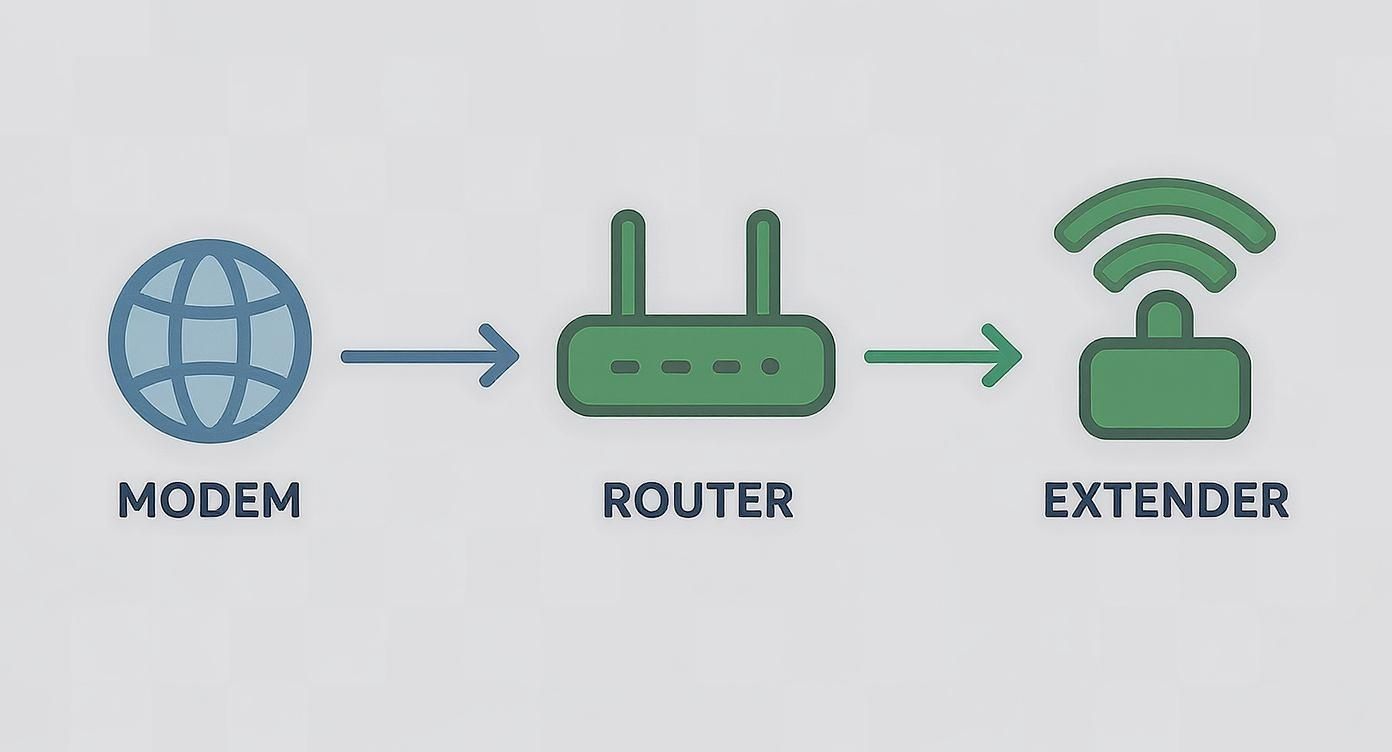
As you can see, the internet comes in through the modem, the router creates and manages your private network, and an extender simply picks up that signal and pushes it further.
Finding Your Way to the Web Management Page
With the device powered on, you need to get into its settings. Grab your phone or laptop and look for the default Wi-Fi network name printed on the little sticker on the AC750 itself—it will look something like "TP-Link_XXXX". Connect to it.
Now, open any web browser and type http://tplinkwifi.net into the address bar and hit enter. This should bring you to the TP-Link login screen. Since it’s your first time, it will prompt you to create a new administrator password. This is the key to your network's kingdom, so make it a good one.
A Quick Pro Tip: Don't make your admin password the same as your Wi-Fi password. Keeping them separate is a simple but effective security measure. It stops anyone who gets your Wi-Fi key from being able to mess with your router's core settings.
Let the Quick Setup Wizard Do the Heavy Lifting
Once you log in for the first time, most TP-Link devices will kick off a Quick Setup wizard. I always recommend using this. It's a guided tour that takes the guesswork out of the process, walking you through essentials like setting your time zone and, most importantly, choosing the correct operation mode (like Router or Range Extender).
For anyone in the Hamilton area who feels a bit out of their depth or just wants it done right the first time, getting a professional to handle it can be a huge relief. You can learn more about expert router and modem setup in Hamilton to make sure your network is perfectly optimized from day one.
Creating Your Own Secure Network
This is the part where you name your network and lock it down. You’ll be setting the Wi-Fi network name (also known as the SSID) and the password everyone will use to connect.
- Pick a smart SSID: Steer clear of using your name or address. Go for something a bit more creative or descriptive, like "TheJunction" or "Unit401_WIFI". If you're in Hamilton, a name like "TheHammerConnect" could work.
- Create a strong password: Aim for at least 12 characters. The best passwords are a jumble of uppercase letters, lowercase letters, numbers, and symbols. A memorable but complex phrase is your best bet—think "Rainy!DayOnJamesSt2024" instead of "password123".
The last thing the wizard usually does is ask if you want to check for a firmware update. The answer should always be yes. Firmware updates are not just for adding features; they contain critical security patches and performance tweaks for your TP-Link AC750. Running the latest firmware is one of the easiest ways to keep your network safe and running smoothly.
Getting the Best Wi-Fi Signal From Your TP-Link AC750
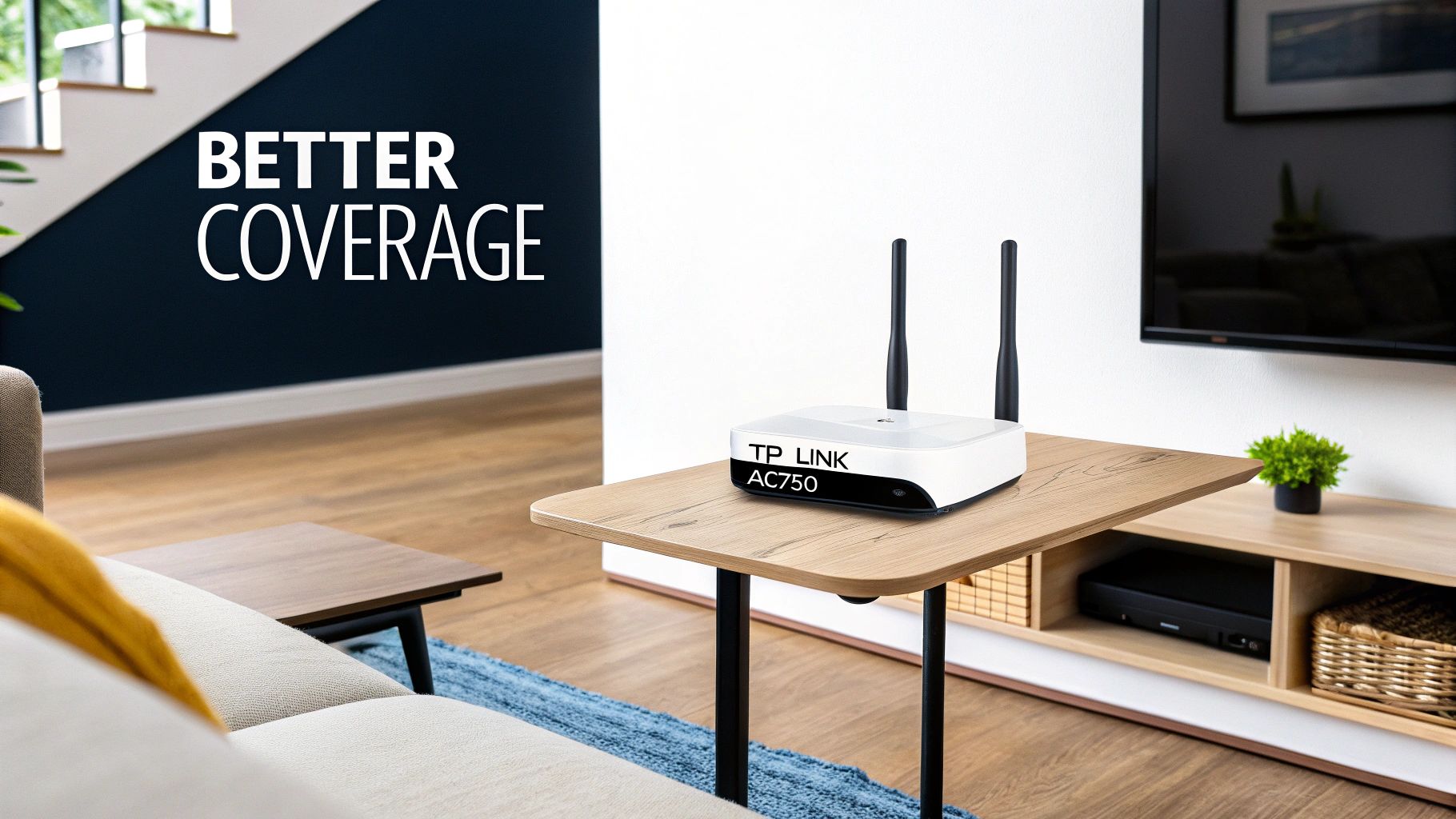
Just having a Wi-Fi signal isn't enough—you want a strong, steady connection in every room, from the basement office to the upstairs bedroom. Getting that kind of performance out of your TP-Link AC750 is all about placement. I always tell my clients to think of a router like a lightbulb; you wouldn't hide it in a drawer and expect it to light up the whole room.
Your router works best when it's in a central, elevated spot, out in the open. Tucking it away in a media cabinet or shoving it behind the sofa is a surefire way to create dead zones. Big metal objects like fridges or even reinforced walls are notorious signal killers.
Smart Placement for Maximum Coverage
In a typical Hamilton home, where brick and plaster walls are common, where you put your router matters even more. I usually recommend finding a spot on the main floor. Definitely keep it away from the kitchen; the microwave is a huge source of interference, especially for the 2.4 GHz band.
Don't forget the antennas! It's a small detail that makes a big impact. Try pointing one straight up and the other horizontally. This helps your router broadcast its signal across both the vertical and horizontal planes of your house, which is perfect for multi-level homes. If you're still battling frustrating dead spots, we have a detailed guide on how to improve your Wi-Fi signal with more advanced tips.
Fine-Tuning Your Wi-Fi Channel and Band
Your Wi-Fi network isn't alone. It's competing for airspace with every other network in your building, which can really drag your speeds down, especially in a condo or apartment complex on Hamilton Mountain.
Most routers automatically pick a channel, but sometimes they don't pick the best one. You can log into your TP-Link AC750's admin panel and manually set the 2.4 GHz channel to 1, 6, or 11. These are the only three that don't overlap, so they're usually the least congested options.
Here's a pro tip I always share: treat your two Wi-Fi bands as different tools for different jobs. Think of the 2.4 GHz band as a marathon runner (great for distance) and the 5 GHz band as a sprinter (built for speed).
Splitting your devices between these two bands is one of the easiest ways to improve your network's performance. Here's a simple way to think about it:
-
Use the 2.4 GHz band for:
- Devices that travel with you around the house, like your smartphone.
- Smart home gadgets like plugs, thermostats, and light bulbs that just need a stable, long-range connection.
-
Use the 5 GHz band for:
- Stationary, data-hungry devices like a smart TV streaming in 4K.
- Your gaming console or the work-from-home computer in your office. This band is much faster and less prone to interference.
Making these small tweaks can feel like a major upgrade. The TP-Link AC750 is a solid, cost-effective choice that matches well with the internet plans most Hamilton residents have. By strategically placing it and organizing your devices, you can get a surprisingly robust and reliable home network.
Solving Common TP-Link AC750 Connectivity Issues
Even a solid router like the TP-Link AC750 can hit a snag. Before you resign yourself to an afternoon on hold with tech support, let's walk through a few checks. Many of the most common connectivity headaches are surprisingly easy to fix.
Whether you're battling a connection that drops every hour or speeds that crawl despite a strong signal, the solution is often right at your fingertips. We'll break down the most frequent problems I see with local Hamilton networks and how to tackle them one by one.
Diagnosing Frequent Disconnections
There's nothing more frustrating than a Wi-Fi signal that keeps vanishing. If your devices are constantly getting kicked off the network, the culprit is often interference or an overloaded channel—a classic problem in crowded apartment buildings and dense neighbourhoods.
Before you dive into complex settings, try the oldest trick in the book: a simple power cycle. Unplug both your modem and your TP-Link AC750 router. Wait a good 30 seconds for everything to fully discharge, then plug the modem in first. Give it a minute or two to come completely online before plugging your router back in. This simple reboot clears the device's memory and solves a surprising number of minor glitches.
If the drops continue, your next move should be checking for a firmware update. Manufacturers regularly release these updates to patch bugs and improve stability. An outdated version is a common source of performance hiccups. Just log into your router’s admin page and see if a new version is waiting for you.
Why Is My Wi-Fi Slow with Full Bars?
Seeing full Wi-Fi bars on your phone but still getting molasses-slow speeds is a head-scratcher for many. This classic networking puzzle usually points to one of two things: you're on the wrong frequency band, or something unseen is clogging up your network.
Remember, your TP-Link AC750 has two highways: the 2.4 GHz band and the 5 GHz band. The 2.4 GHz frequency has great range, but it's slower and prone to interference from everything from microwaves to your neighbour's network. The 5 GHz band is much faster but doesn't travel as far. If your 4K smart TV is trying to stream on the crowded 2.4 GHz band, it's just not going to get the speed it needs.
A quick look at the connected devices list in your router's admin panel will show you which band each device is on. I always recommend manually connecting high-demand devices—like your work laptop, gaming console, or main TV—to the 5 GHz network to guarantee the best performance.
You might also be dealing with network congestion that has nothing to do with Wi-Fi. If your internet seems to cut out entirely but the lights on your router look normal, it could be a DNS issue. For those specific access problems, troubleshooting common DNS issues can be a real help in finding a solution.
When Devices Refuse to Connect
Sometimes, it’s just one specific device—a new smart speaker or an older laptop—that stubbornly refuses to connect, even when everything else works perfectly.
Let's start with the basics. We’ve all done it: triple-check that you're typing the Wi-Fi password correctly. If you're sure it's right, go into the device's network settings and tell it to "forget" your network. This wipes the slate clean and forces it to establish a brand-new connection from scratch.
If you’ve tried these steps and are still wrestling with connection drops or dead zones in your home, getting a professional to take a look can quickly pinpoint the root cause. For those in our service area, professional Wi-Fi troubleshooting in Hamilton can save you hours of frustration and get your network running smoothly and securely.
Advanced Security Tips and Portable Setups
Alright, your network is up, stable, and running smoothly. Now it's time to lock it down. A strong password is your first line of defence, but we can do a lot more to make your home network a digital fortress. This means digging into settings that give you tighter control over who—and what—gets connected.
One of the easiest security wins is to turn off WPS (Wi-Fi Protected Setup). It’s that push-button feature meant to make connecting new devices simple, but it’s also a well-known security risk. Head into your router’s settings and disable it. You're immediately closing a potential back door that hackers love to check.
Taking Control With MAC Filtering
If you want to get really serious about security, MAC filtering is your next step. Think of it as a bouncer for your Wi-Fi. Every single device—your laptop, your phone, even your smart toaster—has a unique hardware identifier called a MAC address. By setting up an "allow list" in your TP-Link AC750’s admin panel, you're telling the router, "Only let these specific devices in. No one else."
This is a fantastic layer of protection. Even if a neighbour somehow cracks your Wi-Fi password, their device won't be able to connect because its MAC address isn't on your VIP list. For the ultimate defence, you'd pair this with a dedicated hardware firewall. Our guide on firewall setup in Hamilton dives deeper into how that adds a crucial shield for your entire network.
The TP Link AC750 on the Go
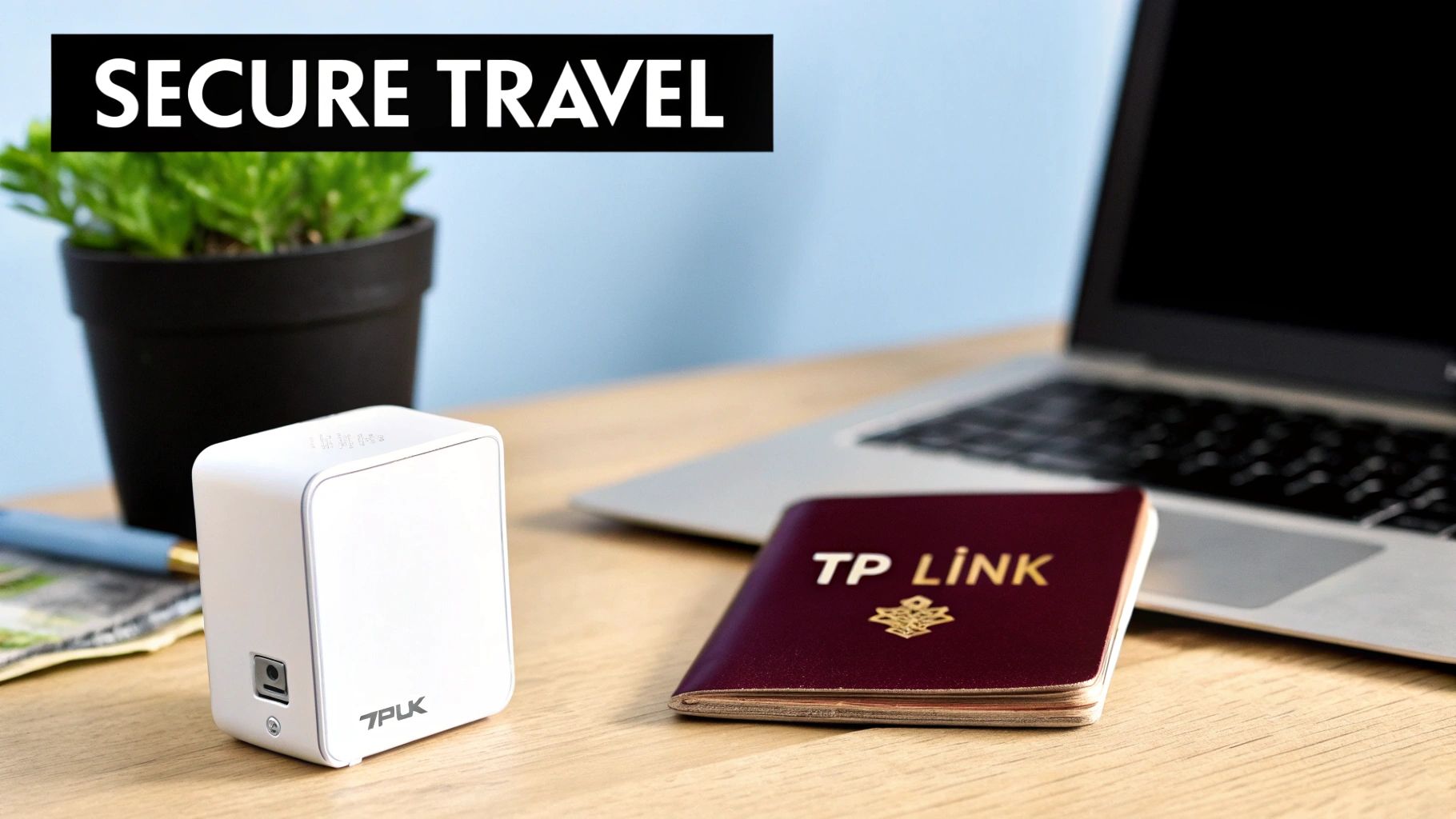
The tp link ac750 lineup isn't just for home base; its versatility shines with its portable models. The TP-Link AC750 Nano Router (specifically the TL-WR902AC) has become a go-to gadget for local professionals who need secure internet on the move. Its pocket-friendly size and ability to be powered by a simple USB port make it a surprisingly powerful tool for staying connected securely.
Public Wi-Fi, whether you're at a hotel in Toronto or a coffee shop in downtown Hamilton, is a security minefield. A travel router creates your own private, encrypted Wi-Fi network, effectively building a secure bubble around your devices and hiding them from others on the public network.
This little router is a chameleon, adapting to whatever situation you throw at it with several operating modes:
- Router Mode: Perfect for hotel rooms with a wired ethernet port. It takes that single wired connection and creates a private wireless network for all your devices.
- Hotspot Mode: This is the magic for public Wi-Fi. It connects to the public network and then creates your own secure, private network from that signal.
- Client Mode: Have a device that only has a wired port, like an old game console? This mode lets it connect to a Wi-Fi network.
For any Hamilton professional who travels, tossing a portable AC750 router in your bag is a smart, simple way to ensure you always have a secure and reliable connection, wherever your work takes you.
When to Call in the Pros
Look, fiddling with your TP-Link AC750 settings and following online guides can get you pretty far. Most common network hiccups can be sorted out with a bit of patience. But sometimes, you hit a wall, and that’s when the frustration really sets in. Knowing when to throw in the towel and call an expert isn't about giving up—it's about saving yourself a massive headache.
Often, the problem isn't even your router or extender. It's the environment. If your connection is constantly dropping for no obvious reason, something deeper is likely going on. This is especially common in older Hamilton homes, where materials like thick plaster, lath, and solid brick walls can absolutely kill a Wi-Fi signal in ways that moving your device an inch to the left just won't fix.
Signs You're Dealing with a Bigger Problem
You should also think about getting professional help if you're trying to cover a large or oddly shaped property. Stretching a single router's signal across a multi-storey house, a detached garage, or out to the backyard patio often creates a messy, unreliable network. At that point, you don't just need another gadget; you need a proper plan.
Keep an eye out for these red flags—they're your cue to call an expert:
- Stubborn Dead Zones: You've tried moving the extender everywhere, but parts of your house are still Wi-Fi black holes.
- Mysterious Slow Speeds: You’re paying for high-speed internet, but your Wi-Fi performance is terrible, even when you're standing right next to the router.
- Security Worries: You want to lock down your network but feel out of your depth trying to configure a firewall or set up a VPN.
A home network should just work. When you start spending more time troubleshooting it than actually using it, that's a clear sign you need a professional to find the root cause. It could be anything from signal interference to a simple misconfiguration, but an expert can pinpoint it and implement a fix that actually lasts.
What an Onsite Tech Brings to the Table
This is exactly where a local service like Klimka Computer Solutions comes in. An onsite technician doesn't just guess; we conduct a proper site survey with specialized tools that map out your home's signal strength and identify interference sources your phone's Wi-Fi app would never see.
We can figure out the best way to use your existing TP-Link AC750 or, if needed, design a more robust system with multiple access points for truly seamless coverage.
From diagnosing the real problem and securely setting up advanced features to making sure every corner of your property in the Hamilton area gets a rock-solid connection, professional help takes the guesswork out of the equation. Think of it as an investment in a stable, secure, and stress-free network.
Got Questions About Your TP-Link AC750? We’ve Got Answers.
Here are some quick answers to the most common questions we get from clients across Hamilton and the surrounding area about their TP-Link AC750 devices. Think of this as your go-to troubleshooting guide for those little head-scratchers.
How Do I Reset My TP-Link AC750 to Factory Settings?
Every so often, a fresh start is the best fix. To do a full factory reset, look for the small, recessed reset button, usually on the back of the unit.
Make sure the device is plugged in and turned on. Then, take a paperclip or a similar small object, and gently press and hold that button for about 8-10 seconds. The lights will start to flash, letting you know it’s wiping the slate clean and rebooting. Keep in mind, this erases all your settings—your network name, password, everything—so you'll have to set it up again from square one.
Can I Use the AC750 to Replace My ISP's Router?
That's a great question, but the answer really depends on which AC750 model you own.
If you have an AC750 router, like the Archer C2, then absolutely. You can often replace the routing function of the all-in-one box your internet provider gave you. The trick is to ask your provider to switch their device into what's called "bridge mode," which lets your much better TP-Link router handle all the heavy lifting.
On the other hand, if your AC750 is a range extender, like the RE200, then no. Its job isn't to create a network, but to grab your existing Wi-Fi signal and give it a boost into other areas of your home. It’s a team player, not the main quarterback.
For our clients in Hamilton, here’s the bottom line: An AC750 router can take charge of your network, while an extender simply boosts the signal you already have. Knowing which one you have is the key to a successful setup.
Why Did My 5 GHz Network Disappear?
It’s a frustrating moment when your speedy 5 GHz network seems to vanish into thin air. There are usually a few simple reasons for this.
First, pop into the AC750’s web admin panel and just make sure the 5 GHz radio is actually turned on. Sometimes a firmware update or a mis-click can disable it.
Another possibility is that the device you're using doesn't support 5 GHz. Many older smartphones, laptops, and smart gadgets are only built to see the 2.4 GHz band. Finally, remember that the 5 GHz signal is like a sprinter—fast, but with less stamina. It doesn't travel as far as the 2.4 GHz signal, so you might just be too far from the router to get a solid connection.
If you've run through these tips and your Wi-Fi is still acting up, don't waste another minute in frustration. Klimka Computer Solutions provides expert onsite support in Hamilton to get to the bottom of any network problem. Get in touch with us today and let us sort it out for you.
One Response
[…] After you see a confirmation light, you can unplug the adapter and move it over to its permanent home with your Ethernet-only device. For a more detailed walkthrough, you can check out our guide on the TP-Link AC750 setup process. […]