
When it comes to picking the best external hard drive for backup, it really comes down to one big decision: are you going with a classic Hard Disk Drive (HDD) or a speedy Solid-State Drive (SSD)? Your answer will depend on whether you value massive, affordable storage or lightning-fast, durable performance.
Choosing Your Ideal External Backup Drive in Canada
Finding the right drive here in Canada is all about matching the technology to what you actually do. If you're a photographer in Vancouver with a mountain of high-resolution RAW files, your needs are different from a small business owner in Toronto who runs daily backups. The choice between an HDD and an SSD will completely shape your backup experience, whether you're in a bustling city like Montreal or a community like Hamilton.
HDDs work with spinning magnetic platters, a tried-and-true method that lets them store huge amounts of data for a very low price. This makes them the perfect choice for archiving large files you don't need to grab every day. On the flip side, SSDs use flash memory and have no moving parts at all. This gives you almost instant access to your files and makes them far more resilient if you accidentally drop or bump them.
Quick Comparison HDD vs SSD for Backups
To make things even clearer, let's put them head-to-head. This table gives you an at-a-glance summary of the most critical factors when choosing between an HDD and an SSD for your backup needs in Canada.
| Factor | External HDD (Hard Disk Drive) | External SSD (Solid-State Drive) |
|---|---|---|
| Cost per Terabyte | Very Low – Ideal for maximizing storage on a budget. | High – You pay a premium for speed and technology. |
| Transfer Speed | Slower (Avg. 100-200 MB/s) – Suited for overnight or infrequent backups. | Extremely Fast (Avg. 500-2000+ MB/s) – Essential for large, frequent backups. |
| Durability | More fragile due to moving parts; susceptible to drop damage. | Highly durable with no moving parts; resistant to shock and vibration. |
| Best Use Case | Long-term archival, storing massive media libraries, budget-conscious users. | Frequent daily backups, backing up active projects, portable use for travellers. |
This comparison highlights the core trade-offs you'll be making. Your choice really depends on what you value most for your specific situation.
The core decision is simple: Prioritize capacity and cost with an HDD for long-term storage, or invest in an SSD for speed and resilience in your daily workflow.
Getting a handle on these key differences is the first step in building a solid digital safety net. A reliable backup strategy is absolutely essential for protecting both personal memories and professional work. If you'd like to explore how to build a more complete system, you can learn more about professional data backup solutions available to residents in Hamilton and the surrounding areas.
For those interested in what's available specifically in our market, including French-speaking regions, this French/Canadian Disk Comparison Overview offers a great look at local options. With this foundation, let's dig deeper to help you confidently select the best external hard drive for backup to safeguard your digital life.
HDD vs. SSD: A Look at the Core Technology
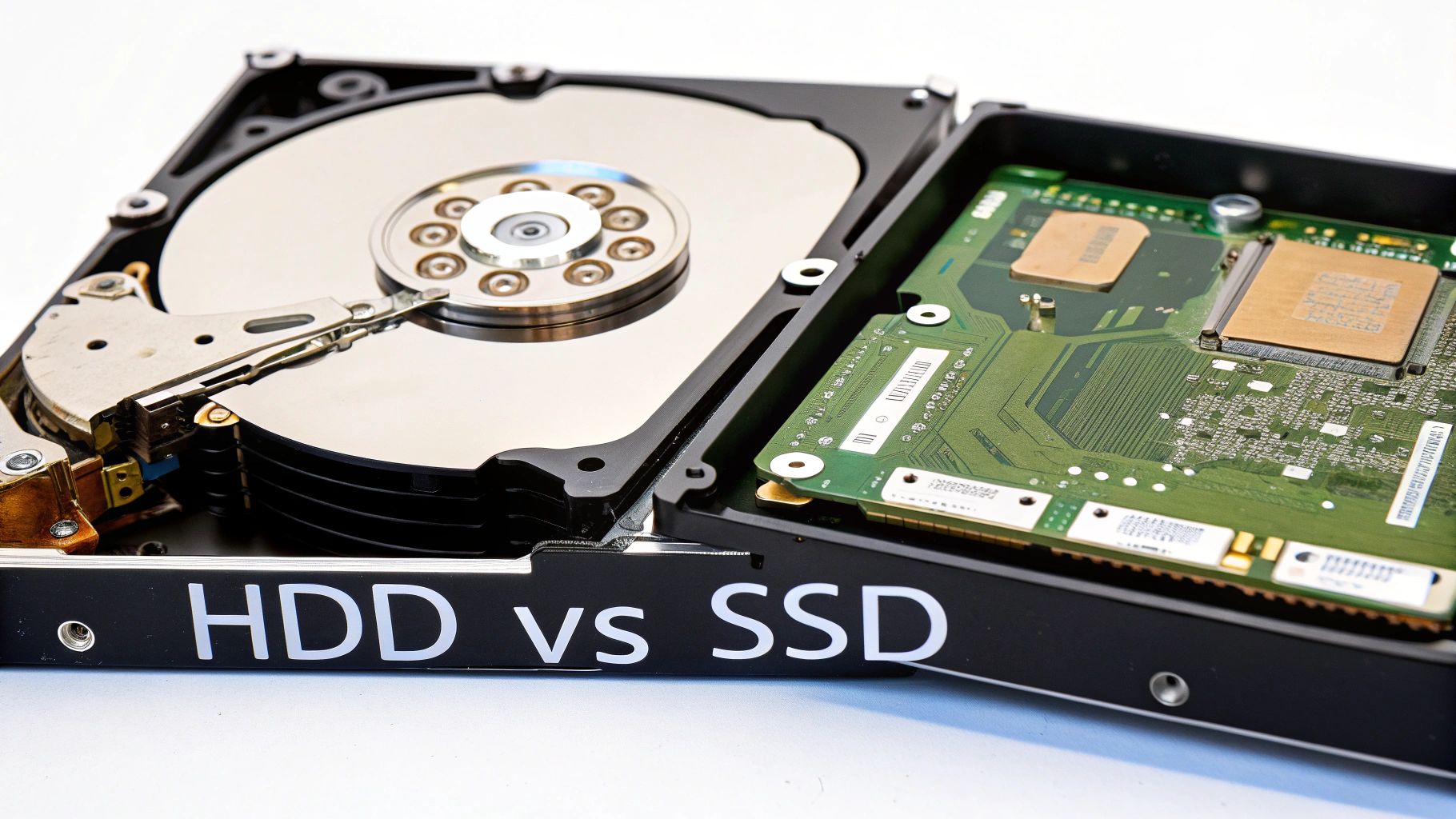
When picking an external drive for your backups, you have to look past the shiny plastic case and understand what’s running on the inside. The biggest choice you’ll make is between a classic Hard Disk Drive (HDD) and a modern Solid-State Drive (SSD). Their core mechanics are completely different, and that difference has a massive impact on how well they protect your data. This isn't just about "cheap vs. fast"; it's about matching the right tech to your specific backup needs in your local Hamilton area.
Think of an HDD as a miniature, high-tech record player. Inside, you’ll find spinning magnetic platters—disks that rotate thousands of times a minute. A tiny mechanical arm with a read/write head skates across these platters to access your files. It’s a proven design that has allowed manufacturers to pack huge amounts of storage into an affordable package.
SSDs, on the other hand, have no moving parts at all. They're built with flash memory, which is essentially a grid of electronic cells that store your data. Because it's all electronic, retrieving a file is almost instant. There's no waiting for a disk to spin up or for an arm to find its place.
Durability and Real-World Use
Those physical differences have huge implications for durability. An HDD’s reliance on moving parts makes it quite fragile. A drop, a hard knock, or even strong vibrations can cause the read/write head to slam into the platter, potentially scratching it and leading to complete data loss.
This is where SSDs really shine, especially for anyone who moves around. If you're a video editor in Montréal backing up project files on set, or a student in Halifax carrying an entire semester's work in your backpack, an SSD's resilience is a lifesaver. With no delicate mechanical parts to break, it can handle the bumps and jostles of daily life far better.
The core difference lies in their physical nature. An HDD's mechanical parts offer massive, affordable storage but introduce a risk of physical failure. An SSD's electronic, motionless design provides superior speed and durability, making it ideal for active or portable backup scenarios.
Performance in Backup Scenarios
Speed is where the gap between HDDs and SSDs becomes a chasm. The physical movement of a spinning disk limits a typical external HDD to transfer speeds between 100–200 MB/s. That’s fine if you’re running a weekly backup of a few documents overnight from your home in Hamilton, but it quickly becomes a bottleneck for bigger jobs.
By comparison, even a basic external SSD can hit speeds of 500 MB/s, and high-end models can easily blast past 1000–2000 MB/s. This completely changes the backup game. For a photographer in Calgary archiving terabytes of RAW photos, a backup that takes hours on an HDD could be done in minutes with an SSD. The workflow improvement is dramatic.
This same technology can have a huge impact on your computer's day-to-day performance. If you're considering an internal upgrade, our guide on hard drive and SSD upgrades in Hamilton offers some great insights into what you can expect.
You can see this shift playing out in the market. Global HDD shipments fell by 35% year-over-year in early 2023 as SSD prices became more accessible. Still, HDDs aren’t going away. North America, including Canada, represents about 40% of worldwide HDD revenue, largely because big media and cloud computing centres still need their cost-effective mass storage. While SSDs are the clear winners for performance, HDDs hold their ground for budget-friendly, high-capacity backups.
Comparing the Top External Backup Drives for Canadians
Alright, let's move from theory to practice and look at the actual hardware. Choosing the right backup drive in Canada means sifting through excellent options from brands like Western Digital, Seagate, and Samsung. Each one is built for a different kind of person, so let's dig into the details that really matter for day-to-day use.
Instead of just rattling off specs, we’ll compare these drives on performance, physical design, and what kind of support you can expect here in Canada. I want to highlight the key differences that set them apart in the real world, whether you’re working from a home office in Halifax or shooting content out in the Rockies.
The Workhorse HDDs: Seagate Expansion and WD Elements
When you just need a massive amount of storage without breaking the bank, it’s hard to argue with the classic desktop HDDs. Models like the Seagate Expansion Desktop and the Western Digital (WD) Elements Desktop have become staples in Canadian homes and offices for good reason. They give you huge capacity—we’re talking 4TB all the way up to a monstrous 24TB—at the lowest cost you'll find per terabyte.
These are the drives you get for archiving your entire photo library or setting up a "set it and forget it" backup with Time Machine or Windows File History. Their transfer speeds, usually hovering around 160-180 MB/s, are perfectly fine for overnight backups. They’re not flashy, but they're dependable workhorses for long-term, stationary storage.
The main difference often comes down to their physical footprint. The WD Elements typically has a more compact, vertical design that saves you a bit of desk space, while the Seagate Expansion has a distinct angled, textured case. Both need their own power adapter, so they’re really designed to live permanently beside your computer in Toronto or your media centre in Edmonton.
Rugged Portability: The LaCie Rugged HDD
For anyone working out in the field—photographers, videographers, surveyors—the LaCie Rugged HDD is an absolute icon. That bright orange bumper isn't just for looks; it provides serious drop, shock, and water resistance. If you’re shooting landscapes near Banff or documenting a construction site in Vancouver, this is the drive that can take a beating.
Its transfer speeds are what you'd expect from a portable HDD (around 130 MB/s), but you're not buying it for speed. You're buying it for durability. It connects and powers itself with a single USB-C cable, which makes it incredibly convenient for backing up files on the go.
The LaCie Rugged HDD’s true value isn’t speed, it’s resilience. It's about peace of mind for creative professionals who can’t afford to lose a day's work to an accidental drop or a sudden downpour—a very real scenario for many working across Canada.
This singular focus on physical protection makes it the default choice for anyone who values data safety in unpredictable environments over raw transfer speed.
The SSD Speed Demon: Samsung T7 Shield
When you need both speed and portability, the Samsung T7 Shield is a powerhouse. This little SSD can hit read/write speeds of up to 1,050 MB/s, which is fast enough to transfer gigabytes of data in just a few seconds. It’s perfect for a video editor in Montréal who needs to offload 4K footage fast, or a business professional in Calgary running large, frequent backups without getting bogged down.
The "Shield" part of its name points to its rugged build. It has an IP65 rating for dust and water resistance and is tough enough to survive drops of up to three metres. This blend of blistering speed and durability makes it a fantastic, all-around choice that works just as well in the office as it does out on a job site.
As a bonus, the T7 Shield comes with optional AES 256-bit hardware encryption. Just set a password, and your sensitive business or personal files are secure, even if the drive gets lost or stolen.
Ultimate Performance: The Samsung T9 SSD
For those who need the absolute fastest portable storage available, the Samsung T9 is in a class of its own. By using a USB 3.2 Gen 2×2 interface, this drive can reach incredible speeds of up to 2,000 MB/s. To be clear, this is overkill for just backing up documents. This is for professionals who need to work directly off their external drive.
Imagine editing complex video projects or multi-track audio sessions without ever having to move files onto your computer's internal storage. The T9 makes that a reality. It does come with a premium price tag, but the time it saves in a demanding professional workflow can easily justify the cost. The one catch? Your computer needs a matching USB 3.2 Gen 2×2 port to get those top speeds, and they aren't on every machine just yet.
Of course, no matter which drive you pick, stuff happens. Even the best hardware can fail. If you ever find yourself with a dead drive, knowing your options is key. Getting in touch with a professional service for SSD and USB external drive recovery in Hamilton could be what it takes to get your invaluable data back.
Top External Backup Drive Specifications in Canada
To help you see how these leading models stack up side-by-side, this table breaks down their key features. It's a quick way to compare what matters most for your needs.
| Model | Type (HDD/SSD) | Capacity Range | Avg. Transfer Speed (MB/s) | Interface | Best For |
|---|---|---|---|---|---|
| Seagate Expansion | HDD | 4TB – 24TB | ~160 MB/s | USB 3.0 | Budget-friendly mass archival and desktop backups. |
| WD Elements | HDD | 4TB – 22TB | ~180 MB/s | USB 3.0 | Cost-effective, high-capacity storage for home offices. |
| LaCie Rugged | HDD | 1TB – 5TB | ~130 MB/s | USB-C | Field photographers and travellers needing extreme durability. |
| Samsung T7 Shield | SSD | 1TB – 4TB | ~1,050 MB/s | USB 3.2 Gen 2 | Fast, secure, and rugged backups for professionals on the move. |
| Samsung T9 | SSD | 1TB – 4TB | ~2,000 MB/s | USB 3.2 Gen 2×2 | Elite performance for creative pros editing directly from the drive. |
As you can see, there's a clear trade-off between capacity, price, speed, and durability. The best external hard drive for your backup strategy will ultimately come down to which of these factors is most important for your personal or professional life.
Matching Your Drive to Your Real-World Backup Needs
Choosing the "best" external hard drive for a backup isn't about finding some magical, one-size-fits-all product. It's about finding the one that actually fits your life. The drive that’s perfect for a university student is worlds away from what a professional photographer needs. By looking at a few real-world Canadian scenarios, we can zero in on what really matters for you and pick a drive with the right mix of performance, capacity, and price.
This simple decision tree really gets to the heart of the matter: do you need pure speed, or are you after sheer storage capacity?
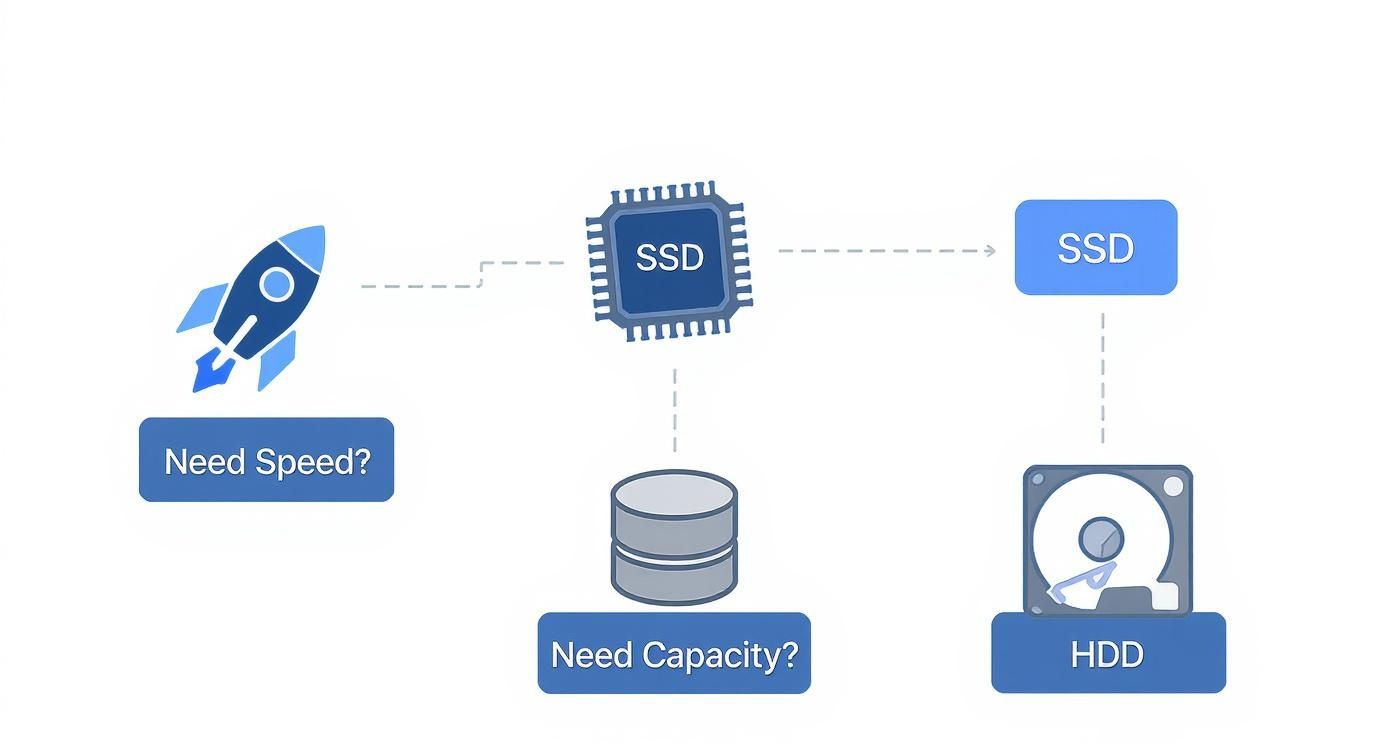
As you can see, if lightning-fast transfers for frequent, large backups are your main concern, an SSD is the only way to go. For just about everyone else, a traditional HDD offers the most storage for your dollar.
The Student in Halifax
Let's say you're a student at Dalhousie University in Halifax. Your world revolves around assignments, research papers, and lecture notes that need to be backed up reliably. You're always on the move—from your dorm to the library and then to class—so a clunky desktop drive that needs its own power outlet just won't cut it.
For this situation, a portable HDD in the 1TB to 2TB range is a perfect match. It’s small enough to toss in a backpack, gets its power directly from your laptop's USB port, and has more than enough room for all your school files. Speed isn't the top priority here; what you really need is affordability and portability.
The Photographer in Banff
Now, imagine you're a professional photographer capturing stunning landscapes in Banff National Park. You're creating a massive amount of data every single day, with each RAW photo file eating up a huge chunk of space. You need a drive that's tough enough for the great outdoors and has enough capacity to offload several memory cards after a long shoot.
This is where a rugged, high-capacity portable drive becomes essential. Something like the LaCie Rugged HDD, famous for its shock and water resistance, gives you that much-needed peace of mind. If you need to get those files transferred faster in the field, a durable SSD like the Samsung T7 Shield is a great blend of speed and resilience. Capacity is also a huge deal, so looking at drives in the 4TB or 5TB range is a smart investment.
The Small Business in Ottawa
Picture a small accounting firm in Ottawa responsible for daily backups of sensitive client data and financial records. The drive will stay put, so portability is a non-issue, but security, reliability, and automation are absolutely critical.
In a stationary business setting, a desktop HDD is easily the most logical and cost-effective choice. It delivers the massive capacity required for versioned backups over long periods, meaning you can restore files from a specific day or week if something goes wrong.
A model like the WD Elements Desktop in the 8TB to 12TB range would be ideal here. When you pair it with backup software that offers encryption, you get a secure, automated system. For an even higher level of protection against data tampering and ransomware, it's worth understanding different backup strategies. You can learn more about immutable backup solutions for ransomware defense as a powerful added security layer.
The Family in Winnipeg
Finally, think about a family in Winnipeg who wants to create a central archive for decades of digital photos, home videos, and important documents. The main goal is long-term, dependable storage—a digital time capsule, really. The files won't be accessed all the time, so blazing-fast speed is less important than massive, affordable capacity.
This scenario is the perfect use case for a large-capacity desktop HDD. A 10TB or larger drive gives you a single, consolidated home for all the family's digital memories. You can connect it to the main family computer and know that everything is being backed up to one safe place. While physical drives are a fantastic foundation, many families also combine them with cloud services for a complete 3-2-1 backup strategy. If you're weighing your options, our guide on data backup and cloud migration in Hamilton can provide some valuable insights.
This growing need for reliable backup is a huge driver of market growth. The global external storage market is expected to jump from USD 45.23 billion in 2023 to USD 120.45 billion by 2033, expanding at an annual rate of 10.2%. While SSDs are gaining ground with their speed, the unbeatable cost-per-gigabyte of HDDs means they will remain the go-to choice for large-scale data archiving for years to come.
What to Look for Before You Buy
Picking a good backup drive goes way beyond just looking at capacity and speed. There are a few critical details that separate a drive that works today from one you can rely on for years to come. Getting these right will make a huge difference in your day-to-day experience.
One of the most overlooked factors is the connection interface. This is the port that connects the drive to your computer, and it sets the speed limit for your data transfers. You could have the fastest drive in the world, but it won't matter if the connection is slow.
A Quick Guide to Connection Interfaces
Think of the interface as a highway. The type of port you have on both your drive and your computer determines how many lanes of traffic you get for your data. Here’s a quick rundown of what you’ll see out there:
- USB 3.2 Gen 1: You might see this labelled as "USB 3.0." It gives you speeds up to 5 Gigabits per second (Gbps). It's a rock-solid, common standard that's perfectly fine for most traditional hard drive (HDD) backups.
- USB 3.2 Gen 2: This one kicks things up a notch, doubling the speed to 10 Gbps. For an external SSD like the Samsung T7 Shield, this is the sweet spot. You'll really notice the difference when moving big files.
- Thunderbolt 3 / 4: This is the top tier, delivering a massive 40 Gbps connection. You'll find it on Macs and many high-end PCs. While it’s overkill for simple backups, it’s a game-changer for creative professionals who edit video or audio directly from an external drive.
Before you spring for a high-speed drive, take a moment to check the ports on your computer. Plugging a super-fast drive into an old, slow port is like putting a V8 engine in a lawnmower—all that power just goes to waste.
Thinking About Security and Software
Protecting your data isn't just about having a second copy; it's also about keeping it safe. If you're backing up sensitive business files or personal information, hardware encryption is non-negotiable. It scrambles data at the hardware level, so even if someone steals the drive, your files are unreadable without the password.
Drives like the Samsung T7 Shield feature built-in AES 256-bit hardware encryption, which is the gold standard for data security. This is much stronger and more reliable than software-only encryption, which can sometimes be bypassed.
You have a choice to make: use the backup software that comes with the drive, or stick with your computer's built-in tools like Time Machine (Mac) or File History (Windows). The bundled software might offer fancy features, but the native tools are often simpler and just work.
For most people, the built-in solutions are more than enough for setting up a regular backup schedule. But remember, no software can help if your entire system crashes. If you ever face a catastrophic failure that requires a fresh start, our guide on how to reinstall the Windows operating system can help you get back on your feet.
Warranty and Brand Reputation Matter
Don't skip over the warranty details. When a manufacturer offers a long warranty—typically three to five years on a premium drive—it's a sign of confidence. It tells you they used better components and expect the drive to last.
While any drive can fail, brands like Seagate, Western Digital, and Samsung have earned their reputations for reliability over decades. It's also smart to double-check OS compatibility, especially for Mac users, to ensure the drive and its software play nice with your system. Paying attention to these small details ensures your investment is one you can actually depend on.
The drive for bigger and more dependable storage is always on, especially in tech-focused regions. Companies based in California, like Seagate, are at the forefront of developing drives with higher platter densities, which is what gives us those huge, affordable backup drives. And don't think HDDs are obsolete—industry data from 2023 shows that 26.6% of users still rely on them, with external backups being a primary use case. You can learn more about the hard disk drive market and see how it's still evolving.
Frequently Asked Questions About Backup Drives
Picking the right backup drive usually boils down to a few common questions. It's easy to get stuck on the details, but answering these queries will help you choose with confidence and keep your digital life secure.
How Much Storage Capacity Do I Actually Need for Backups?
A good rule of thumb is to get a drive that’s at least twice the size of the data you plan to back up. This simple guideline ensures you have enough room for future files and can keep multiple versions of your backups, which is a lifesaver if a file gets corrupted.
So, if you're backing up a 512GB laptop at your home in Hamilton, a 1TB or 2TB external drive is a smart, practical choice. But if you’re a photographer in Vancouver or a videographer in Toronto with huge project files, you’ll want to look at something in the 8TB to 16TB range to avoid running out of room anytime soon.
Think of it this way: you want a drive that serves you now and for the next few years. Being forced to delete old backups or buy a second drive because you ran out of space is a hassle you can easily avoid by buying bigger from the start.
Is an External SSD Worth the Extra Cost for Just Backing Up Files?
That really comes down to how you work. If you’re constantly backing up large files—think daily video edits or massive photo catalogues—an SSD’s speed is a game-changer. The time you save can genuinely be worth the higher price. Plus, their durability makes them the clear winner for anyone who travels with their data.
On the other hand, if you’re just doing weekly or monthly backups of documents and family photos, a traditional HDD is much better value. You get far more storage for your dollar, making it the most cost-effective solution for a stationary archive in your home office in Calgary.
Should I Rely on Cloud Backup or an External Hard Drive?
Why not both? The most reliable backup strategies use a mix of local and off-site storage. This is often called the 3-2-1 rule: keep at least three copies of your data, on two different types of media, with one of those copies stored off-site.
In this setup, your external hard drive from a local shop in Ottawa is your fast, accessible local backup (the "2"). A cloud service then acts as your off-site copy (the "1"), protecting your files from local disasters like fire, flood, or theft. They aren't competing options; they're complementary tools that work together to create a rock-solid backup plan.
At Klimka Computer Solutions, we know that protecting your data is non-negotiable. Whether you need help setting up a new backup system, recovering files from a failed drive, or upgrading your storage, our expert team in Hamilton is ready to provide fast, honest, and reliable service. Protect your digital life today by visiting us at https://klimkacomputersolutions.com.
7 Responses
[…] To explore specific models and strategies that fit your needs, you can learn more about finding the best external hard drive for backup in our detailed […]
[…] Secure Backups: Create offline, "cold storage" copies of your most important files. For more permanent solutions, you can also explore our guide on choosing the best external hard drive for backup. […]
[…] Data Backup: Creating physical, long-term backups of your most important files. This is a fantastic supplement to digital methods. For a complete strategy, you can explore insights on choosing the best external hard drive for backup. […]
[…] Efficient Backups: Make quick copies of your important files onto spare drives. It's a great way to create secure, offline backups. You can learn more in our guide on choosing the best external hard drive for backup. […]
[…] It's the same principle as creating secure data backups, like when you choose the best external hard drive for backup for critical files. The goal is to eliminate any single point of […]
[…] If you need a reliable place to store your most important files, take a look at our guide on choosing the best external hard drive for backup. […]
[…] back up everything from customer data to financial records. For more on this, our guide on choosing the best external hard drive for backup has some great tips on building a solid […]