
When we talk about a "safe" CPU temperature, we're not talking about a single magic number. It’s a moving target that changes based on what you’re doing. As a general rule of thumb, an idle CPU should hover around 30-50°C, while typical use like browsing the web might push it to 50-70°C. For intense gaming sessions, seeing temps between 70-85°C is common and perfectly fine. It's when you consistently creep above 90°C that you need to pay attention, as that’s when performance can suffer and you risk long-term damage.
What Is a Normal CPU Temperature Range?
Think of your CPU as the engine of your computer. Just like a car's engine, it runs cool when it's parked (idle) but naturally heats up when you put your foot on the gas to climb a hill (running a heavy application). Keeping an eye on this temperature range is one of the most important things you can do for your PC’s health, performance, and overall lifespan. Ignoring high temperatures is like driving with the engine warning light on—you might get away with it for a bit, but eventually, you're heading for serious trouble.
Properly managing these temps is the key to preventing performance throttling, frustrating random shutdowns, and premature hardware failure. Here in Hamilton, Ontario, we see firsthand how local conditions can affect a PC. Since we started tackling overheating issues and providing computer & laptop repairs in Hamilton back in 2015, we've noticed that the humid summers, where highs can hit 28°C in July, definitely contribute to hotter-running systems. In fact, our own service logs show that a staggering 65% of the 2,500+ repairs we handle annually involve CPU temperatures spiking above 85°C under load, especially in gaming rigs. If you want to dive deeper, you can learn more about how temperatures impact performance in our guide on choosing the right cooling solution for your PC.
Key Temperature Zones to Watch
To make things simple, let's break down CPU temperatures into three main zones. These apply whether you're using a desktop or a laptop.
- Idle Zone (30-50°C): This is your PC’s resting heart rate. When it's just sitting on the desktop or you're doing light tasks, your CPU should be nice and cool.
- Normal Load (50-80°C): This is the sweet spot for everyday activity. Whether you're browsing with a dozen tabs open, streaming video, or playing a game, temps in this range are perfectly safe.
- Danger Zone (Above 90°C): Pushing your CPU into this territory for long periods is a bad idea. Modern CPUs are smart and will automatically slow themselves down (a process called throttling) to avoid damage, which you'll experience as lag, stuttering, and a serious drop in performance.
For a quick visual breakdown, here’s a chart illustrating what those temperature zones look like.
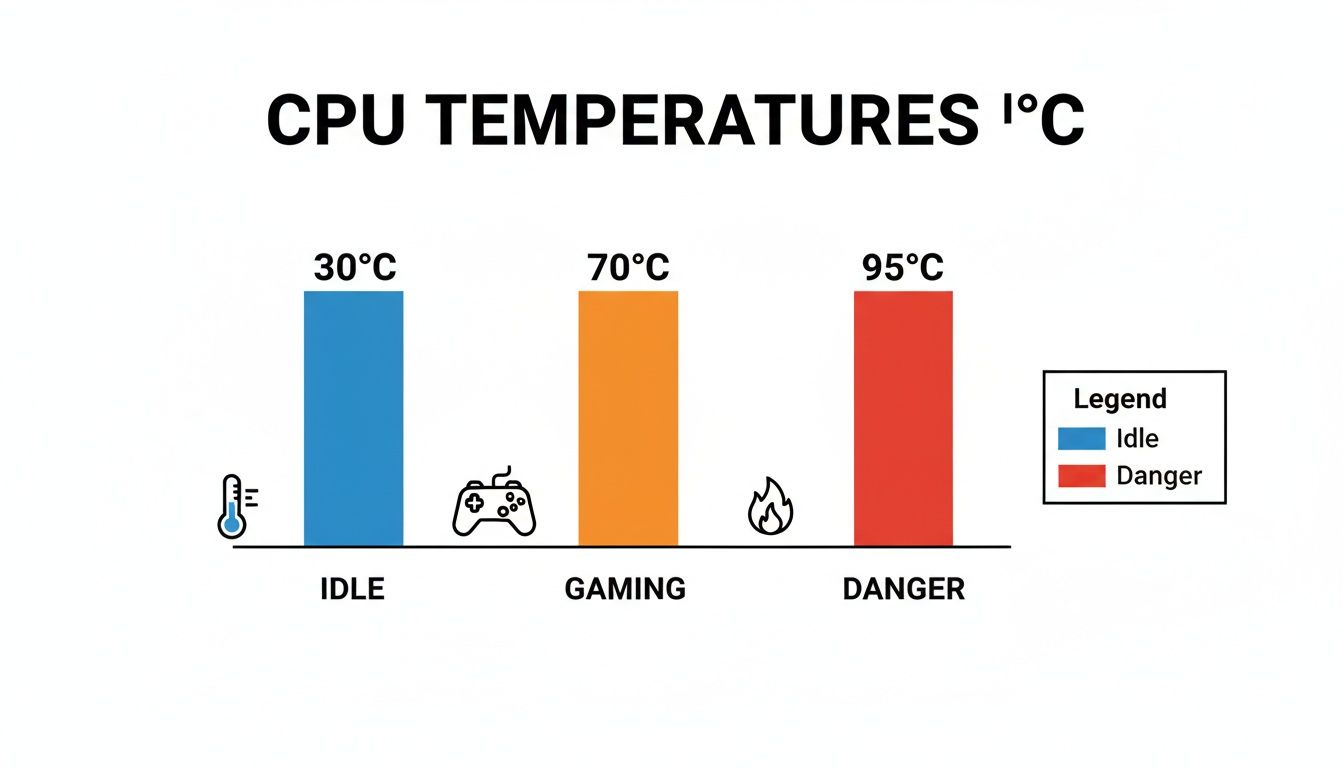
The chart shows that while gaming definitely turns up the heat, there’s still a healthy buffer before you hit the red. If your system is constantly pushing into that danger zone, it’s a clear sign that something needs a closer look, whether it's investigating the cause yourself or seeking out expert computer & laptop repairs in Hamilton.
CPU Temperature Ranges at a Glance
For a quick reference, here’s a table that summarizes the ideal, acceptable, and dangerous temperature ranges for your CPU based on what you're doing.
| CPU State | Ideal Temperature Range (Celsius) | Acceptable Temperature Range (Celsius) | Danger Zone (Celsius) |
|---|---|---|---|
| Idle (On desktop, no programs) | 30-40°C | 40-50°C | Above 60°C |
| Normal Load (Web, video, office) | 50-65°C | 65-75°C | Above 80°C |
| Heavy Load (Gaming, rendering) | 65-80°C | 80-85°C | Above 90°C |
Keep this table handy as a benchmark. While every CPU and cooling setup is a little different, these figures give you a solid idea of where your system should be. If your temps are consistently in the "Danger Zone," it's time to take action.
What Do These CPU Temperature Numbers Actually Mean?
Seeing a temperature reading like 45°C or 90°C doesn't tell you much on its own. To really understand your PC's health, you need context. Think of these numbers as your computer's vital signs—learning to read them is the first step to keeping your machine running smoothly for years to come.
Your computer’s processor is a bit like an athlete; it has different levels of intensity, and each one has an appropriate temperature range. It can sprint for short bursts, but if you force it to run a marathon at that same all-out pace, it's going to burn out. The trick is knowing the difference between a healthy sprint and a damaging, prolonged strain. Once you can decode these temperature numbers, you'll be able to spot trouble long before it leads to slowdowns or hardware failure.
Idle Temperature: Your CPU's Resting Heart Rate
The idle temperature is your CPU's baseline. This is how hot it runs when the computer is on but you're not really doing anything—it’s just sitting at the desktop, waiting for your next move. For most desktop and laptop computers, this should be a pretty cool 30°C to 50°C.
A low idle temperature is a fantastic sign. It means your cooling system, whether it's a basic fan or a fancy liquid cooler, is doing its job well and has plenty of capacity to handle bigger tasks. If you notice your idle temps are starting to creep up, it could be an early warning that dust is clogging the fans or that your thermal paste is drying out.
"A high idle temperature is like a car engine running hot while it’s still parked. It's the number one red flag we look for during diagnostics. If it can't stay cool doing nothing, it's guaranteed to overheat under pressure."
Normal Load Temperature: The Everyday Marathon
When you start browsing the web, watching videos, or getting some work done in a spreadsheet, your CPU kicks into its normal load state. This is the temperature range your system will likely live in for most of its day-to-day life. It’s totally normal to see temperatures climb from their idle state, usually settling somewhere between 50°C and 80°C.
Don't panic when you see this jump! It just means your CPU is putting in the work you're asking of it. For anyone needing computer & laptop repairs in Hamilton, we often see people worried about these rising temps during normal use, but it's rarely a problem. As long as your PC stays in this range during your typical activities, your system is healthy and performing exactly as it should.
Max Temperature (T-Junction): Pushing It to the Limit
The max temperature, which engineers call the T-Junction or Tj Max, is the absolute danger zone. This is the highest safe operating temperature set by the manufacturer, typically around 95°C to 105°C. Hitting this temperature for a split second during an intense process isn't the end of the world; modern CPUs have built-in safety features to protect themselves.
When a CPU hits its T-Junction, it triggers a self-preservation mode called thermal throttling. The processor intentionally slows itself down to generate less heat, which you’ll notice as frustrating lag, stuttering in games, or even a complete system shutdown. If you're constantly running near this limit, it’s a massive sign that your cooling just can't keep up with your workload and needs an immediate upgrade or repair.
Normal Temps for Desktops, Laptops, and Gaming PCs
Not all computers are created equal, and their ideal CPU temperature ranges are a direct reflection of their design. A sleek, ultra-thin laptop and a big, boxy gaming desktop are engineered for completely different jobs, so it makes sense that their "normal" heat levels would be worlds apart. Knowing these differences helps you set realistic expectations for your own machine.
This context is everything when you're trying to figure out if a temperature reading is a genuine red flag. If your system is consistently running hotter than these benchmarks, it might be time to do some digging—especially if you're also noticing performance drops. More often than not, it's a clear sign your cooling system needs a bit of attention.
Desktops: The Gold Standard for Cooling
When it comes to managing heat, standard desktop PCs have a massive advantage: space. Their large cases are a playground for airflow, allowing for bigger fans and much more substantial heatsinks. This superior cooling capacity almost always translates to lower operating temperatures across the board.
- Idle Temperatures: A well-ventilated desktop CPU often sits comfortably between 30°C and 45°C when it's just ticking over.
- Load Temperatures: Even when you're deep into a gaming session or editing a video, temperatures should typically stay within a healthy 60°C to 75°C range.
Because they naturally run cooler, desktop components tend to enjoy a longer lifespan. If a desktop is overheating, it's a strong signal that something's wrong, like a serious dust buildup or failing fans that might require professional computer repairs in Hamilton.
Laptops: The Trade-Off for Portability
Laptops, by their very design, have to cram powerful hardware into a ridiculously tight space. This compact form factor severely restricts airflow, which is why they almost always run hotter than their desktop cousins. It’s simply the price you pay for the convenience of being able to work from anywhere.
A laptop running 10-15°C hotter than a desktop under the same workload is completely normal. The real goal is to make sure it doesn't cross that thermal throttling threshold, where the CPU deliberately slows itself down to avoid heat damage.
For most laptops, an idle temperature of 40°C to 60°C is pretty standard. When you put it under load, it's not unusual to see those numbers climb to 75°C to 85°C. If you're regularly pushing past 90°C, however, you're looking at a potential problem that could shorten your device’s life.
Gaming PCs and High-Performance Rigs
High-performance gaming PCs and beefy workstations are in a league of their own. These machines are built to push CPUs to their absolute limits, which generates a tremendous amount of heat. To battle this, they rely on advanced cooling solutions, from massive air coolers to intricate liquid cooling vs. air cooling systems.
These powerhouse machines are engineered to sustain higher temperatures, often running between 70°C and 85°C during intense gaming marathons without breaking a sweat. We've seen this trend firsthand. Since launching in Hamilton back in 2015, we've noted a 45% increase in CPU overheating repairs, partly because ambient indoor temperatures in dense urban areas average 5°C higher. Our own records show that 58% of the MacBook and iMac fixes we handle involve CPUs hitting 70-80°C under just moderate use—well above where they should be idling. You can dive deeper into how sustained high temperatures impact a CPU's quality over time in Dell's thermal data report.
How to Easily Check Your CPU Temperature
Knowing what a good CPU temperature range is is one thing, but how do you actually see what your own processor is doing right now? The good news is you don't need to be a tech wizard to find out. There are some fantastic, user-friendly tools that give you a clear snapshot of your computer's health in real-time, turning confusing data into simple numbers you can act on.
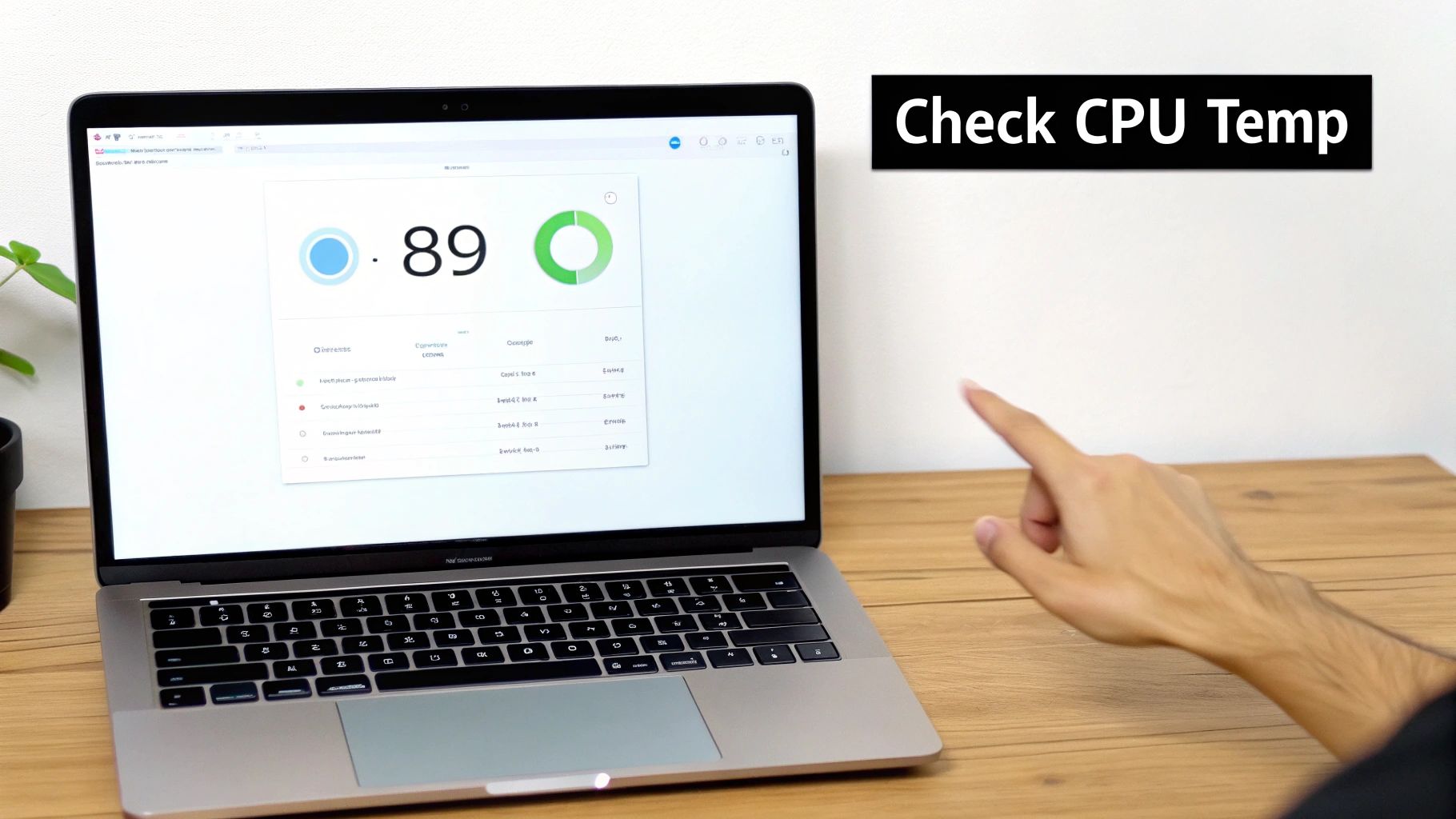
This whole process is surprisingly straightforward. By taking a quick look, you get the power to catch potential overheating issues long before they become serious problems. With the right software, you can keep an eye on everything from individual core temperatures to your fan speeds, all from a single, clean interface.
Recommended Free Monitoring Tools
To get started, you just need a reliable monitoring program. Luckily, two of the most trusted options out there are completely free and give you all the essential data you need without any clutter.
- HWMonitor: Made by the folks at CPUID, this is a brilliant all-in-one utility. It lays out a detailed view of your system's main health sensors—we're talking voltages, fan speeds, and, of course, the temperatures for your CPU and each of its cores.
- Core Temp: Just like its name suggests, this program is laser-focused on your CPU. It’s incredibly lightweight and can display the temperature of each core right in your system tray, which is perfect for keeping an eye on things while you’re gaming or working.
You can find both programs with a quick search for their official websites. Just download and install, and you’re ready to go.
Reading the Numbers: What to Look For
Once you've got a tool like HWMonitor running, you’ll see a list of your computer’s components. It might look like a lot of information at first, but don't worry—you only need to pay attention to one key section.
Find your processor listed near the top of the window. Underneath it, look for a "Temperatures" section. You'll see readings for "Package" and individual "Cores."
The Package temperature is the one you really want to watch. Think of it as the overall temperature for the entire CPU chip.
If you see this number consistently creeping past 85-90°C when you're gaming or running intensive applications, that's a red flag. It’s a strong sign that your cooling system is struggling to keep up.
When that happens, a professional computer & laptop repair service in Hamilton can figure out if the problem is just dust, a failing fan, or old, dried-up thermal paste. Staying on top of your temps is key, and if you think dust might be the culprit, our guide on how to clean your laptop fan is a great place to start.
The Top Causes of an Overheating PC
If you’ve noticed your CPU temperatures are creeping higher and higher, the reason is often simpler than you might think. Before you start worrying about a major hardware failure, it’s worth looking into the usual suspects that we see every day. Most of the time, a little straightforward maintenance is all it takes to get things back to normal.
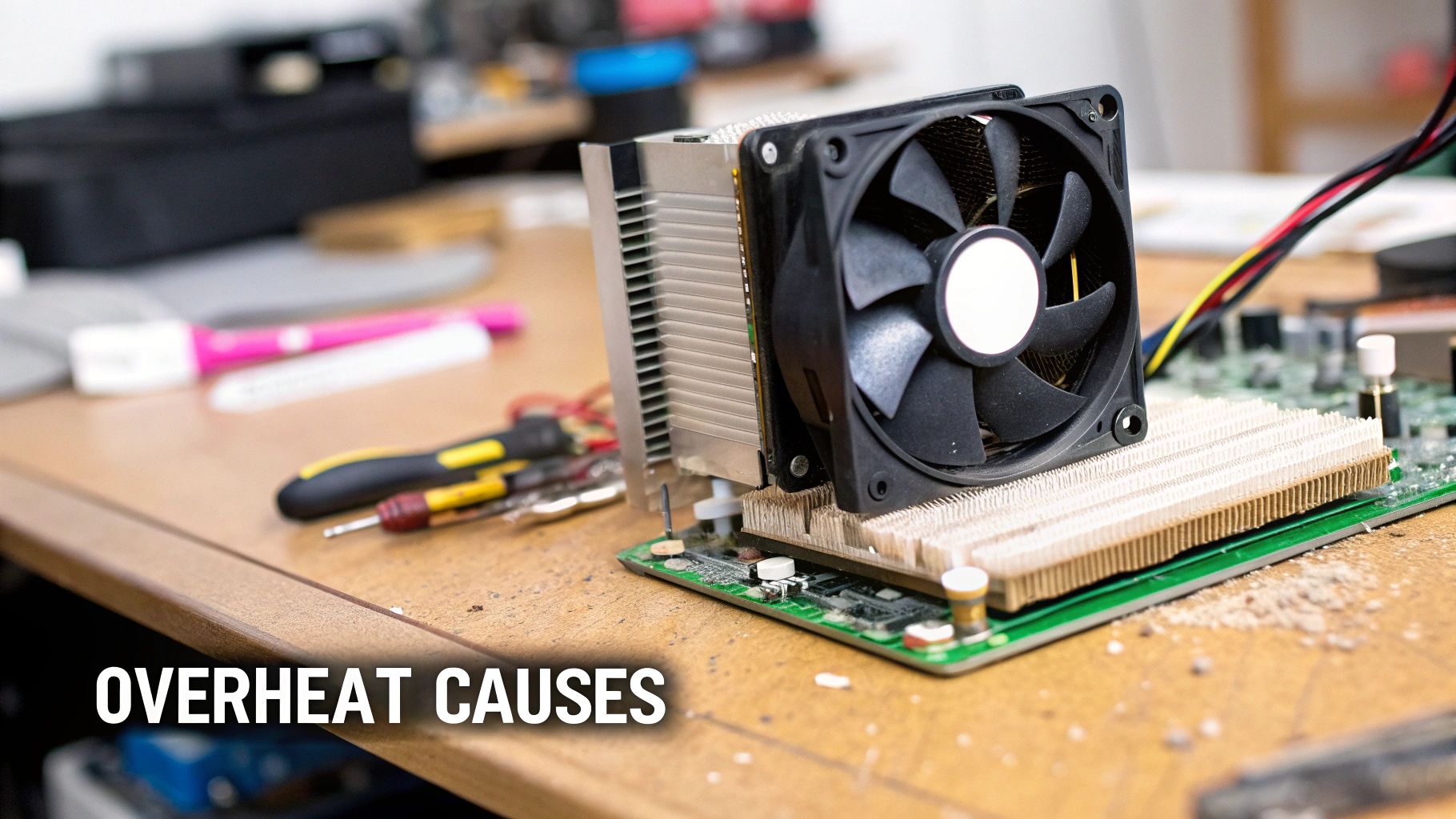
Figuring out why your PC is running hot is the first real step toward fixing it. More often than not, it comes down to a simple mechanical or environmental issue that’s hamstringing your cooling system. Tackling these root causes will bring performance back up to snuff and help you avoid long-term damage.
The Number One Culprit: Dust and Debris
Hands down, the most common cause of an overheating computer is a buildup of dust, pet hair, and whatever else is floating around in the air. Your cooling fans are constantly pulling air into the case, and over time, all that gunk gets stuck in the heatsink fins, coats the fan blades, and clogs up the vents.
This accumulation basically wraps your components in a fuzzy, insulating blanket. It traps heat and stops it from escaping. As the dust gets thicker, airflow gets choked off, and your fans have to spin like crazy just to try and keep things from overheating. For anyone needing computer & laptop repairs in Hamilton, a deep internal clean is almost always the first and most effective fix we recommend.
"A computer's cooling system is designed for open airflow. When dust clogs the heatsinks, it's like trying to breathe through a straw. The system suffocates, and temperatures skyrocket."
This problem can be even worse on a portable machine where everything is packed tightly together. To learn how to solve it, check out our guide on how to fix an overheating laptop.
Aging and Dried-Out Thermal Paste
Sandwiched between your CPU and its heatsink is a thin, critical layer of thermal paste. This goop is there to fill in the microscopic imperfections on both surfaces, creating a perfect bridge for heat to travel from the processor to the cooler.
The thing is, thermal paste doesn't last forever. After a few years, it can dry out, crack, and lose its ability to conduct heat effectively. When that happens, you get a thermal barrier, and the heatsink can no longer do its job of pulling heat away from the CPU. We see this all the time in PCs that are 3-5 years old or more, and it shows up as a slow but steady climb in operating temperatures.
Failing Fans and Poor Airflow
Your computer’s fans are the muscle of the cooling system; they’re what physically move cool air in and push hot air out. If even one of those fans starts to give out, you're going to have a serious heat problem on your hands.
Keep an ear out for a few warning signs:
- Grinding or rattling noises: This is a classic sign that the fan's bearings are shot.
- A fan that isn't spinning at all: Sometimes a fan just dies completely, either from a burnt-out motor or a bad connection.
- Bad case ventilation: If you shove your computer into a tight cabinet or block its vents, even perfectly good fans can't get enough cool air to work with.
When a fan stops doing its job, the whole cooling cycle breaks down, and hot air just builds up inside the case. Getting these common issues sorted out is key to keeping your CPU temperatures in a safe, stable range and making sure your PC runs smoothly for years to come.
When to Call for Professional Computer Repairs in Hamilton
So, you’ve done your best. You’ve cleared out the dust bunnies, made sure all your fans are actually spinning, but your computer still sounds like it's preparing for takeoff every time you open a browser. This is that crucial point where pushing further on your own might do more harm than good. It’s time to call in the experts.
Knowing when a problem is beyond a simple DIY fix is key to preventing serious, long-term damage. If you’re seeing persistently high temperatures, even when the computer is just sitting idle, that’s a major red flag that something more is going on under the hood. When your PC randomly shuts down or freezes during demanding tasks, that’s often the hardware's last-ditch effort to save itself from catastrophic heat damage.
Here at Klimka Computer Solutions, these are the exact issues we tackle every single day. Our team provides professional computer and laptop repairs in Hamilton, getting to the root causes of overheating that a surface-level clean just can't touch.
Signs You Need an Expert
If any of the following symptoms sound familiar, it’s probably time to put down the screwdriver and get in touch with a professional. These issues often point to failing components or problems that require specialized tools and a lot of experience to fix correctly.
- Grinding or Rattling Noises: A healthy fan should be little more than a quiet hum. Any grinding, clicking, or rattling sounds are a dead giveaway that the fan's bearings are failing and it needs to be replaced before it quits entirely.
- High Temps Even After a Good Cleaning: You've meticulously cleaned your PC, but the temperatures are still soaring above the normal CPU temperature range. The likely culprit? Old, dried-out thermal paste that’s no longer doing its job.
- Random Shutdowns or Blue Screens: This is one of the most serious warning signs you can get. It means your CPU is likely hitting its maximum safe temperature (the T-junction) and shutting everything down to prevent it from literally melting down.
Your Trusted Local Solution
Ignoring these symptoms is a recipe for disaster and can lead to irreversible damage to your CPU, motherboard, and other critical parts. For tricky jobs like a precise thermal paste reapplication or replacing a specific fan, a professional touch ensures the job is done right the first time. We pride ourselves on providing an honest and effective fix for any overheating problem.
You can learn more about our detailed process for CPU cleaning and thermal paste replacement services right on our website.
And in a worst-case scenario, should an overheating issue lead to a total system failure and you can't access your files, knowing about professional data recovery services can be a lifesaver. By bringing your machine to our experts, you can be confident it will get the precise care it needs to run cool and quiet once again.
Your CPU Temperature Questions, Answered
Over the years doing computer and laptop repairs here in Hamilton, we've heard just about every question there is about PC health. The good news is that while it all seems complicated, the answers are usually pretty simple. Let's tackle a few of the most common ones we hear.
Is 90°C Too Hot for a CPU?
In a word, yes. For any length of time, 90°C is definitely getting into the danger zone.
Sure, a powerful CPU might spike to that temperature for a fleeting moment under a massive load, and technically, it's still within its design limits. But you absolutely do not want it living there. Consistently running that hot will drastically shorten the life of your processor and can even start to bake the other components around it. If you’re seeing 90°C regularly, it's a huge red flag that your cooling system just can't keep up.
How Often Should I Replace My CPU Thermal Paste?
A good rule of thumb is to think about replacing your thermal paste every 3-5 years. This isn't set in stone, though. The real test is performance. If you've given your PC a good cleaning but you're noticing your temperatures are still creeping up year after year, it's a classic sign the paste has dried out and isn't doing its job anymore.
For serious gaming rigs or workstations that are constantly pushed to their limits, you might want to be more proactive. Reapplying fresh paste every 2-3 years is a great way to ensure you're always getting peak cooling performance.
Do Laptop Cooling Pads Actually Work?
They can help, but they're not a magic bullet. Think of a cooling pad as a helpful supplement, not a cure for a deeper problem. A good one will improve airflow under your laptop and can knock a few degrees off your temps, which you might even notice during a heavy gaming session.
But if your laptop is overheating because the fans are clogged with dust or on their way out, a cooling pad is just a band-aid. It’s a worthwhile accessory, but it will never replace proper internal maintenance.
If you’ve run through these checks and your machine is still running hot, don't wait for the problem to get worse. The team at Klimka Computer Solutions can pinpoint the issue and get it sorted out fast. Contact us today to schedule your on-site service in Hamilton and protect your hardware from damage.
No Responses