
Setting up a wireless printer should be straightforward. You power it on, get it talking to your home Wi-Fi, and then introduce it to your computer or phone. For our clients across Hamilton, from Stoney Creek to Ancaster, getting this right means you're printing your first page just minutes after opening the box.
Preparing Your Printer for Its Wireless Debut
Before you even think about software, a little physical prep work can save you a world of frustration. I always tell people to treat it like a pre-flight check for their printer. The idea is to tackle the common physical hiccups before they ever become a problem.
Position for Success
First things first, where you put your printer matters. You need a spot with a strong, stable Wi-Fi signal. Tucking it away in a cabinet, behind a thick wall, or on the other side of the house from your router is a recipe for trouble. A weak signal is probably the number one reason I see for failed connections and those annoying "printer offline" messages in homes around Hamilton.
Get Your Wi-Fi Credentials Ready
Next, grab your Wi-Fi network details. You're going to need two things:
- Your Network Name (SSID): This is the name of your Wi-Fi network that you select on your devices.
- Your Wi-Fi Password: Don't forget, this is almost always case-sensitive.
Having these jotted down and ready to go saves you from scrambling to find them halfway through the setup process.
A successful setup starts with the basics. Ensure your printer is powered on, has ink or toner, and is loaded with paper before you begin. It's a simple step, but one that's easily overlooked in the rush to get connected.
This initial groundwork is so important. Here in Ontario, the infrastructure is more than ready. With high broadband adoption rates and the majority of households in areas like Hamilton rocking a Wi-Fi network, most homes are perfectly equipped for seamless wireless printing.
Choosing Your Wireless Setup Method
There are a few different ways to get your printer onto the network. The best one for you depends on your printer model and how comfortable you are with tech. Here's a quick rundown to help you decide.
| Connection Method | Best For | Typical Time (in minutes) | Requires Network Password? |
|---|---|---|---|
| WPS (Wi-Fi Protected Setup) | Quick, push-button connections for printers and routers that both support it. | 1–2 | No |
| Wi-Fi Direct | Printing directly from a device without a traditional Wi-Fi network. | 2–5 | No (uses its own PIN) |
| USB-to-Network Setup | Initial setup using a USB cable to configure the wireless connection. | 5–10 | Yes |
| Manual IP Address | Advanced users who need a static IP for network stability. | 10–15 | Yes |
Each method has its place, but for most people in Hamilton, WPS or the standard Wi-Fi setup wizard on the printer's screen will be the path of least resistance.
Finally, ensuring the printer itself is physically ready is key. Before getting tangled up in network settings, it can be helpful to consult a guide to flawless printer setup to double-check that everything from the ink cartridges to the paper tray is good to go. And if you're still on the hunt for the perfect machine, our guide on the best printer for your home office can point you in the right direction.
Alright, with the initial prep work done, it's time to get your printer and your Wi-Fi network properly acquainted. This is the moment your printer stops being a standalone box and becomes a shared resource for everyone in your home or office. How you do this really comes down to what kind of printer you have.
For most modern printers, the easiest way is right through the built-in touchscreen or LCD panel. You'll just need to poke around for a 'Network' or 'Wi-Fi Setup' menu, which usually kicks off a simple wizard. The printer will then scan for all the Wi-Fi networks it can find, and you'll just pick yours from the list and punch in that password you set aside earlier.
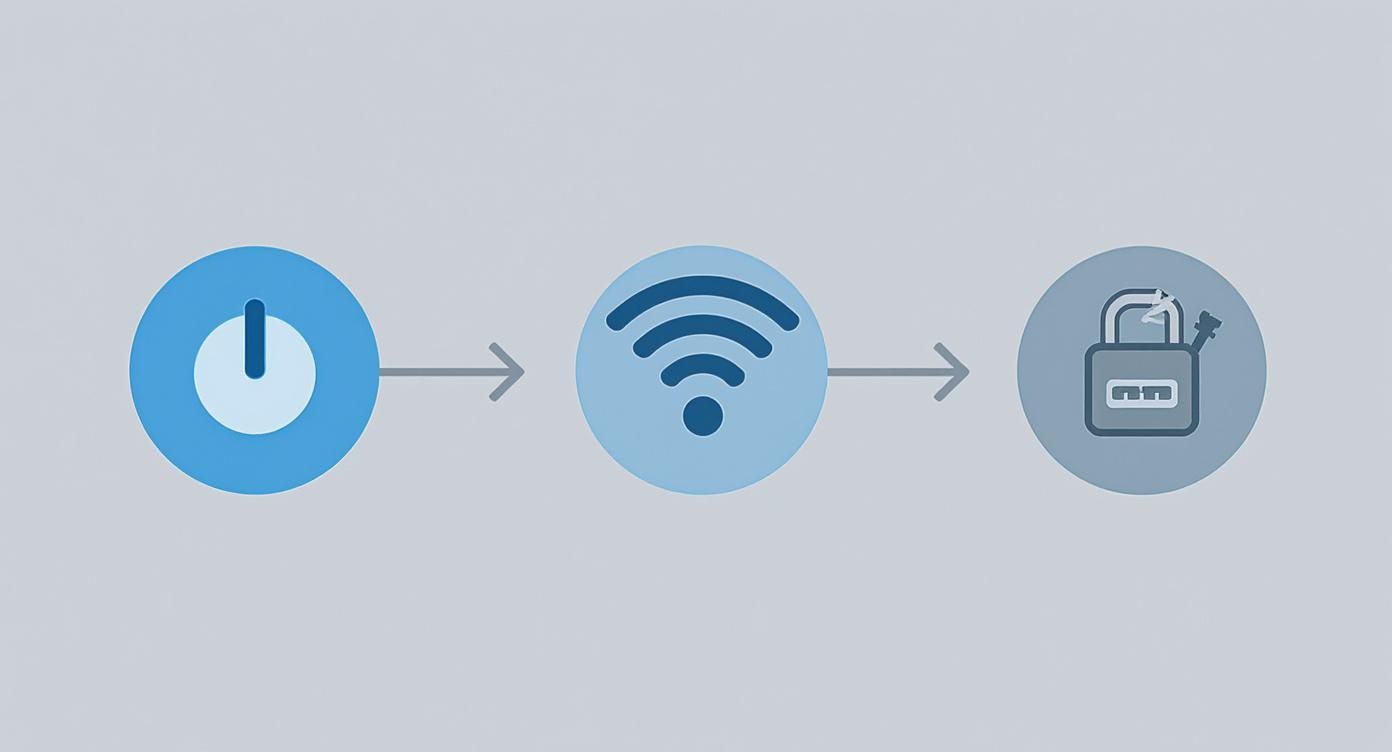
This image sums it up nicely: make sure the printer is on, find your Wi-Fi network, and have your password ready to go.
Using the WPS Button for a Quick Connection
Looking for a faster, password-free option? Check for a Wi-Fi Protected Setup (WPS) button on your printer and your router. This little button opens a short, secure window for the two devices to shake hands and connect without you having to type in a long, complicated password.
It's usually a two-step dance:
- First, press the WPS button on your printer to tell it to start looking for a router.
- Then, within about two minutes, press the corresponding WPS button on your router.
That’s it. They’ll find each other and establish a secure connection on their own. The WPS button on routers is often on the back or side, sometimes marked with a symbol of two arrows chasing each other. We actually point out where to find this on certain models in our guide to setting up a TP-Link AC750 router.
What If Your Printer Has No Screen?
Don't panic if you have a more basic printer without a fancy display. You can still get it on your network by temporarily connecting it to your computer with a USB cable.
With this method, you’ll start by installing the printer's software on your computer. During the setup process, the software will prompt you to connect the printer directly via USB. It uses this brief physical connection to securely pass your Wi-Fi network name and password from your computer over to the printer.
Once that information is transferred, you can unplug the USB cable, and the printer will stay connected to your Wi-Fi all by itself.
A Quick Tip from Experience: Newer routers love using the latest security protocols like WPA3. The problem is, many older printers only speak WPA2, which can cause the connection to fail. If your printer just won't connect, you might need to log into your router's settings and adjust the 2.4 GHz band to a WPA2 or a mixed WPA2/WPA3 mode.
Adding the Printer to Your Computer and Phone
Alright, your printer is officially on the network. The last piece of the puzzle is getting your computers and phones to actually talk to it. For most households I visit in Hamilton, this means connecting a mix of Windows laptops, MacBooks, iPhones, and Androids to the same printer.
Let's get them all acquainted.
Thankfully, modern operating systems have gotten really good at spotting new hardware on a network, so this part is usually pretty straightforward.
Connecting Windows and macOS Computers
For both Windows and macOS, the first place to look is the built-in "Add a Printer" function. Your computer will scan your local network, and most of the time, your new printer will just pop right up on the list.
- On a Windows PC: Head into
Settings>Bluetooth & devices>Printers & scanners. Just click theAdd devicebutton, and Windows will start looking. Once it finds your printer, select it and follow the steps. - On a Mac: Open up
System Settings>Printers & Scanners. Click theAdd Printer, Scanner, or Fax...button at the bottom. Your Mac will show you a list of available printers on the network. Choose yours, clickAdd, and you're usually good to go.
Now, sometimes the basic drivers that your computer installs automatically are a bit… well, basic. If you find you can’t use the scanner function or check your ink levels, you’ll need the full software package from the manufacturer's website (like HP, Canon, or Epson).
If you’re still hitting a wall with driver errors after that, it can sometimes be a sign of a deeper issue within the operating system itself. For persistent problems on a PC, our guide on how to reinstall the Windows operating system can provide a clean slate.
A classic scenario I run into all the time in the Hamilton area is a family where the parents' Windows laptops connect in seconds, but their kid's MacBook refuses to see the new printer. Nine times out of ten, this is because the Mac needs the specific, official drivers to properly communicate with the printer, especially if it's an all-in-one model.
Printing From Your iPhone and Android
Mobile printing is a game-changer. Gone are the days of emailing a file to yourself just to print it from your laptop. Connecting your phone is now a quick, app-based affair.
Nearly every major printer brand offers a dedicated app on the Apple App Store and Google Play Store. I highly recommend downloading it. These apps don't just help with setup; they become your command centre for printing photos, checking ink, and even ordering new cartridges.
On top of the official apps, your phone has built-in tech to make this even easier:
- For iPhones and iPads: Apple's AirPrint is fantastic. As long as your device and the printer are on the same Wi-Fi network, the printer will automatically show up as an option whenever you tap the "Share" icon in an app. No extra software needed.
- For Android Phones: The equivalent here is the Mopria Print Service. Many new phones come with it already installed, but you can grab it from the Play Store if not. Once it's on, you can print from any app that has a print function.
By getting your computers and mobile devices connected, you've made sure everyone in the house can use the new printer whenever they need it.
Solving Common Wireless Printing Problems
Even with a flawless setup, wireless printing can be finicky. One day it's working perfectly, and the next, your printer is mysteriously offline or a document is just stuck, refusing to print. Don't worry, this happens to everyone. Most of these headaches are common and can be solved with a bit of targeted troubleshooting.
Before you start digging into complex settings, always try the simplest fix first: a good old-fashioned reboot. Turning your printer, router, and computer off and on again solves a surprising number of issues. It clears out temporary glitches and forces everything to reconnect from a clean slate.
Printer Shows as Offline
The "Printer Offline" message is probably the most frequent complaint we hear from clients in Hamilton. Your computer simply can't find the printer on the network, even though you can see it's powered on and the Wi-Fi light is solid.
This usually happens when your router randomly assigns the printer a new IP address. The best way to fix this is to restart your router first, wait a minute, and then restart the printer. This forces them to shake hands and re-establish a stable connection. Another common culprit? Make sure your computer and printer are on the exact same Wi-Fi network. It's an easy mistake to make, especially if you have separate main and guest networks.
Unsticking a Clogged Print Queue
Another classic problem is a document getting stuck in the print queue, creating a bottleneck that prevents anything else from printing. You'll see a "Printing" status that never ends or a vague error message. This is almost always a software jam, not a hardware failure.
If you're on a Windows PC, you can manually clear this traffic jam:
- Open the Start Menu, type "Services," and open the app.
- Scroll down the list until you find the Print Spooler service.
- Right-click it and choose Stop.
- Now, open File Explorer and navigate to this folder:
C:WindowsSystem32spoolPRINTERS. - Delete every file you see inside this folder. Don't worry, these are just temporary print files.
- Head back to the Services window, right-click Print Spooler again, and this time click Start.
This completely flushes the system, giving you a fresh start. On macOS, you can achieve a similar result through the System Settings by resetting the printing system. If you try this and the problem keeps coming back, it might point to a deeper issue. For persistent problems that feel like they're hardware-related, professional printer service and repair options can save you a lot of time and frustration.
In my experience, mesh Wi-Fi systems—which are really popular in larger Ontario homes—can sometimes cause these intermittent connection drops. Your printer might connect to a node downstairs while your laptop is on one upstairs, causing confusion. For a rock-solid connection, try placing your printer in a more central location or, if you're comfortable, assign it a static IP address in your router settings.
Navigating Driver and Network Conflicts
Did you just get a new internet router and now your trusty old printer won't connect? This is a really common scenario, and it's usually down to a security protocol mismatch.
Newer routers often default to the latest WPA3 security standard, which is great. The problem is, many older printers only know how to speak WPA2. The two can't communicate. The fix is to log into your router's admin settings and look for the wireless security options. You’ll want to change the setting for your 2.4 GHz band to a mixed WPA2/WPA3 mode. This lets your new devices use the latest security while still allowing your older printer to connect reliably.
Advanced Tips for a Stable and Secure Printer
Getting your printer online is the first hurdle. Keeping it running smoothly and securely is the real long-term goal. Once the connection is stable, it's time to fine-tune things. These next steps are especially important for our small business and remote work clients in Hamilton and the surrounding GTHA who can't afford downtime or security holes in their network.
Before you do anything else, change the printer's default administrator password. It’s shocking how many devices ship with a password like "admin" or "password," which is basically an open invitation for trouble. Log into your printer's web portal or use its control panel and change that password immediately. It’s the single most important security step you can take.
Solidify Your Connection with a Static IP Address
Ever had your printer just vanish from the network for no apparent reason? You go to print, and your computer suddenly can't find it. This is a classic symptom of a dynamic IP address. Your router assigns a new one every so often, and your computer gets lost trying to find the old one.
The permanent fix for this is a static IP address.
Think of it as giving your printer its own reserved parking spot on your network. No matter what, your router will always assign it that same address, so your computers and phones will never lose track of it. This simple tweak makes a world of difference in reliability. To see how this fits into the bigger picture of a solid network, take a look at our network setup and optimization guide.
By setting a static IP, you're telling your network, "This device is important, and its location should never change." It's one of the most effective ways to prevent those random "printer offline" errors that disrupt your workflow.
Keep Your Printer's Firmware Updated
Your printer has its own internal software, known as firmware, and just like your computer or phone, it needs updates. Manufacturers regularly release new firmware to fix bugs, improve performance, and—most critically—patch security holes. If you ignore these updates, you're leaving a known vulnerability on your network.
Make a habit of checking for firmware updates through the printer’s settings menu or by visiting the manufacturer's support site. Better yet, if your printer has an auto-update feature, turn it on. It’s the easiest way to stay protected without having to remember.
This is more than just a good habit; it’s a modern necessity. The office printer market in Ontario has seen a significant annual increase in wireless model sales, with a high percentage of new units now having wireless capabilities by default. This boom, detailed in a report about the wireless printer market from Fundamental Business Insights, shows just how critical secure and reliable printer setups have become, especially in today's hybrid work environments.
Your Wireless Printer Questions Answered
Even when the setup goes smoothly, it's natural to have a few questions about how your new wireless printer works day-to-day. We get these all the time from our clients in Hamilton, so I've put together some straightforward answers to the most common queries.
How Can I Print When I'm Not At Home?
The magic behind printing from anywhere is a service often called "cloud printing." Think of it like giving your printer its own unique email address.
Services like HP's ePrint are a perfect example. Once it's set up, you can be across town or on vacation, attach a document to an email, and send it to your printer's special address. When you get home, the document will be waiting for you in the print tray. It’s a fantastic feature for anyone working remotely or who thinks of something they need to print while they're out and about.
Can My Neighbour Use My Wireless Printer?
Technically, yes—if your network isn't secure. Anyone who can connect to your Wi-Fi can usually see other devices on it, including your printer. This is exactly why securing your network is non-negotiable.
Here’s how to lock things down and keep your printer private:
- Lock Down Your Wi-Fi: Your first line of defence is a strong password for your Wi-Fi network using WPA2 or WPA3 encryption.
- Change the Printer's Password: Just like we covered earlier, never leave the default admin password on your printer. Changing it blocks unauthorized access to its settings.
- Disable Extra Services: If you only print over Wi-Fi, turn off other connection options like Wi-Fi Direct or Bluetooth to reduce the number of ways people can try to connect.
The bottom line is this: a printer is only as secure as the network it's connected to. Control who can get on your Wi-Fi, and you control who can access your printer.
Do I Need The Internet To Use A Wireless Printer?
This is a common mix-up. You do not need an active internet connection to print, but you absolutely do need a local Wi-Fi network.
Your router is the key piece of equipment here. It creates a private network inside your home, allowing your computer, phone, and printer to talk to each other directly. When you hit "print," the job zips from your laptop to the router, which then passes it to the printer—all without ever touching the wider internet.
The only time you really need the internet is for things like cloud printing from outside your home or for downloading driver updates.
And when your trusty printer eventually reaches the end of its life, it's great to know about options for responsible recycling for your old printers.
Still wrestling with a stubborn printer or just want a professional to handle the setup? The team at Klimka Computer Solutions offers expert on-site support in Hamilton, Ontario, to get your printing problems sorted out for good. Visit us online to book a service call and put an end to the frustration.
No Responses