
Think of your laptop's hard drive like its long-term memory. It's the digital filing cabinet where absolutely everything is stored—your operating system, your precious family photos, that critical report for work, and all your favourite programs. Getting a handle on this one component is the single best way to boost your laptop's performance and safeguard your data, a common goal for laptop users in Hamilton, Ancaster, and Stoney Creek.
What Exactly Is a Laptop Hard Drive?
Simply put, the hard drive is where all your files live, even when you turn the laptop off. A slow, old-fashioned drive is often the real culprit behind a computer that feels sluggish, no matter how powerful its processor is. On the flip side, upgrading to a modern drive can make a five-year-old machine feel lightning-fast again.
This guide will break down the tech behind laptop hard drives in plain English. We’ll explore the major differences between the old spinning drives and the new solid-state ones, helping you figure out the best storage solution to give your laptop a new lease on life, whether you're in downtown Toronto or right here in Hamilton.
Why Your Choice of Storage Matters So Much
Getting to know your storage isn't just for tech geeks—it has a massive impact on how you use your computer every single day. The right drive means your apps snap open, files load in a blink, and the whole system just feels zippy and responsive. It’s the difference between staring at a boot-up screen for ages and getting straight into your work.
Before you even think about buying a new drive, a crucial first step is figuring out how much space you actually need. A good guide on determining your ideal digital storage capacity can save you from overspending on space you’ll never use or, even worse, running out of room when you need it most.
Your laptop's hard drive isn't just storage; it's the engine of its performance. While the CPU and RAM do the heavy lifting, the drive dictates how fast your computer can feed them the information they need to get the job done.
Making the right choice really comes down to balancing three key things:
- Speed: This is how quickly the drive can find and save your files. It affects everything from how fast your laptop starts up to how long it takes to open a big video file.
- Capacity: This is simply how much stuff the drive can hold, usually measured in gigabytes (GB) or terabytes (TB).
- Cost: The price you pay for each gigabyte of storage, which can vary wildly depending on the type of drive you choose.
In the end, picking the right storage is about building a faster, more reliable machine that’s perfectly suited to what you do every day.
Decoding the Main Types of Laptop Drives
Pop the hood on your laptop, and you'll find one of two main kinds of storage doing all the heavy lifting. Each one has a completely different way of managing your digital life, and knowing the difference is the first step in making a smart choice for your machine, whether you're in Burlington or Hamilton.
First up, we have the old guard: the Hard Disk Drive (HDD). The easiest way to picture an HDD is to think of a miniature, super-precise record player. It has a spinning platter coated in magnetic material, and a mechanical arm zips back and forth to read and write your data. If you've ever heard a faint whirring or clicking from an older laptop, that's the sound of the HDD at work.
This technology has been refined for decades, which means it’s incredibly cheap to produce. HDDs are the undisputed champions of sheer capacity, offering huge amounts of storage—often several terabytes—for a bargain. That makes them perfect for archiving massive files, like your video collection or years of photos, where raw speed isn't the biggest concern.
The Rise of Solid-State Drives
The modern challenger is the Solid-State Drive (SSD). Unlike its mechanical cousin, an SSD has zero moving parts. It operates more like a very large, very fast USB stick, storing all your data on interconnected flash-memory chips.
This single difference—no moving parts—is what gives SSDs their magic. With no spinning disk to get up to speed or a physical arm to position, an SSD can grab your data almost instantly. The result? Your laptop boots up in seconds, programs launch right away, and the whole system just feels snappy and responsive.
Think of it this way: An HDD is like a librarian who has to physically walk down the aisles to find a specific book on a shelf. An SSD is like a librarian with a teleporter who can instantly appear at the correct spot. The difference in data access speed is truly that dramatic.
The image below gives you a simple visual of how your laptop’s drive is the central library for everything—from the operating system itself to your personal files.
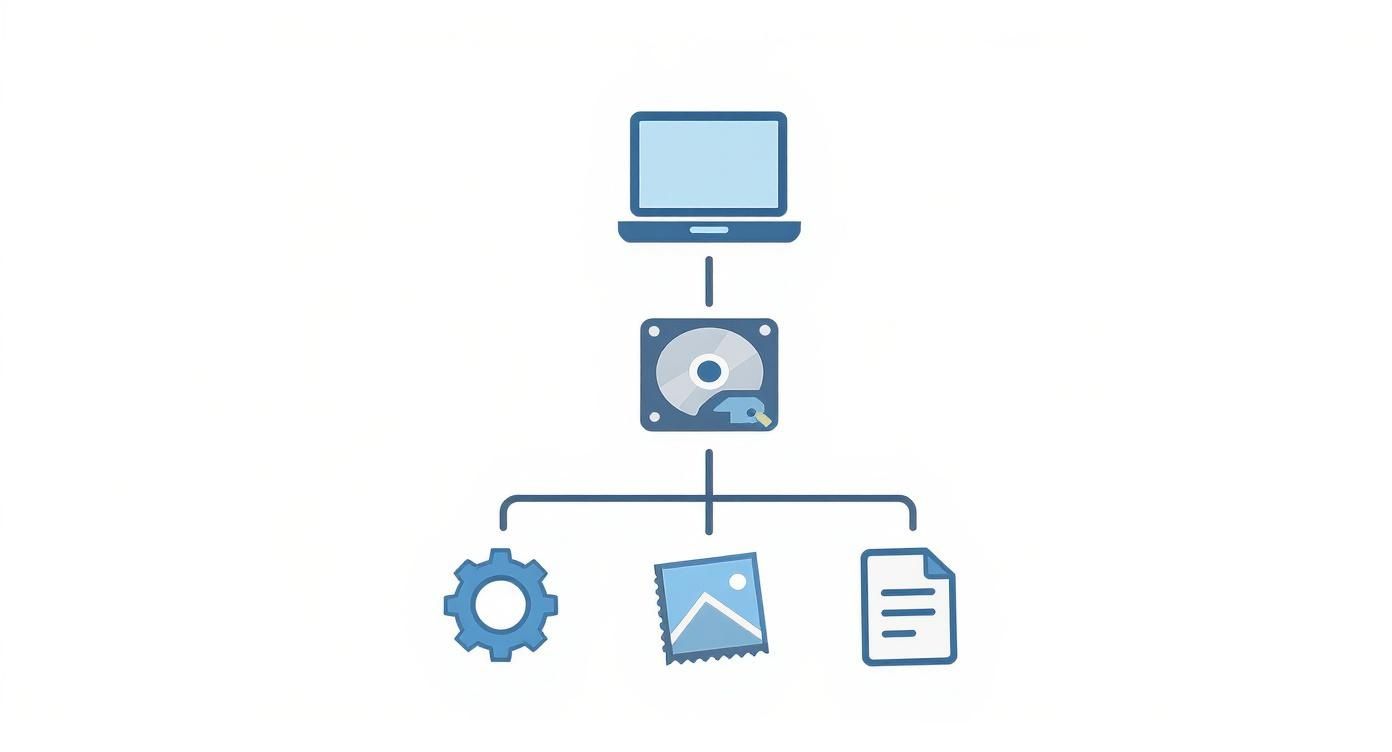
Whether you’re running an old-school HDD or a new SSD, it's the foundation that holds all your software, documents, and memories.
Understanding the SSD Family: SATA and NVMe
Now, not all SSDs are created equal. You’ll mainly run into two types: SATA and NVMe. Think of them as the reliable family sedan versus the high-octane sports car.
- SATA SSDs: These are the dependable workhorses of the SSD world. They use the same older connection interface as HDDs, which makes them universally compatible and easy on the wallet. For most people in Hamilton upgrading from a spinning hard drive, a SATA SSD delivers a phenomenal performance boost that feels like a night-and-day difference.
- NVMe SSDs: These are the speed demons. NVMe (Non-Volatile Memory Express) drives use a more direct, modern connection to your computer's motherboard, blowing past the speed limits of the older SATA interface. They are blisteringly fast, making them the go-to for really demanding work like serious gaming, 4K video editing, or crunching huge datasets. We dive deeper into how SSDs impact gaming performance in another one of our guides.
To make sense of it all, here's a quick side-by-side look.
HDD vs SATA SSD vs NVMe SSD: A Quick Comparison
| Feature | HDD (Hard Disk Drive) | SATA SSD | NVMe SSD |
|---|---|---|---|
| Technology | Spinning magnetic platters | Flash memory (no moving parts) | Flash memory (no moving parts) |
| Speed | Slowest (50-150 MB/s) | Fast (up to 550 MB/s) | Fastest (2,000-7,000+ MB/s) |
| Capacity | Very high (up to 20 TB+) | Moderate to high (up to 8 TB) | Good (up to 8 TB) |
| Cost | Lowest cost per gigabyte | Affordable | Higher cost per gigabyte |
| Durability | Vulnerable to drops/shocks | Very durable | Very durable |
| Best For | Mass storage, backups, archives | General use, OS drive, fast boots | Gaming, video editing, pro use |
As you can see, the right choice really boils down to what you need your laptop to do—store a ton of data cheaply or access it in the blink of an eye.
Even with SSDs becoming the standard, HDDs aren't going anywhere just yet. Their low cost and massive capacity keep them essential for data centres and for anyone needing 1 TB or more of storage without breaking the bank. It's a classic trade-off between speed, space, and price.
Making Sure the New Drive Actually Fits: Form Factors and Compatibility
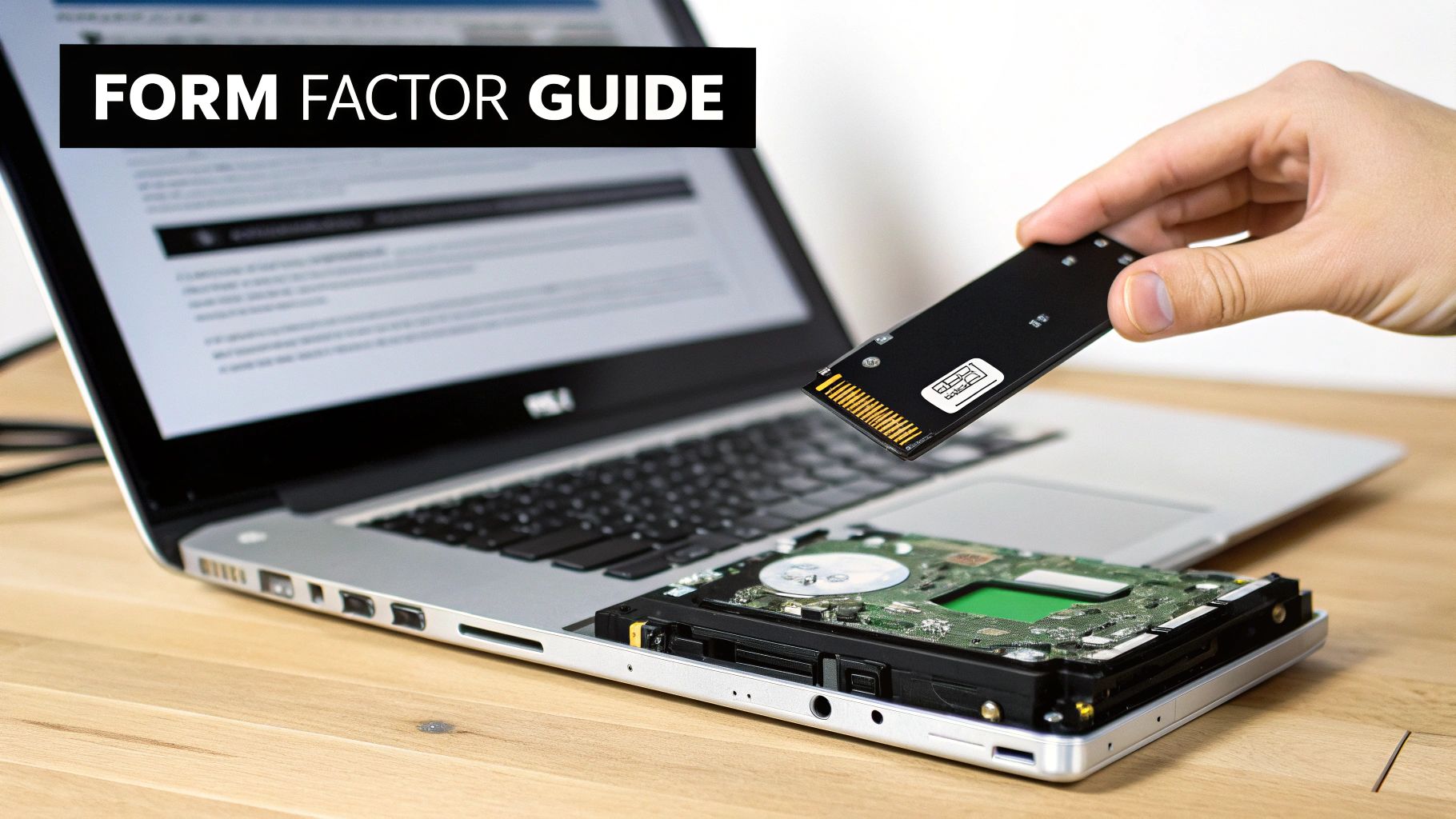
There’s nothing worse than the excitement of getting a new, super-fast drive, only to pop open your laptop and discover it won’t fit. It's a classic DIY mistake. Before you even think about buying a new drive, you have to know its physical size and shape—what we call the form factor. Getting this one detail right is the difference between a successful upgrade and a major headache.
For a long time, the standard was simple: the 2.5-inch drive. It's a small, rectangular box, roughly the size of a deck of cards. This workhorse design can hold both old-school HDDs and their modern SATA SSD counterparts, which is why you'll find them in countless laptops all across Canada.
But as laptops got sleeker and slimmer, a new champion emerged. Enter the M.2 drive. It looks nothing like its predecessor—think a stick of chewing gum or a small circuit board, not a box.
The Two Personalities of an M.2 Drive
This is where people often get tripped up. The M.2 form factor is a bit of a shape-shifter. While the drive itself is a small stick that plugs directly into the motherboard, the slot it plugs into can speak two different "languages."
An M.2 slot might be designed for a SATA SSD, or it might be built for a much faster NVMe SSD. Sometimes, it can handle both. But if you plug the wrong type of M.2 drive into a slot that doesn't support it, your laptop won't even see it. It simply won't work.
Think of it like a specialized electrical outlet. A European plug and a North American plug might both deliver power, but you can't force one into the other's socket. You have to match the plug to the outlet your laptop has.
How to Check What Your Laptop Needs
So, how can you figure out what's inside your machine without taking it apart first? A little bit of digital detective work is all it takes to avoid buying the wrong hardware.
Here are a few reliable ways to check for compatibility:
- Check the Manual: Your laptop's original user manual or service guide is the most reliable source. It will list the exact storage specs, including the form factor and interface (SATA or NVMe).
- Search Your Model Number Online: A quick search for your laptop model plus terms like "storage upgrade" or "SSD specs" usually brings up manufacturer pages or tech forums with the answer.
- Use a System Info Tool: Free software like CPU-Z or CrystalDiskInfo can scan your system and identify the drive you currently have installed, giving you a huge clue about what the motherboard supports.
If you're in the Hamilton area and this all sounds a bit too technical, don't worry—expert help is just around the corner. Getting professional advice on hard drive and SSD upgrades in Hamilton ensures you get the right drive the first time, making your upgrade a guaranteed success.
Recognizing the Warning Signs of Drive Failure
A laptop hard drive almost never dies out of the blue. It usually sends out little warning signs first, subtle hints that something is starting to go wrong. Learning to spot these red flags is your best defence against losing everything, a crucial skill for any laptop owner in Canada.
Think of these symptoms as your storage's "check engine" light. You really don't want to ignore them and gamble with your photos, documents, and memories. If you pay attention, you buy yourself precious time to back up your data and figure out a replacement before disaster strikes.
Common Symptoms of a Failing Drive
If your laptop has started acting up, your storage drive might be the culprit. These issues can pop up whether you have a classic HDD or a newer SSD.
- Frequent Freezing or Crashing: Does your laptop just lock up for no apparent reason, forcing you to hold down the power button? That often happens when the drive is struggling to read essential system files.
- The Blue Screen of Death (BSOD): While lots of things can trigger this dreaded screen, a failing drive is one of the most common causes, especially if it happens while your computer is starting up.
- Disappearing Files: Have you ever saved a file only for it to vanish later? Or found that a file you need is now corrupted and won't open? Your drive could be developing bad sectors, which are like dead zones on its surface.
Consider these symptoms a language your laptop is using to communicate a problem. A single crash could be a one-off software glitch, but if you see a consistent pattern of these issues, it's a clear signal your hard drive is asking for help.
Strange Noises and Slow Performance
Beyond software weirdness, there are physical signs that are even more concerning. These are often the last warnings you'll get before a total failure, especially with the old-school mechanical HDDs.
One of the most infamous signs is the "click of death." This is a very distinct, rhythmic clicking or grinding sound coming from your laptop. It means the delicate mechanical arm inside the HDD is failing. If you hear this, stop what you’re doing and back up your data immediately.
A sudden, dramatic slowdown is another huge red flag. If it now takes ages to open a simple Word document or for your operating system to boot up, your drive is likely having a tough time accessing data.
These physical warnings are exactly why so many people in Hamilton and across the country are moving to SSDs, which have no moving parts to break. The push for more reliable storage is a big deal, even with the global HDD market valued near USD 38.7 billion. Most research and development, particularly in places like Silicon Valley, is now focused on making portable drives both fast and durable. You can read more about the global hard disk drive market and where it's headed.
When you notice these symptoms, the number one priority is to save your files. If you're worried you might lose irreplaceable data, looking into professional data recovery in Hamilton can give you the best shot at getting it back. The key is to act fast.
Protecting Your Data with Backups and Recovery
Knowing the signs of a failing hard drive is only half the battle. The other half—the more important half—is having a solid plan to protect your data before disaster strikes. Think of regular backups as your only real insurance policy against losing everything.
Thankfully, you don't need to be a tech wizard to set up a reliable backup system. There are plenty of great options that can run quietly in the background, making sure your digital life is safe without you even having to think about it.
Practical and Easy Backup Methods
The best approach is to have more than one backup. By combining a local and a cloud solution, you create a powerful safety net for your files.
- Cloud Backups: Services like Google Drive, iCloud, and OneDrive are fantastic for this. They automatically sync your chosen folders to their secure servers, meaning your files are safe even if your laptop is stolen or destroyed. It's the ultimate "set it and forget it" strategy.
- External Hard Drives: This is the classic, time-tested method. Modern operating systems have built-in tools like File History (Windows) and Time Machine (macOS) that make automated backups to an external drive incredibly simple. To get a deeper understanding of building a resilient data strategy, check out this comprehensive guide to data backup and recovery.
If you want a full walkthrough on setting this up, our guide on how to back up your computer files breaks it down step-by-step.
When Your Laptop Hard Drive Has Already Failed
What if it's too late? What if you can't access your files right now? This is a critical moment, and what you do next can determine whether your data is recoverable or gone for good.
The first instinct for many is to download some DIY data recovery software. While these programs can be useful for simple cases, like if you accidentally deleted a file, they are incredibly dangerous to use on a drive that is physically failing.
Running any kind of software forces the drive to work, and if its internal components are already damaged, you could be grinding them into dust. This can quickly turn a recoverable problem into permanent, irreversible data loss.
If your drive is clicking, grinding, not being detected by the computer, or if the laptop was dropped—stop everything. Unplug the computer immediately. Do not try to power it on again. Every second it runs could be destroying your data.
This is the point where you need to call a professional. A data recovery specialist in the Hamilton area has the proper cleanroom facilities and specialized equipment needed to safely handle physically damaged laptop hard drives. Trying to save a bit of money with a software tool isn't worth risking your most important files and precious memories.
When to Call a Professional for Help
Knowing when to step back and call in an expert is a crucial skill. It's the difference between a successful fix and a costly mistake—or even worse, losing your data forever. While you can handle some basic software troubleshooting on your own, certain hard drive problems are a clear signal that it's time to call a pro in Hamilton.
If you’ve dropped your laptop and now hear a clicking or grinding noise, that's a serious warning sign. The same goes for a drive that’s completely dead and won't show up anywhere. Don't try to be a hero; this is when you need an expert.
Situations Demanding an Expert
Trying to use software to fix a physically broken drive is a recipe for disaster. It can take a recoverable situation and make it impossible.
Here are the undeniable signs that you should stop what you're doing and call a specialist:
- Physical Damage: If your laptop took a tumble or got wet and is now acting up, it needs a professional diagnosis.
- Weird Noises: That clicking, grinding, or whirring sound from an HDD isn't just a quirk. It’s the sound of mechanical parts failing.
- Totally Unresponsive: When the drive doesn't even appear in your BIOS or on another computer, it’s beyond a simple DIY fix.
When your data is irreplaceable, the risk of a DIY attempt on a physically failing drive is never worth it. A professional service has the tools and clean-room environment to give you the best shot at getting your files back without causing more harm.
Upgrades and Data Recovery
Even a straightforward upgrade can have its pitfalls. If you’re not comfortable opening up your laptop and carefully handling the delicate connectors and components inside, it’s wise to have a technician do it. They’ll make sure your new SSD or HDD is installed correctly without risking damage to the motherboard.
For anyone in Hamilton and the surrounding area, Klimka Computer Solutions can take the stress out of the equation. When you're facing a potential data catastrophe, looking into professional data recovery services near you is your safest bet.
As our storage needs grow—with over 54% of HDD shipments now being larger than 5 TB—the amount of data we stand to lose gets bigger, too. You can read more about the hard disk drive market's shift to higher capacities to see just how much is at stake. An expert can help you navigate these risks, safely recover your files, and get your computer running smoothly again.
Your Top Questions About Laptop Hard Drives Answered
We’ve covered a lot of ground, from the different types of drives to the warning signs that yours might be on its last legs. But here in Hamilton, people often have a few specific questions that pop up again and again. Let's get those sorted out.
How Much Storage Do I Really Need?
It's a classic question, and the answer really depends on what you do. For the average person, a 512GB SSD is the perfect balance. It gives you plenty of room for Windows or macOS, all your programs, and a good amount of personal files without breaking the bank.
But if you’re a gamer, a photographer, or a video editor here in Hamilton, you’ll want to aim higher. Those game installs and high-resolution video files eat up space fast, so think 1TB at a minimum. On the flip side, if you just browse the web and work on documents, you can get by with 256GB, but trust me—that space disappears quicker than you’d think.
Can I Upgrade the Hard Drive in Any Laptop?
This is a big one. The short answer? No, not always. In the past, swapping out a hard drive was a straightforward job for most laptops. These days, it’s a mixed bag.
Many standard laptops still have accessible drives you can upgrade. However, the trend with ultra-thin notebooks and, most notably, Apple's MacBooks, is to solder the storage chips directly to the motherboard. If that’s the case with your machine, a DIY upgrade is off the table completely. The only way to know for sure is to look up your specific model online or ask a pro before you buy a new drive.
As a rule of thumb, your laptop's age and design tell the story. Machines from five or more years ago are usually upgrade-friendly. Newer, super-slim models? They often sacrifice upgradeability for that sleek profile.
Should I Upgrade My Drive or Just Buy a New Laptop?
If your computer feels painfully slow—taking ages to boot up or open an application—a storage upgrade is often the best bang for your buck. Moving from an old, spinning hard drive (HDD) to a modern SSD can make a night-and-day difference, making your old machine feel zippy and new again.
However, a new drive can't fix everything. If your processor is ancient or you're constantly running out of RAM, the storage is only one part of the problem. When multiple components are holding you back, it might be time to start fresh with a new laptop.
When you need a straight answer or a professional hand with your laptop's storage, Klimka Computer Solutions is ready to help. For honest, reliable computer service in Hamilton and the surrounding area, give us a call or visit us online at https://klimkacomputersolutions.com.
4 Responses
[…] drive (SSD). It’s amazing what a difference that one upgrade makes. We even have a guide on https://klimkacomputersolutions.com/laptop-hard-drives/ that walks through how much of an impact it can have. Throw in some extra RAM, and a ten-year-old […]
[…] upgrades all the time with our computer & laptop repairs Hamilton services, and our guide to choosing the right laptop hard drive can help you understand the […]
[…] learn more about different drive types and their specifics, you can check out our detailed guide on laptop hard drives. It's a small detail, but getting it right is what ensures a successful, stress-free […]
[…] thinking about an upgrade and want to explore your options, you can learn more about our professional laptop hard drive services right here in […]