
So, what exactly is a Wi-Fi adapter? Think of it as a translator for your computer. It takes the data from your PC and converts it into radio signals that your router can understand, allowing you to connect to a wireless network.
It’s an essential piece of hardware for any computer without a built-in wireless card, or for one that has a card on its last legs. In many cases, adding an adapter is the fastest and most affordable solution to nagging internet connection problems, often cheaper than professional computer & laptop repairs in Hamilton.
Is It Your PC, Not Your Internet Provider?
We’ve all been there. You're in the middle of a crucial video call for work, or you're about to clinch a win in an online game, and suddenly everything grinds to a halt. That spinning loading wheel is infuriating.
The first instinct for most of us in Hamilton is to blame our internet provider. But what if the problem isn’t the signal coming into your home, but the hardware inside your computer? Often, the real culprit is an outdated or completely missing Wi-Fi card.
This guide will help you figure out if a simple Wi-Fi adapter is the key to unlocking the internet speeds you're already paying for. A new device can easily fix issues caused by an old internal card that just can’t keep up with modern network standards.
When Is a Wi-Fi Adapter the Right Call?
Let's look at a few common, real-world situations where a wifi adapter for pc is the perfect fix.
- Breathing New Life into Older Desktops: Many solid, reliable desktop computers, especially those more than a few years old, were designed for a wired connection only. They were built to be plugged directly into a router with an Ethernet cable. A Wi-Fi adapter is a simple plug-and-play way to bring them into the wireless world.
- Solving a Failing Laptop Card: Is your laptop's Wi-Fi connection constantly dropping? Has it become frustratingly slow? The internal wireless card might be failing. A USB adapter is a brilliant workaround that saves you from the headache and cost of complex internal computer repairs.
- Upgrading for the Speed You Pay For: You might have signed up for a blazing-fast internet plan, but if your computer’s built-in Wi-Fi is stuck on older tech (like Wi-Fi 4), it's creating a bottleneck. Upgrading to a modern Wi-Fi 6 or 6E adapter lets your PC finally use the full speed of your home network.
For many Hamilton residents, a Wi-Fi adapter is the most direct path to a stable connection. It addresses the hardware limitation directly, ensuring your machine can communicate effectively with your router and the broader internet. Learn more about how you can improve your signal with our detailed guide.
This isn't just a local issue; it's a trend seen across the country. In Canada, where over 80% of households have high-speed internet, the demand for USB Wi-Fi adapters is surging. Market forecasts show its value is on track to hit 3,400 USD million, reflecting the massive number of connected devices and the need to keep perfectly good older computers online. If you're unsure whether it's a hardware problem, getting professional advice on laptop repairs in Hamilton can give you a clear answer.
How to Choose the Right WiFi Adapter for Your PC
Picking the best WiFi adapter for your computer isn't as complicated as it sounds. You don’t need a degree in IT to make a great choice; it’s really just about knowing what you use your computer for. Whether you’re working from home in Westdale or getting a gaming session in over in Stoney Creek, the right adapter can make all the difference.
You’re generally looking at two main options: USB adapters and PCIe cards.
A USB adapter is all about convenience. It’s a tiny device that you just plug into an open USB port. It's the perfect solution for a laptop with a busted internal WiFi card or for a desktop user who just wants a connection without the fuss of opening up the computer case.
A PCIe (Peripheral Component Interconnect Express) card, on the other hand, is an internal upgrade. This little card plugs right into a slot on your desktop's motherboard. Because it’s wired directly into your PC's main circuit board, it almost always delivers a more stable, lower-latency connection. This makes it the go-to for serious gamers and anyone who moves massive files.
USB or PCIe: Which One Is Right for You?
So, how do you decide? For most everyday computer use—browsing, email, watching Netflix—a modern USB 3.0 WiFi adapter will do the job beautifully. They’re dead simple to install and you can easily move them between computers. If your laptop's built-in WiFi gives up the ghost, a tiny "nano" USB adapter can live in a port and you'll barely even know it's there.
But if you're into competitive online gaming or you stream 4K video, a PCIe card is the clear winner. That direct connection to the motherboard really cuts down on lag and interference, which is absolutely critical when every millisecond counts. We see this all the time; it's a common upgrade we handle during our computer and laptop repairs in Hamilton for clients who need rock-solid performance from their machines.
Sometimes, it's hard to know if the problem is your internet or your computer. This quick chart can help you figure out if a weak WiFi adapter is the culprit.
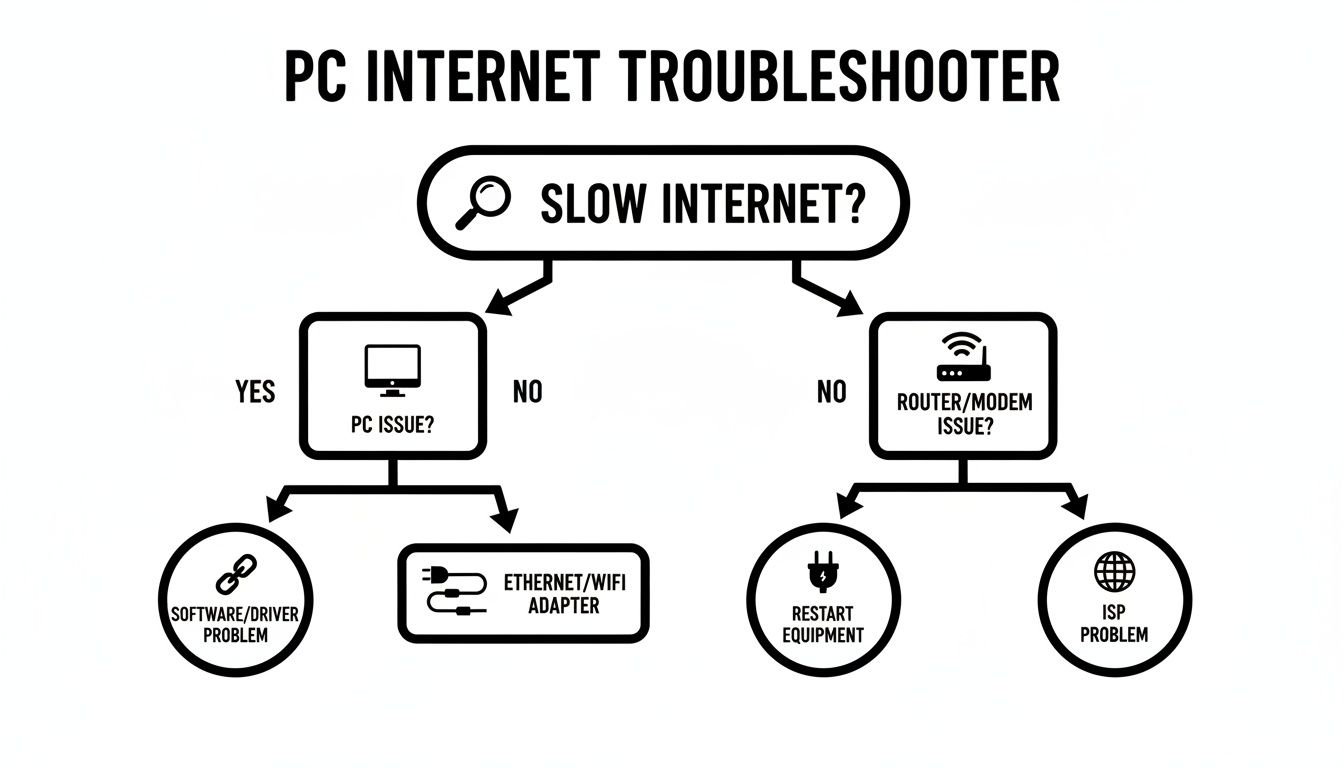
As you can see, if the internet is slow on just one device, the problem is very likely with that specific PC's hardware, not your router or your internet provider.
USB vs PCIe WiFi Adapter At a Glance
To make it even simpler, here's a quick comparison to help you decide which type of WiFi adapter is the best fit for your desktop or laptop.
| Feature | USB WiFi Adapter | PCIe WiFi Adapter |
|---|---|---|
| Installation | Plug-and-play into a USB port | Requires opening the PC case |
| Best For | Laptops, desktops, convenience | Desktops, high-performance needs |
| Performance | Good to excellent | Excellent, lower latency |
| Portability | Highly portable, easy to move | Fixed inside the PC |
| Cost | Generally more affordable | Can be more expensive |
Ultimately, both are great options. It just boils down to whether you value the easy setup of a USB adapter or the raw performance of an internal PCIe card.
Decoding the Tech Specs That Matter
When you're shopping around, you’ll see terms like "WiFi 6" and "5GHz band" thrown around. Don't let them intimidate you.
WiFi 6 (also called 802.11ax) is the newest standard. It's not just faster; it's much smarter about handling many devices at once, which is perfect for a busy household. The 5GHz band is like an open highway for your WiFi signal—it's less crowded than the older 2.4GHz band, meaning you get a faster, more stable connection.
A dual-band adapter that supports both 2.4GHz and 5GHz is a must-have. It gives you the best of both worlds, letting your PC grab that speedy 5GHz signal when you're close to the router and automatically switch to the longer-range 2.4GHz band when you're further away.
The need for these upgrades is real. Just think of a gamer in Hamilton whose connection drops mid-raid because their PC is stuck on old, slow WiFi. That exact scenario is what’s fuelling the growth of the Wi-Fi Adapter Card market in Canada. Globally, the North American market was valued at $3.503 billion USD, and it's projected to grow with a Canadian CAGR of 4.56%, hitting $5.72 billion USD by 2035.
For a deep dive into one of the most popular and convenient options, have a look at our guide on the wireless USB adapter.
Getting Your New Adapter Installed and Running
Alright, you’ve picked out the perfect Wi-Fi adapter for your computer. Now for the fun part: getting it installed. Don’t worry, this is usually a pretty straightforward job, but taking a few minutes to do it right from the get-go will save you headaches and ensure you’re getting the speeds you paid for.
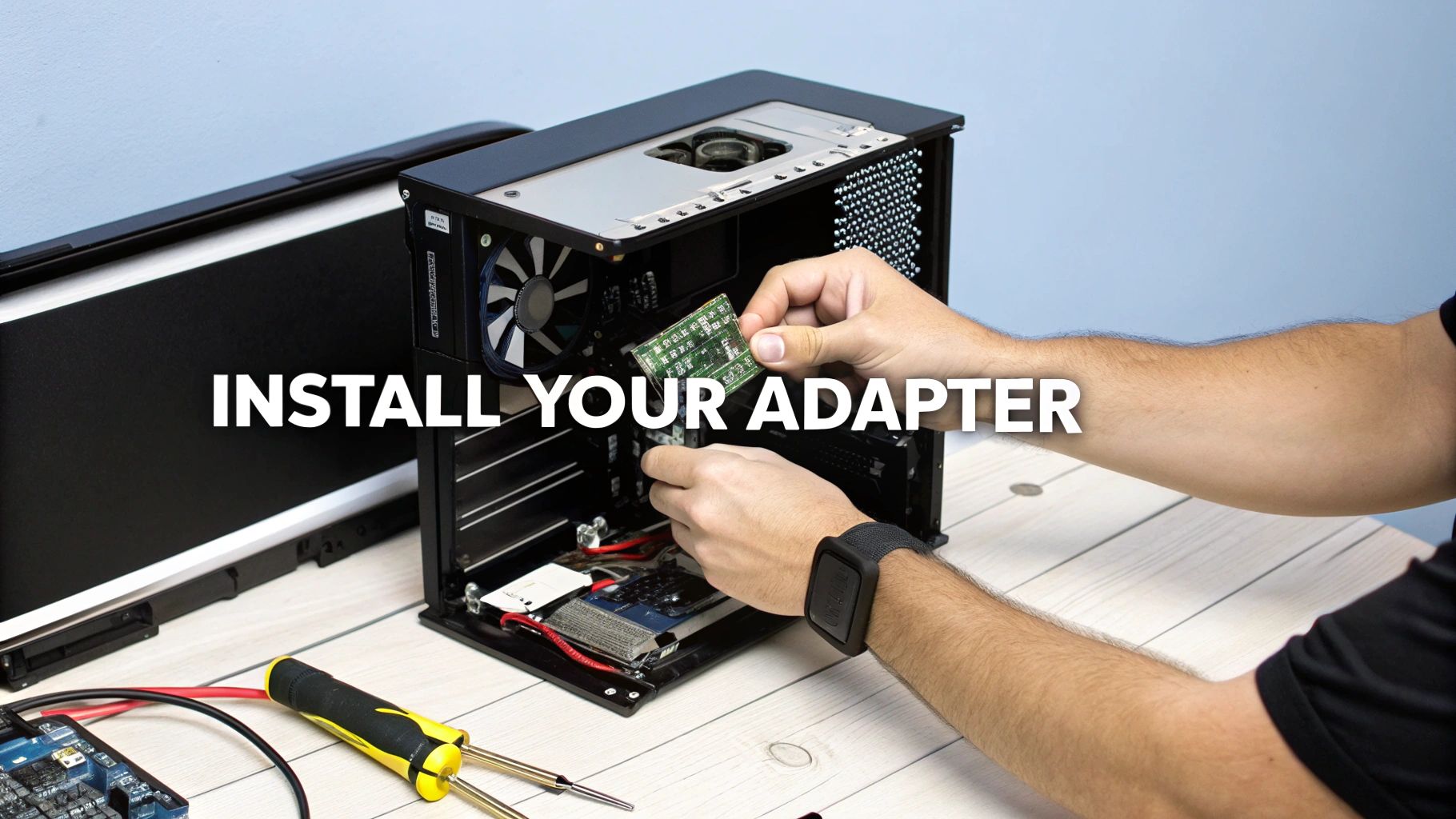
Whether you went with a simple plug-and-play USB stick or a more powerful internal PCIe card, the process is quite manageable. I’ll walk you through the key steps and throw in a few tips we've picked up from countless computer repairs in Hamilton.
Installing a USB Wi-Fi Adapter
For most people, a USB adapter is about as easy as it gets. You just need a free USB port. Simple, right? But hold on—there’s one critical detail that a surprising number of people miss, and it can seriously throttle your connection.
While your computer will likely recognise the adapter the moment you plug it in, it’s probably using generic, built-in drivers. To get the best speed and the most stable connection, you should always install the official drivers straight from the manufacturer.
Pro Tip: Before you even unbox the adapter, head over to the manufacturer’s support website and download the latest driver for your exact model. Having the correct software ready to go prevents a lot of potential conflicts and performance hiccups down the road.
Here’s the best way to tackle it:
- Download the Drivers: First, find and download the official driver package from the manufacturer's website.
- Install the Software: Run the installer you just downloaded. It will walk you through the quick setup process.
- Plug In the Adapter: Only after the software is installed should you plug the USB adapter into a port. If you have a blue USB 3.0 port, use that one for the best performance.
Installing a PCIe Wi-Fi Adapter
A PCIe card requires a little more hands-on effort since you’ll need to open up your PC case, but it’s a task most desktop owners can handle with confidence. The most important thing here is safety.
Before you start, completely shut down your computer and unplug it from the power outlet. As an extra precaution, it's a good idea to touch a metal part of the computer case to ground yourself and discharge any static electricity. This tiny step is crucial for protecting your sensitive components from damage—a common but avoidable issue we see during on-site computer & laptop repairs in Hamilton.
Ready to go? Here’s what to do:
- Open the Case: Remove the main side panel from your desktop tower.
- Locate an Empty Slot: Look for a free PCIe x1 slot on your motherboard. It's the shortest type of PCIe slot.
- Remove the Slot Cover: On the back of the case, unscrew and remove the small metal bracket that lines up with the slot you've chosen.
- Seat the Card: Carefully align the adapter's connectors with the slot and press down firmly and evenly until you feel it click securely into place.
- Secure the Card: Use the screw you just removed to fasten the adapter's metal bracket to the case. This keeps it from wobbling or coming loose.
Once the card is in, you can close up your PC, plug it back in, and start it up. The final steps are to install the drivers just like you would for a USB model and attach any external antennas that came with your card.
If you’re on the hunt for a reliable adapter that offers great performance without a fussy installation, you might want to see what we think of the popular TP-Link AC750.
Fine-Tuning Your New Wi-Fi for Peak Performance
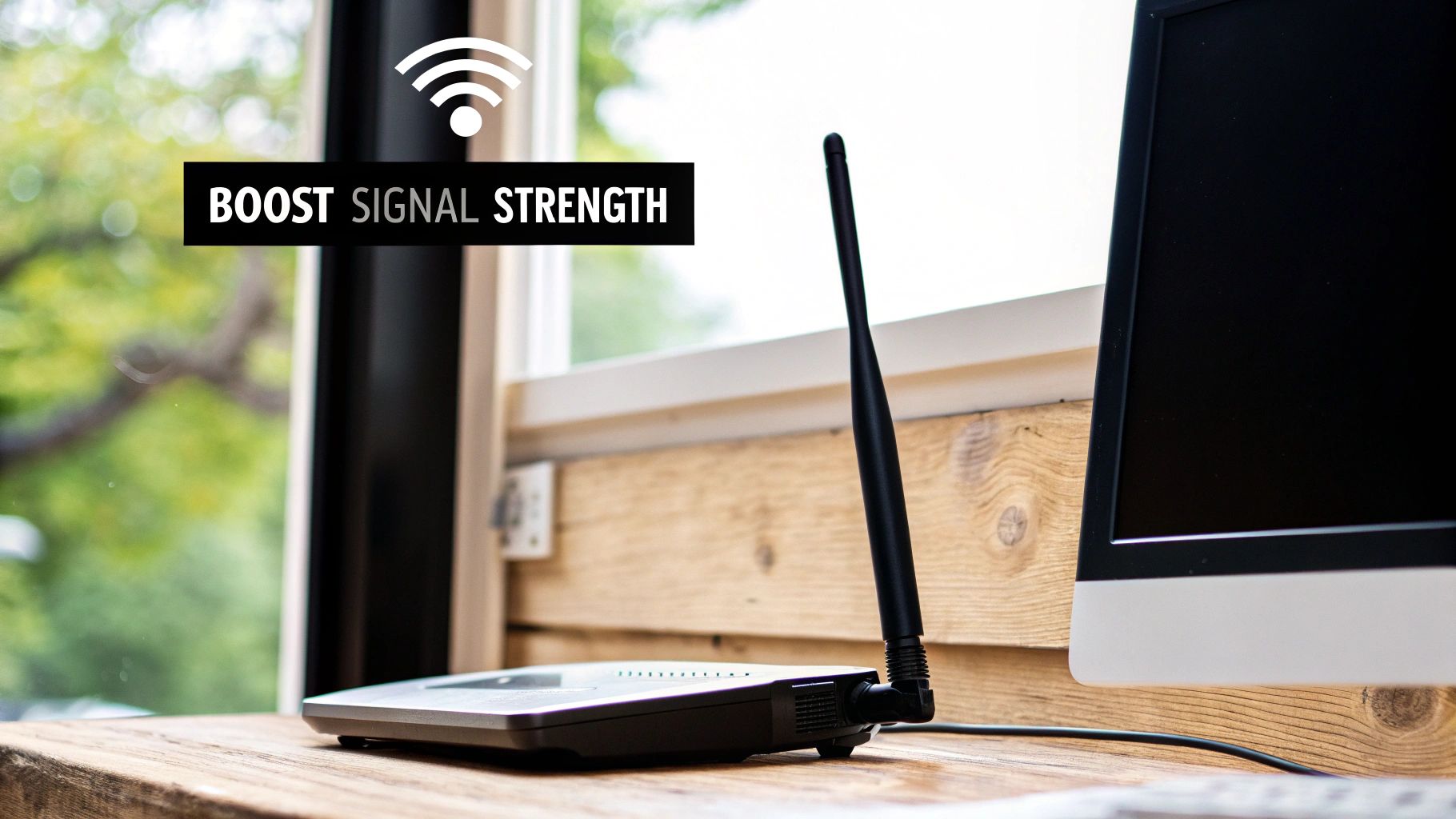
So, you've installed your new Wi-Fi adapter for PC. That's a huge step, but the job isn't quite finished. Getting the hardware in place is just the beginning; unlocking its true speed and stability comes down to a bit of fine-tuning.
These professional tweaks can make a massive difference in your day-to-day internet experience. Some are simple software adjustments, while others involve small physical changes that can dramatically boost your signal quality.
Smart Antenna Placement
If your PCIe adapter came with external antennas, don't just screw them in and call it a day. Where you point them matters more than you might think. For the strongest possible connection, the goal is to position them perpendicular to the antennas on your router.
Here are a few adjustments I always recommend:
- Avoid Obstructions: Make sure the antennas are clear of your PC case, thick bundles of cables, and any other metal objects that could block or reflect the signal.
- Experiment with Angles: Try setting one antenna vertically and the other horizontally. This little trick often helps capture signals that are bouncing off walls and furniture.
- Give it Space: Avoid shoving your desktop tower into a cramped corner or inside a cabinet. A bit of breathing room allows the Wi-Fi signal to travel much more freely.
It's amazing how often these small changes fix what seems like a major network problem. We see it all the time during on-site visits—a simple antenna adjustment can be the difference between a good connection and a great one.
Think of your Wi-Fi signal like sound coming from a speaker. A thick wall will muffle the sound, right? Physical barriers do the same thing to your Wi-Fi, so clear placement is absolutely key to a strong, reliable connection.
Configure Windows for a Faster Connection
Beyond just physical placement, you can actually tell Windows how to prioritize your new adapter for better performance. One of the best tweaks you can make is to nudge your PC toward the faster, less congested 5GHz frequency band.
Most modern adapters are smart enough to switch bands automatically, but you can set a preference in your device settings. This ensures your PC latches onto the stronger 5GHz signal whenever it's available, leaving the slower 2.4GHz band for older gadgets or when you're farther from the router.
This simple setting also helps you sidestep interference from common household items like microwaves and older cordless phones, which all compete for space on the 2.4GHz frequency. For a deeper dive into getting your entire network running smoothly, check out our network setup and optimization guide.
Sorting Out Common Wi-Fi Adapter Headaches
Even when you do everything right, sometimes tech just decides to be difficult. Your new Wi-Fi adapter for PC should be a simple, effective upgrade, but if you hit a bump in the road, don’t panic. Most of the common problems we see are surprisingly easy to solve with a bit of logical troubleshooting.
Let’s run through the most frequent issues our customers face and how you can get things working smoothly. These are the very first checks our own technicians run when they’re on-site for computer repairs in Hamilton.
My PC Isn’t Detecting the Adapter
It's a classic frustration: you've installed your new hardware, but your computer acts like nothing has changed. Before you assume the adapter is a dud, there are a few simple things to check.
- For USB Adapters, Swap the Port: This is the easiest first step. Unplug the adapter and try a different USB port. Sometimes a single port can be faulty or have a driver conflict. If you suspect the port is the culprit, you can learn how to troubleshoot USB ports directly.
- For PCIe Cards, Reseat It: If you’ve installed an internal card, it might just not be seated perfectly. Power down your computer, unplug it from the wall, open the case, and give the card a firm, even push into its slot to make sure it's snug.
- Look in the Device Manager: Head to the Device Manager in Windows. Do you see an "Unknown Device" or anything with a yellow exclamation mark next to it? That's a tell-tale sign of a driver issue. The fix is usually as simple as reinstalling the latest drivers from the manufacturer's website.
My Connection is Slow or Keeps Dropping
What if you're connected, but the performance is just not there? If your speeds are crawling or the connection drops out randomly, the problem is likely signal interference, distance, or a software conflict.
This is a common scenario we see all over Southern Ontario. While most new devices come with Wi-Fi, there’s a huge market for adapters to upgrade older PCs. Globally, the Computer Wireless Network Adapters sector is worth US$889 million, and Canada's piece of that pie is growing at 6.2% a year. By 2030, the market is projected to hit US$1,359 million, largely driven by people trying to solve these exact kinds of home networking headaches.
Our Pro Tip: When a connection is flaky, the first thing to do is a simple location test. Move your computer closer to the router for a few minutes. If the connection suddenly becomes rock-solid, you've confirmed the issue is distance or physical obstructions, not the adapter itself.
If you’ve tried these steps and you're still stuck, or if you’re just not comfortable opening up your PC, that's where we come in. Our team handles complex computer and laptop repairs in Hamilton every day. We can quickly get to the bottom of tricky driver conflicts or hardware faults and get your internet running fast and stable.
Your WiFi Adapter Questions Answered
Working on computer and laptop repairs in Hamilton, we hear a lot of the same questions about Wi-Fi adapters. To clear things up, here are some straight answers to the questions we get asked the most.
Will a WiFi Adapter Make My Internet Faster Than My Plan?
A wifi adapter for pc can't boost the internet speed you pay your provider for, but it can absolutely let your computer take full advantage of the speed you already have.
Think of it this way: you might have a 500 Mbps plan, but if your computer’s old, built-in Wi-Fi can only handle 100 Mbps, you're leaving 400 Mbps on the table. A new adapter unlocks that missing potential. This is one of the most common performance bottlenecks we fix—it's all about making sure your hardware isn't holding back your internet plan.
Is a USB WiFi Adapter Good Enough for Online Gaming?
For a lot of games, a good-quality USB 3.0 adapter running on the 5GHz band is perfectly fine. It's a massive upgrade from an old or failing internal card.
However, if you're a competitive gamer where every millisecond counts—think FPS or fighting games—we always steer people toward an internal PCIe adapter. It plugs directly into the motherboard for a more stable connection, which helps lower your latency (ping) and cut down on interference. It's the standard we use for the custom gaming PCs we build for clients here in Hamilton.
My Laptop WiFi Stopped Working—Do I Need a New Laptop?
Not at all! This is an issue we see constantly in our laptop repairs service in Hamilton. A dead internal Wi-Fi card doesn't mean your laptop is toast.
The quickest and cheapest fix is a tiny "nano" USB adapter. You literally just plug it in and you're back online. For a more permanent fix, our technicians can also swap out the internal Wi-Fi card itself. An adapter is a fantastic way to breathe new life into your laptop without the major expense of buying a new machine. You can also explore options to convert an Ethernet connection to Wi-Fi if you need more flexibility.
An external adapter is often the hero that saves a perfectly good laptop from being retired early. It’s a simple, affordable repair that gets you connected again in minutes.
How Do I Know if My PC Is Compatible with an Adapter?
The good news is that checking for compatibility is usually pretty simple.
- USB Adapter: All you need is a free USB port. To get the best speeds, try to use one of the blue USB 3.0 ports if your computer has them.
- PCIe Adapter: For this, your desktop's motherboard needs an available PCIe x1 slot. It's the shortest PCIe slot on the board, and most motherboards have at least a couple of them.
If you're not comfortable opening up your computer case to check, don't sweat it. Our team at Klimka Computer Solutions can pop over for an on-site visit in Hamilton, confirm what you need, and make sure you get the right part for your setup.
If you're still wrestling with Wi-Fi problems or just want an expert to handle the upgrade, the team at Klimka Computer Solutions is here to help. We offer fast, on-site computer and laptop repairs in Hamilton to get you back online without the hassle. Visit us at https://klimkacomputersolutions.com to book your service today.
No Responses