
Ever found yourself needing to get what's on your laptop, tablet, or even your phone onto a bigger screen? That’s where a USB to HDMI cable comes in—it’s the go-to gadget for connecting your device to a TV or monitor. This simple cable bridges the gap, turning your device's USB port into a video output for any screen with an HDMI input. It's a lifesaver for everything from presentations in downtown Hamilton to movie nights in Burlington.
How a USB to HDMI Cable Connects Your Devices
Think of a USB to HDMI cable as a universal translator. It takes the data signal coming out of your device's USB port—whether it's the familiar rectangular USB-A or the newer, oval-shaped USB-C—and converts it into a video and audio signal that your TV or monitor’s HDMI port can understand and display.
It’s a straightforward solution that has become incredibly common in homes and offices all over Canada. The numbers tell the story: with the boom in smart devices, over 1.2 million units were sold here recently, marking a nearly 12% jump from the previous year. You can explore more about these market trends and their impact.
Why This Connection Is So Useful
The real magic of a USB to HDMI cable is how it simplifies your tech life, both at work and at home. Whether you're setting up a home office in Hamilton or getting ready for a big presentation in Ancaster, this little tool proves its worth time and again.
- Expand Your Workspace: Hook up a second monitor to your laptop. Suddenly, you have a dual-screen setup that lets you juggle multiple windows at once, which is a huge productivity booster.
- Big-Screen Entertainment: Want to stream a movie or show off vacation photos from your phone? Just plug it into the TV, and you're ready to go. No more crowding around a tiny screen.
- Present Like a Pro: Walk into any meeting room, connect your laptop to the projector or large monitor, and you're set. It's that easy. For anyone serious about mastering video conferencing, a reliable, high-quality display connection is non-negotiable.
At its core, this one cable can transform a small, portable device into the heart of a powerful workstation or a full-blown entertainment centre. It’s a flexible solution that adapts to whatever you need it for.
Making sure all your gadgets play nicely together is what it's all about. If you're in the Hamilton area, a proper new computer setup can make integrating peripherals like external displays a breeze right from day one. Next, we'll dig into the different types of USB to HDMI solutions and figure out which one is the right fit for your gear.
Decoding the Two Types of USB→HDMI Connections
When you grab a USB to HDMI cable, it’s easy to assume they all do the same job in the same way. But under the hood, there are two completely different technologies at work. Figuring out which one you need is the key to getting the performance you expect for your setup.
Think of it this way: one method is a direct, native connection, while the other is more like a clever translator. This simple diagram shows the basic flow from your laptop, through the adapter, to your screen.
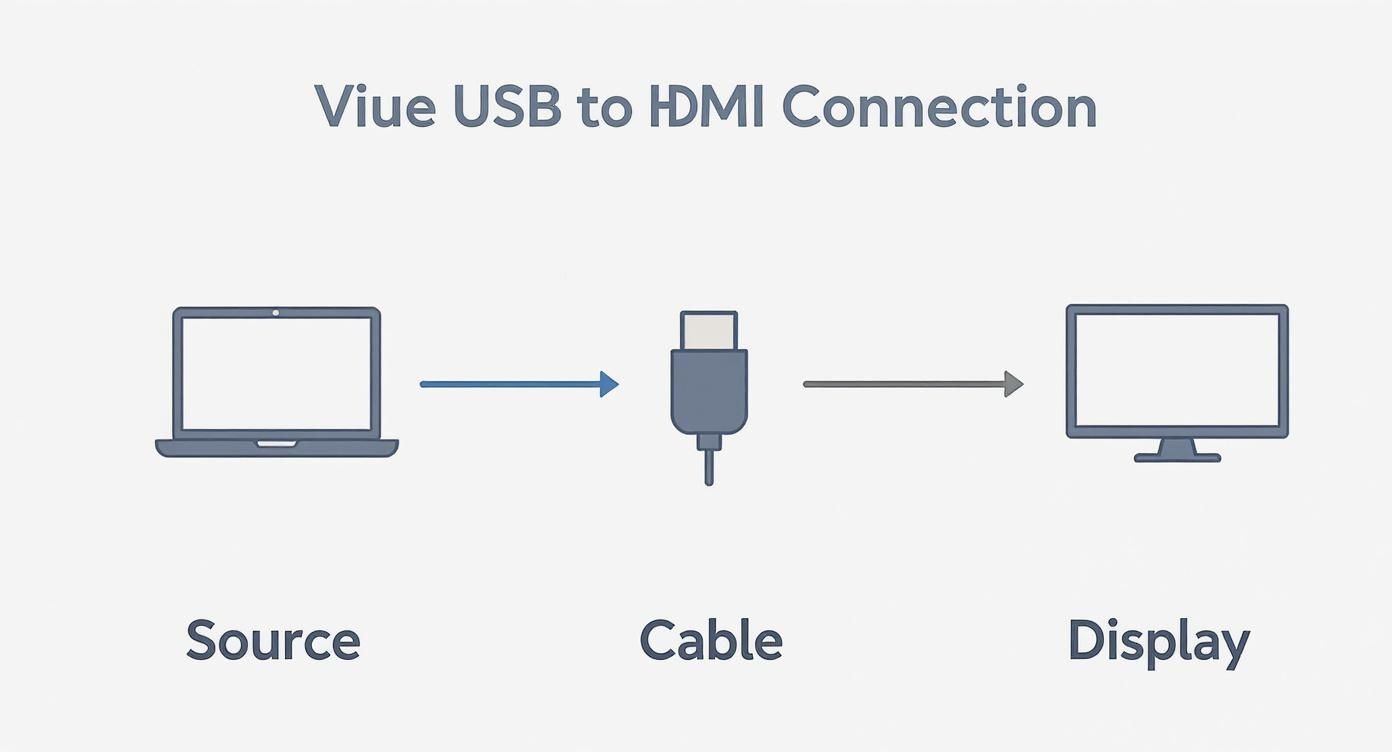
This setup—a source device, the connecting cable, and an external display—is the foundation for any USB to HDMI connection, but how the cable gets the job done is what really matters.
USB-C Alt Mode: The Direct Highway
The cleanest and most powerful way to connect is through USB-C DisplayPort Alternate Mode, or DP Alt Mode for short. Imagine your USB-C port as a multi-lane superhighway. When a port has DP Alt Mode, some of those lanes are reserved specifically for carrying a pure, uncompressed video signal.
This isn't a conversion; it's a direct pipeline. Your computer's graphics card sends the video data straight through the USB-C port and out to your HDMI display. Because it's a direct link, you get zero lag, no compression artifacts, and the best possible picture quality. This makes it perfect for demanding tasks like streaming 4K movies or responsive gaming.
The only catch? Not every USB-C port is built this way. Your device’s port must explicitly support DP Alt Mode to make this work. Luckily, this is becoming a standard feature on most modern laptops.
Across Canada, the shift to USB-C has been massive, with over 85% of new laptops and smartphones now equipped with the port. This trend has reshaped the accessories market as more people search for high-performance video cables. You can read more about the rise of USB-C technology in Canada to see how quickly it's grown.
USB-A Adapters: The Smart Translator
So, what if your computer has an older USB-A port, or a USB-C port that lacks Alt Mode? That's where the second type of connection comes into play, typically using technology from companies like DisplayLink.
These "active" adapters are much more than just a cable—they have a small chip inside that acts like a tiny, external graphics card. It works by taking an image of your screen, compressing it into data packets, and sending it over a standard USB connection. The adapter on the other end then uncompresses that data and turns it back into an HDMI signal your monitor can understand.
This technology is incredibly versatile. It allows older laptops or computers with limited video outputs to connect to multiple external monitors, breathing new life and functionality into existing hardware.
This "translation" process is a brilliant workaround for office tasks, web browsing, and general productivity. However, the compression and decompression steps introduce a tiny bit of delay, or latency. This makes it less ideal for anything where timing is critical, like fast-paced gaming or high-precision video editing. These adapters also require you to install special drivers on your computer to manage the whole process.
Comparing USB-C Alt Mode vs USB-A DisplayLink Adapter
To make it easier to see the differences at a glance, here’s a breakdown of the two technologies. This table should help you quickly identify which solution fits your needs.
| Feature | USB-C with DP Alt Mode | USB-A Active Adapter (DisplayLink) |
|---|---|---|
| Connection Type | Direct video signal (native) | Converted and compressed data signal (requires software) |
| Performance | High; no latency or compression. Ideal for gaming, video editing, and 4K content. | Good for productivity; may have slight latency. Not ideal for gaming or video editing. |
| Port Requirement | USB-C port that specifically supports DisplayPort Alternate Mode. | Any USB-A 3.0 port (or newer). Also works with USB-C ports without Alt Mode. |
| Driver Installation | Plug-and-play; no drivers needed. | Requires installation of specific drivers (e.g., DisplayLink). |
| Best For | Modern laptops, high-resolution displays, gaming, streaming 4K video. | Adding extra monitors to older computers or devices with limited video ports. |
| Power Usage | Lower, as it's a passive connection. | Higher, as the internal chip requires power from the USB port to process the signal. |
Ultimately, choosing between DP Alt Mode and a DisplayLink-style adapter comes down to your hardware and what you plan to do. If your laptop supports it, a native USB-C Alt Mode connection is always the superior choice for performance. But for expanding the capabilities of an older machine, an active adapter is an excellent and practical solution for users in Hamilton and beyond.
How to Check if Your Device Supports Video Over USB
So, you've got a USB to HDMI cable, but it's not working. This is probably the most common headache people run into, and it almost always comes down to a simple technology mismatch. The hard truth is that not all USB ports are built the same, and before you can hook up that shiny new monitor, you have to be sure your device can even send a video signal through that port.
Thankfully, figuring this out is usually pretty simple and can save you a world of frustration.
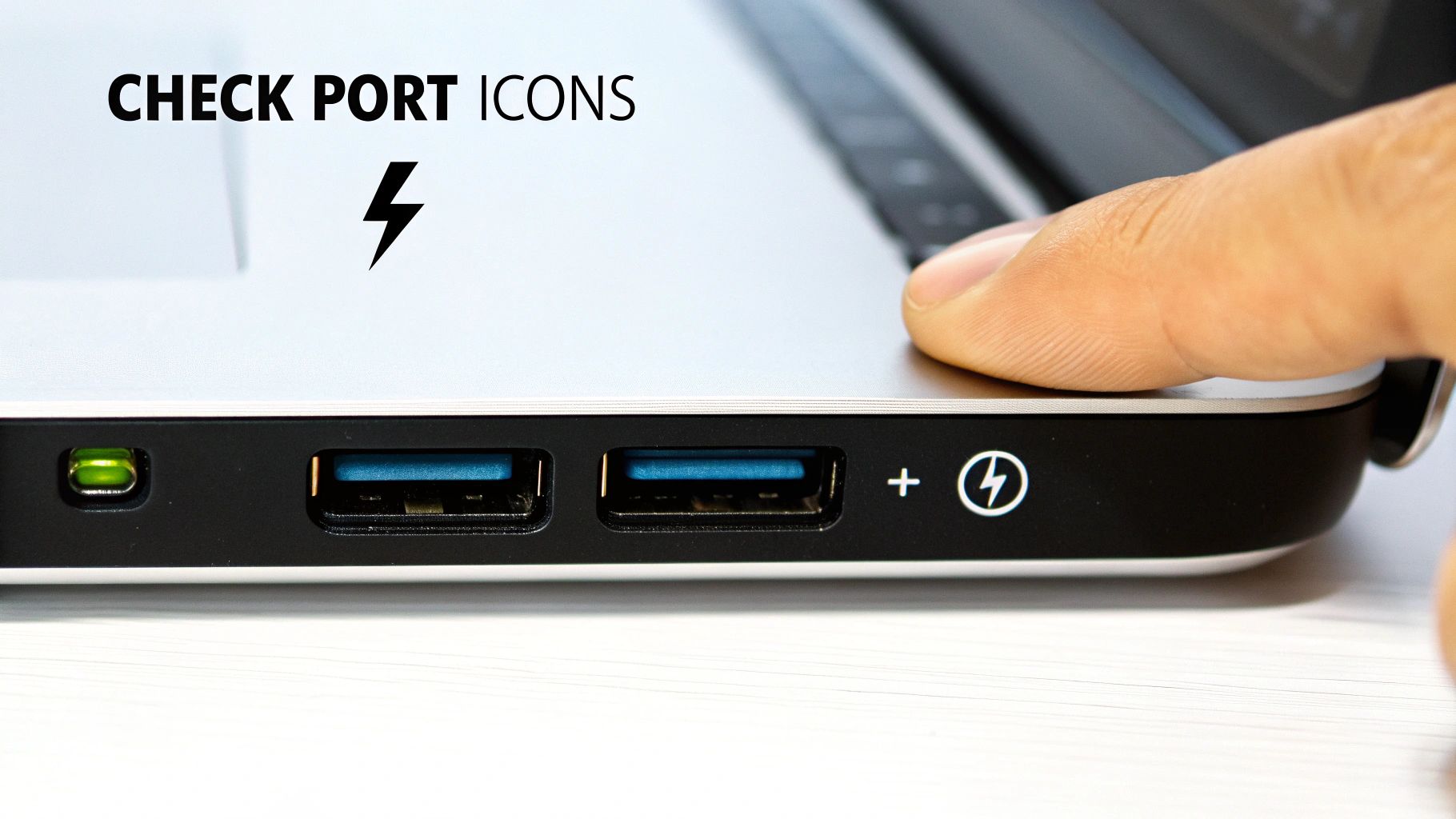
Think of it like checking if a power outlet in a foreign country fits your plug—you need the right kind of connection for anything to happen. A quick check upfront ensures you get the right gear for the job.
Look for the Right Symbols on USB-C Ports
If you're working with a modern USB-C port, device manufacturers often put little icons right next to them to tell you what they can do. This is your first and fastest clue to confirming native video support.
- DisplayPort Symbol (a 'D' icon): See a symbol that looks like a capital 'D' with a 'P' inside? That's the one. It means your port supports DisplayPort Alternate Mode, which is a fancy way of saying it can send a pure video signal. A basic USB-C to HDMI cable is all you'll need.
- Thunderbolt Symbol (a lightning bolt): A little lightning bolt icon means you have a Thunderbolt port (version 3 or newer). The great news is that all Thunderbolt ports automatically support DisplayPort Alt Mode, so you're set for high-quality video output.
If you spot either of those symbols, you’re golden. Your device is ready to connect directly to a display without any extra software gymnastics.
What to Do When There Are No Symbols
But what if your USB-C port is blank, or you're trying to use an older, rectangular USB-A port? In that situation, the port itself isn't going to give you any hints. You'll need to do a little detective work.
Your best bet is to look up your device's official specs. Just search online for your exact laptop or motherboard model number, followed by "specs." On the manufacturer's website, dig into the details about the USB ports. You're looking for phrases like "DisplayPort 1.4 over USB-C" or just plain "video output." For example, if you're in Hamilton and your MacBook's display is giving you trouble, knowing its specific port capabilities is a critical first step in our MacBook repair process step guide.
For devices without native video output, such as those with only standard USB-A 3.0 ports, you will need an active adapter that uses DisplayLink technology. This requires installing specific driver software to function.
A quick word of advice: always download these drivers directly from the adapter manufacturer's website or from DisplayLink's official site. It's also a good idea to keep them updated, because major Windows or macOS updates can sometimes break compatibility. A quick check before you buy an adapter can make all the difference between a seamless setup and a technical dead-end.
Solving Common USB to HDMI Problems
https://www.youtube.com/embed/7WVRYlSn5sA
So, you've done your homework, checked compatibility, and bought the right USB to HDMI cable. But now you're staring at a "No Signal" message or a screen that won't stop flickering. It's a frustrating spot to be in, but don't worry—the fix is usually simpler than you think. Most of these glitches boil down to a few common culprits, from a loose plug to a simple software setting that needs a nudge.
Before you start digging into complex driver updates, let's cover the basics. It sounds almost too simple, but a surprising number of connection problems are solved by just unplugging everything and plugging it back in again. Make sure both the USB and HDMI ends of your cable are pushed firmly into their ports on your computer and the display.
Of course, sometimes the problem isn't the cable at all, but the port itself. A quick way to check is to plug another device into that same USB port. If you're running into issues there too, it might be a hardware problem. This excellent guide to fixing non-functional USB ports can help you figure out if your computer's hardware is the real issue before you spend too much time troubleshooting the adapter.
Checklist for a Flickering Screen or No Signal
When your display is acting up, run through this quick checklist. These steps tackle the most frequent connection hiccups and usually get things working without needing to call in the experts.
- Check Physical Connections: Is the USB to HDMI cable securely plugged into both your computer and the monitor or TV? A loose connection is, by far, the most common reason for a signal to drop.
- Select the Correct Input: Your display probably has a few HDMI ports. Grab the remote and cycle through the input sources—like HDMI 1, HDMI 2, and so on—until you find the one your computer is connected to.
- Restart Your Devices: The classic "turn it off and on again" works for a reason. A simple reboot can clear up all sorts of temporary software glitches. Power down both your computer and your display, give it a minute, and then turn them back on.
One thing I see all the time in our Hamilton shop is issues caused by the cable itself. Those ultra-cheap, uncertified adapters you can find online are notorious for causing unstable signals, flickering, and flat-out connection failures. Investing in a quality cable from a reputable Canadian retailer can save you a lot of headaches right from the get-go.
Tackling Resolution and Audio Problems
What happens when you have a picture, but it’s fuzzy, stretched out, or completely silent? These are textbook signs of a settings or driver mismatch. Your computer might be sending the wrong resolution to the screen, or it could still be trying to play sound through its internal speakers instead of the TV.
Adjusting Display Settings
If your screen's resolution looks off, you can usually fix it in a few clicks.
- On Windows: Just right-click on your desktop and choose "Display settings." From there, scroll down to "Display resolution" and select the option marked "Recommended" for your external monitor.
- On macOS: Head over to "System Settings," then "Displays." Click on your external monitor and make sure the resolution is set to "Default for display," which usually gives you the best picture.
Fixing Missing Audio
Getting video but no sound is another common problem. Your computer simply hasn't switched its audio output over yet.
- On Windows: Click the little speaker icon in your taskbar. You should see an arrow or similar button that lets you switch the playback device. Just choose your HDMI display from the list.
- On macOS: Open up "System Settings," go to "Sound," and then click the "Output" tab. You'll see a list of available devices; select your TV or monitor.
If you’ve tried these fixes and a display issue just won't go away, it might signal a deeper hardware problem with the monitor itself. For folks in Hamilton dealing with stubborn screen problems, getting a professional diagnosis from a computer monitor repair service can quickly get to the bottom of it.
Exploring Alternatives to a Single Cable
A direct USB to HDMI cable is fantastic for a quick, straightforward connection, but what happens when your needs evolve? If you're building a more permanent or powerful workstation, especially for a home office in places like Toronto or Vancouver, it's wise to look beyond single-purpose solutions. These alternatives don't just connect one display; they dramatically expand what your laptop can do.
Think of it this way: a single cable is like a key that opens one door. A hub or a docking station, on the other hand, is the master key for the whole building. It turns one little USB-C port into a command centre for all your peripherals.
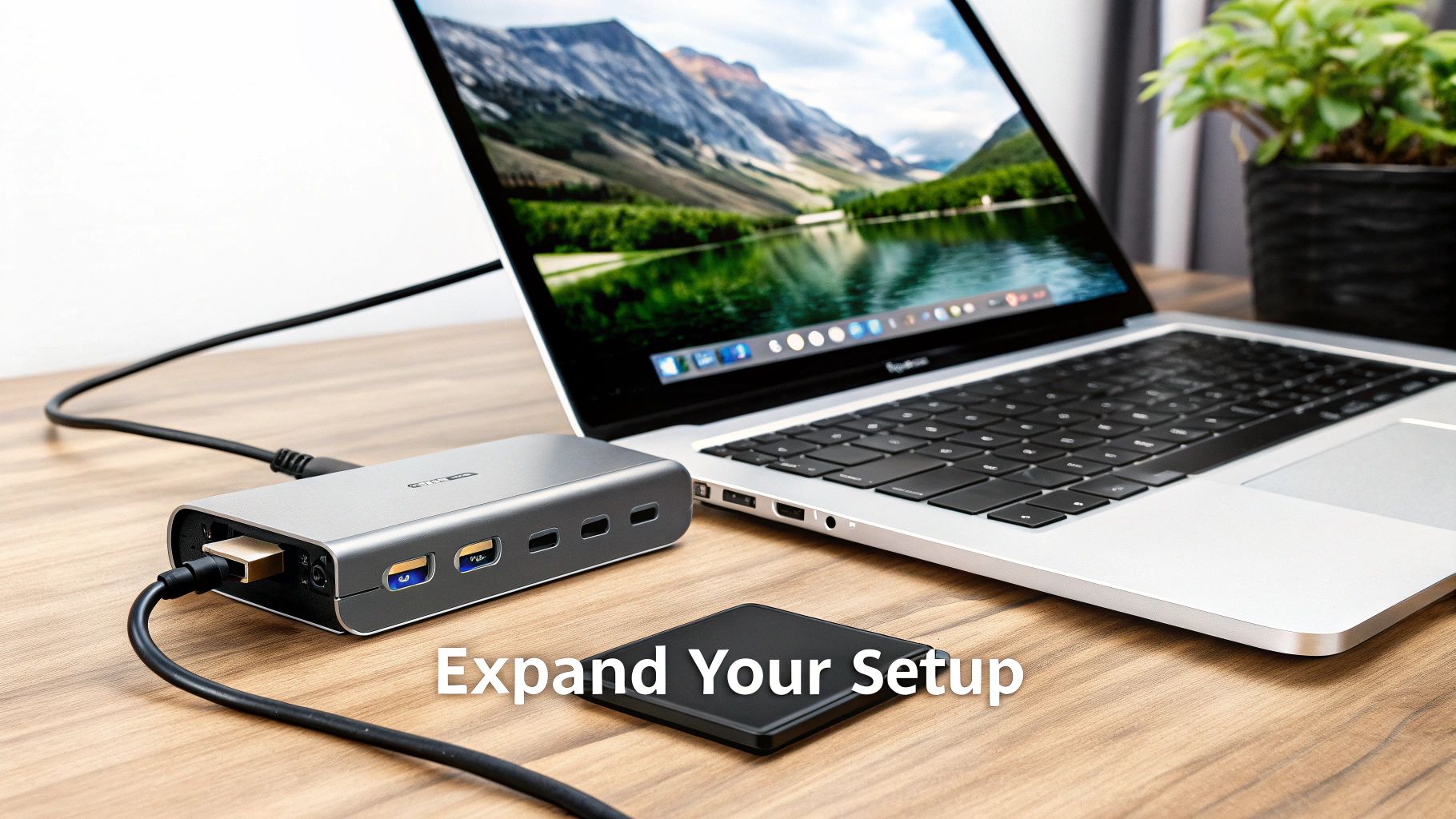
USB-C Hubs: The Portable Powerhouse
For many people, a multi-port USB-C hub is the natural next step up from a simple adapter. These are compact gadgets that plug into a single USB-C port on your laptop and, in return, give you a whole bunch of different connection options in one tidy package.
You'll typically find a mix of useful ports on a USB-C hub, such as:
- An HDMI port for your external monitor.
- A few USB-A ports for your trusty keyboard, mouse, or flash drives.
- An SD card reader, which is a lifesaver for photographers and videographers.
- An Ethernet port for when you need a rock-solid, wired internet connection.
This makes them absolute gold for today’s slim laptops, which often sacrifice ports for a sleek design. A good hub can just live in your laptop bag, always ready to turn a hotel desk or coffee shop table into a proper workspace.
Docking Stations: The Ultimate Desktop Transformer
If you're setting up a dedicated, stationary workspace, nothing beats a full-fledged docking station. A dock is designed to turn your portable laptop into a desktop powerhouse with just one single cable connection. They're bigger than hubs and usually have their own power supply, which lets them support more power-hungry devices and charge your laptop at the same time.
A docking station is meant to be the heart of your desk setup. It allows you to connect multiple monitors, external hard drives, high-quality audio equipment, and more, all while keeping your desk neat and free of cable clutter.
These are perfect for professionals in Hamilton who rely on a robust multi-monitor environment or anyone who is constantly moving between their desk and meetings. You simply unplug one cable to grab your laptop and go, then plug that same cable back in to instantly reconnect to your entire desktop world.
While a simple cable is great for hooking a laptop up to a TV, a dock offers a much more organized, long-term solution. And for those integrating media players into their setup, our guide on Android box setup and support in Hamilton has some related tips for home entertainment systems.
When to Call in the Pros
Look, sometimes you can try every trick in the book and still come up empty. You've swapped cables, you've wrestled with drivers, you've double-checked every setting, and yet… nothing. At this point, the problem probably isn't the usb to hdmi cable; it's something deeper inside the computer.
It's tempting to keep tinkering, but there comes a time when you can do more harm than good. Knowing when to wave the white flag and call a professional is a skill in itself. Certain problems are red flags, signalling that you've moved past a simple connection issue and into the realm of hardware failure or a nasty software conflict that needs a specialist's touch.
Signs of a Deeper Hardware Problem
If you've tried the basics and the problem just won't budge, it's often a sign that something is physically wrong. If any of these sound familiar, it's time to get an expert opinion.
- Physically Damaged Ports: Take a close look at the USB and HDMI ports on your computer. Are they loose? Do the pins look bent or damaged? A wobbly or visibly broken port simply can't make a solid connection, and a technician will need to assess it for repair or replacement.
- Total Display Blackout: Your computer refuses to detect any external monitor, no matter which cable or screen you try. This is a classic symptom of a much bigger issue, often pointing to a failing graphics card or a problem on the motherboard itself.
- Stubborn Driver Conflicts: You've uninstalled and reinstalled the right drivers over and over, but they either won't work or, worse, they cause your system to crash with the dreaded Blue Screen of Death.
When you've exhausted all the DIY fixes, bringing in a pro isn't giving up—it's saving yourself a ton of time and frustration. A good technician can pinpoint the real problem in minutes, whether it’s a bad port or a dying component.
For anyone in Southern Ontario hitting this kind of wall, Klimka Computer Solutions is here to help. If you're looking for trustworthy computer help in Hamilton, our team can sort out everything from tricky port replacements to complex hardware diagnostics to get your setup running just the way it should.
Got Questions About USB to HDMI? We Have Answers.
We've covered a lot of ground, but you might still have a few things on your mind. Here are some quick, clear answers to the most common questions we hear from folks in Hamilton and across Canada about getting their USB to HDMI cables to work right.
Can I Just Plug a USB-C to HDMI Cable into Any USB-C Port?
Not quite, and this is where most people get tripped up. For a USB-C to HDMI cable to work directly, the port on your computer needs to support something called DisplayPort Alternate Mode (often shortened to "DP Alt Mode") or Thunderbolt.
Think of it like this: a standard USB-C port is for data and power, but these special ports have a built-in, direct pipeline for video. You can often spot them by looking for a small lightning bolt symbol (for Thunderbolt) or a 'D' symbol (for DisplayPort) next to the port. If there's no symbol, your best bet is to check your laptop's spec sheet on the manufacturer's website.
A simple rule of thumb: always look for the symbol or check the specs online. Assuming every USB-C port can handle video is the number one reason we see these connections fail.
Are These USB to HDMI Adapters Any Good for Gaming?
This really boils down to which type of USB connection you're using.
If you're using a USB-C port that has that native video capability we just talked about (DP Alt Mode), then yes, it's fantastic for gaming. The video signal is sent directly to the screen with no processing, so you get a smooth, lag-free experience.
On the other hand, if you're using an older USB-A adapter that needs DisplayLink software, it's not a great choice for fast-paced gaming. That adapter has to compress the video from your computer, send it over USB, and then decompress it. This process adds a tiny bit of delay—or "lag"—which can be a real deal-breaker in games where every millisecond counts.
Will the HDMI Cable Carry Sound from My Computer, Too?
Absolutely. In nearly all modern setups, both the video and audio signals travel together through the same USB to HDMI cable.
If you've got a perfect picture but the sound is still coming from your laptop's speakers, it's an easy fix. Your computer just needs to be told where to send the audio. Head into your sound settings and select your TV or monitor from the list of playback devices.
If you've tried everything and are still staring at a blank screen, the problem might be a bit deeper, maybe with the port itself or a tricky driver issue. For expert diagnostics and hardware repairs right here in the Hamilton area, you can count on the team at Klimka Computer Solutions. Book a service online and let us get you connected.
3 Responses
[…] fancy paperweight. If you're dealing with other types of connections, our guide on choosing a USB to HDMI cable might come in […]
[…] If this is what your Mac has, you'll need a "USB-C to HDMI adapter" or a dedicated cable. If you want to dive deeper into the nuances of these connections, you can learn more about the differences with a USB to HDMI cable in our comprehensive guide. […]
[…] A Bridge Between Devices: USB is the standard, but connecting other types of devices can be tricky. For example, knowing how to hook up a monitor is also useful, which we cover in our guide on the USB to HDMI cable. […]