
Moving files around might seem like a simple drag-and-drop task, but it’s one of those things where a small mistake can lead to big problems. A successful data transfer isn't just about getting files from A to B quickly. It’s about making sure your information—whether it’s family photos or sensitive business documents—arrives securely and completely intact, especially for users here in Hamilton and Southern Ontario.
Why Secure Data Transfer Matters Today
In a world where everything is connected, data is always on the move. A freelancer in Toronto might be sending massive project files to a client in Hamilton, while a small business in Burlington is migrating its entire customer database to a new system. These everyday tasks are fundamental, but not all transfer methods are built the same. Using an unsecured channel is a gamble you don't want to take.
The constant news about cyberattacks, like the rising threat of infostealer malware and data leaks, really drives home how crucial secure data transfer is. A single breach while your data is in transit can expose sensitive personal or financial information, and for a local business in Hamilton, the fallout can be devastating.
Getting The Basics Right
To make smarter choices about moving your data, it helps to understand a few core ideas. I like to think of it like shipping a package: the speed and safety all depend on the courier you choose.
- Bandwidth: This is basically the size of the digital "pipe" your data flows through. More bandwidth means you can push more data through at once, which is essential for hefty files like 4K videos or large databases.
- Latency: This is the time it takes for a single piece of data to start its journey. High latency is what makes a connection feel sluggish, even if you have great bandwidth. It’s like having a fast delivery truck that keeps getting stuck in traffic on the QEW.
- Security: This is all about protecting your data from prying eyes while it's on the move. Encryption is your best defence here—it's like putting your package in a locked safe before shipping it.
These three factors are always in play. For example, a video editor in Hamilton is going to prioritize high bandwidth to upload huge files efficiently. On the other hand, a financial advisor in Ancaster needs low latency for real-time client meetings and, above all, rock-solid encryption.
The Scale of Modern Data
The amount of data we're moving globally is almost hard to comprehend. Back in 1986, the world's effective data exchange capacity was around 281 petabytes. By 2014, that number had ballooned to an estimated 667 exabytes per year, and the growth has only accelerated since. This explosion in data shows just how much we rely on digital transfers and why we need solid infrastructure to support it.
Choosing the right data transfer method is your first and most important line of defence. It’s not just an IT task; it’s a fundamental part of protecting your digital life and business operations from an ever-growing list of threats.
Protecting data in transit is every bit as important as securing it when it's sitting on a hard drive. Without the right safeguards, you’re basically leaving the door wide open for your files to be intercepted or corrupted. That's why secure transfer methods go hand-in-hand with strong endpoint security. For more on protecting your devices, take a look at our guide on the https://klimkacomputersolutions.com/best-antivirus-software-for-small-business/. From there, this guide will walk you through the next steps in building a truly secure digital environment.
Choosing Your Local Transfer Method
When you need to shift files without touching the internet, nothing beats a direct, local transfer. These offline methods are your best friends for moving data quickly and securely, whether you're a photographer in Dundas with a massive photo library or a McMaster student handing off project files. Let's dig into the best tools for getting it done.
Sometimes, the simplest solutions are already built into your computer. These peer-to-peer wireless tools are brilliant for those quick, one-off transfers between devices that are right next to each other.
Use Your System's Built-in Sharing Tools
If you're on a Windows PC, Nearby Sharing is a fantastic, often-overlooked feature for flicking documents, photos, or web links to other PCs in the room. It cleverly uses both Bluetooth and Wi-Fi to create a direct link, completely skipping your router. This makes it surprisingly fast and perfect for sharing files in a small Hamilton office or around the house.
Over in the Apple world, AirDrop is legendary for a reason. It lets you seamlessly share files between Macs, iPhones, and iPads with just a few clicks. The real magic of these tools is their simplicity. No cables, no formatting, no fuss. They just work.
Master External Drives for the Heavy Lifting
When you’re staring down a mountain of data—we’re talking gigabytes of video footage or a complete backup of your computer—the humble external drive is still king. It's the dependable workhorse for any serious local data transfer. But there's a bit more to it than just plugging it in.
First things first: formatting. If you’re ever moving files between Windows and macOS, format your drive as exFAT. This is the universal language both systems understand, and it'll save you the immense frustration of a Mac refusing to write to a Windows (NTFS) drive, or a PC not recognizing a Mac-formatted one.
A little organization upfront will save you a world of pain later. Create a clean folder structure on the external drive before you start copying. This simple step keeps you from ending up with a digital junk drawer on your new machine.
Once the transfer is done, always, always use the "Safely Remove Hardware" or "Eject" option before pulling the plug. Ripping the cable out mid-operation is one of the top causes of data corruption, and that’s a gamble you just don’t want to take with your important files.
Comparing Local Data Transfer Methods
So, which tool should you grab? It really depends on the job. A quick file share is a different beast than migrating an entire hard drive. This table breaks down the basics to help you choose wisely.
| Method | Best For | Pros | Cons |
|---|---|---|---|
| Nearby Sharing/AirDrop | Quick transfers of smaller files (documents, photos) between nearby devices. | Extremely fast for its purpose; no cables required; very convenient. | Limited by range; not ideal for huge files or full system backups. |
| External SSD/HDD | Large-scale data moves, full system backups, transferring files to a new computer. | Handles massive amounts of data; highly reliable; works without a network. | Requires a physical device; risk of physical damage; HDDs are slower than SSDs. |
If you're thinking of investing in a good external drive, picking the right one makes all the difference. To get a better sense of what to look for in a dependable storage solution, check out our in-depth guide on the best external hard drive for backup. It will walk you through everything from capacity to speed.
Ultimately, the best method comes down to your situation. For sending a couple of files to a colleague across the boardroom in a Hamilton office, Nearby Sharing is perfect. For moving your entire digital life to a new machine, a well-organized external drive is the only way to go. Knowing the strengths of each will make sure your data gets where it needs to be, safe and sound.
Leveraging Cloud and Network Transfers
When you need to move beyond physical drives, the world really opens up. Network and cloud-based transfers offer incredible flexibility, giving you access to your files from just about anywhere. These methods are the lifeblood of modern work, keeping everything in sync whether you're at the office in Hamilton or collaborating with a team in Stoney Creek.
One of the best ways to manage data on your own turf is with a Network Attached Storage (NAS) device. Just think of it as your own personal cloud, tucked away safely in your home or office. It’s a central hub where you can store, share, and access all your important files from any device on your network.
Don't let the name intimidate you; setting up a NAS is usually pretty straightforward. You just connect it to your router, and it pops up as a shared drive for any computer you authorize. For a small business in a place like Hamilton, this can be a real game-changer. You get a central spot for all your project files without getting locked into monthly cloud subscription fees.
Embracing the Power of Cloud Services
For sheer accessibility, nothing beats cloud services like Google Drive, Dropbox, or OneDrive. They’re fantastic at keeping your files perfectly harmonized across your laptop, phone, and tablet. The old problem of figuring out which device has the "master file" pretty much disappears.
The trick to a seamless experience is getting a handle on syncing, especially when you're dealing with massive folders. Most cloud apps have a "selective sync" feature, which lets you choose exactly which folders to download to your computer. This is a lifesaver for keeping your laptop's hard drive from filling up, while all your files remain safe and sound in the cloud. You can still grab any non-synced file you need, as long as you have an internet connection.
Another huge plus is how they handle sharing. Instead of wrestling with email attachment limits, you can just generate a secure link to a file or folder.
Modern cloud platforms give you incredibly granular control. You can let someone view a document but not edit it, grant them full editing rights, or even make the link expire after a certain date for extra security. That level of control is essential when you're handling sensitive information.
If you’re thinking about moving your data over to one of these platforms, our guide on data backup and cloud migration in Hamilton has some practical steps and local insights to help you out.
This flow chart gives a good visual breakdown of when to use which local transfer method.
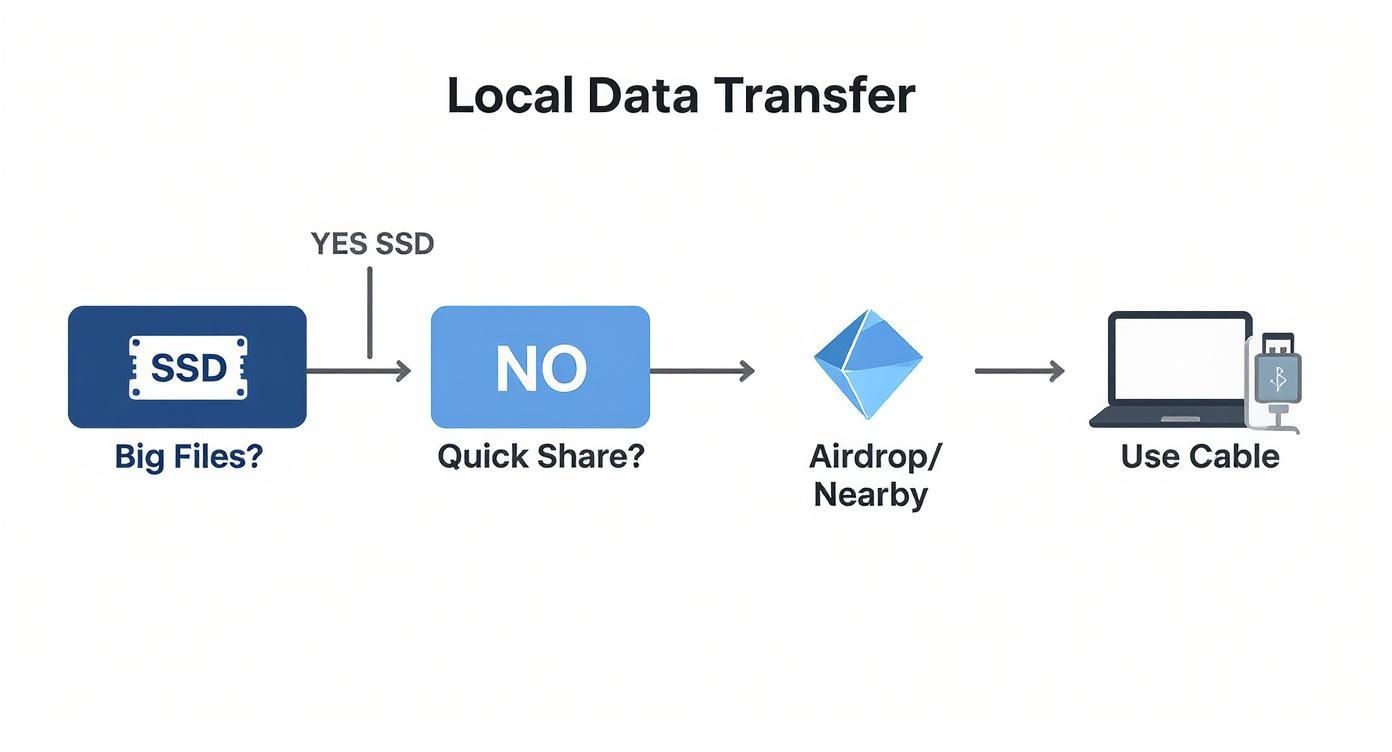
As you can see, for really big files, plugging in an SSD is often the quickest path. But for smaller, on-the-fly shares, wireless tools like AirDrop or even just a simple cable will do the job perfectly.
The Critical Importance of Data Residency
When you store files in the cloud, they have to physically live somewhere—usually in a massive data centre. Data residency is the term for the geographical location where that data is kept, and for Canadian businesses, it's something you absolutely have to consider. Many industries have strict privacy laws that dictate where customer information can be stored.
For example, a healthcare clinic in Hamilton has to ensure its patient records stay within Canada to comply with both provincial and federal regulations. It’s why the big cloud providers—Amazon Web Services, Microsoft Azure, and Google Cloud—have all built data centres right here in Canada, with major hubs in places like Montreal and Toronto. Choosing a provider with a Canadian data centre isn't just a nice-to-have; it's often a legal requirement.
The need for robust data transfer infrastructure is growing everywhere. Take the Dominican Republic, where mobile data capabilities have exploded. As of early 2025, there were around 10.3 million cellular mobile connections, and a staggering 97.4% of them were broadband-capable. This shows a massive capacity for high-speed data exchange even over mobile networks.
A well-thought-out migration is the key to successfully moving to the cloud. To make sure your transition is as smooth as possible, it's worth reviewing some successful strategies for cloud migration for valuable insights. Picking the right service and plan ensures your data is not only easy to get to, but also secure and compliant with the law.
Keeping Your Data Safe During Transit
A successful data transfer is about so much more than just getting files from A to B. It’s about making sure they arrive securely and completely intact. Moving data without a proper plan is like driving without a seatbelt—you might be fine, but if something goes wrong, the fallout can be disastrous.
Before you even think about moving a single file, your first move should always be to create a complete backup. This is your absolute, non-negotiable safety net.
Imagine you're finally moving a decade's worth of family photos off an old laptop, and the external drive corrupts halfway through. Without a backup, those memories could be gone for good. A full backup gives you a clean copy to fall back on, turning what could be a catastrophe into a minor hiccup.
Always Verify Your Transfer
Just because the progress bar hits 100% doesn't mean your job is done. You have to verify that everything actually made it across. The easiest way is a quick spot-check. Does the new folder have the same number of files and folders as the original? A quick glance at the folder properties on both ends can give you a basic confirmation.
But for mission-critical files—we’re talking legal documents, financial records, or key project files for your Hamilton business—you need something more concrete. That’s where checksums come in.
A checksum is basically a unique digital fingerprint for a file. It’s generated by an algorithm like MD5 or SHA-256, and if even one tiny bit of data is altered during the transfer, the checksum of the copied file will be completely different from the original.
- MD5: A common and fast algorithm that’s great for verifying file integrity.
- SHA-256: A more secure and robust option, often used when you need cryptographic-level security.
Many professional file transfer tools have this verification built right in. If yours doesn't, there are plenty of free utilities out there that can generate and compare these values for you. It’s the only way to be absolutely certain your data arrived without a single error.
The Power of Proactive Encryption
Encryption is your best friend when it comes to protecting data in transit. It scrambles your files into an unreadable code that can only be unlocked with the right key or password. This is essential whenever you're moving sensitive information, especially if it's leaving your direct control on an external drive or through a cloud service.
Think of it like this: if you were mailing a confidential document, you’d put it in a sealed envelope. Encryption is the digital, far more secure version of that. Even if someone were to steal your external hard drive, the encrypted files are completely useless to them.
Encrypting sensitive files before they leave your device is a fundamental security practice. It ensures your data remains protected even if the storage medium or the network it travels on is compromised.
Most operating systems already have powerful encryption tools built in. Windows offers BitLocker, and macOS has FileVault—both are excellent for encrypting entire drives. If you just need to protect specific files or folders, tools like 7-Zip or VeraCrypt offer strong, user-friendly protection. These practices are even more critical when combined with network security. For local businesses, pairing data encryption with solid network defences is a must; our guide on firewall setup in Hamilton can show you how to lock down your perimeter.
By making these three habits second nature—backing up first, verifying after, and encrypting before—you turn a simple copy-paste job into a secure, professional, and reliable procedure. It’s how you guarantee your valuable information stays safe, every single time.
Troubleshooting Common Transfer Headaches
https://www.youtube.com/embed/GKh9V5zT5FI
Even the most carefully planned data transfer can hit a snag. It's incredibly frustrating when you're staring at a stalled progress bar or a cryptic error message, whether you're moving files across your home network in Grimsby or just to an external drive. The good news? Most of these problems are fixable with a bit of know-how.
Instead of getting discouraged, I always tell people to think of it as a quick diagnostic check. A slow network transfer, for instance, is often the first sign of an underlying issue that could be affecting more than just your file copy. It’s a chance to tune up your system for better performance all around.
Decoding Agonizingly Slow Transfers
One of the most common complaints I hear is a data transfer moving at a snail's pace. When every megabyte feels like a marathon, it’s time to look at the connection itself. If you're on a network, your Wi-Fi is the prime suspect.
Start by looking for sources of interference. You'd be surprised what can mess with a Wi-Fi signal—microwaves are a classic culprit, but even a neighbour’s powerful router in a dense area like downtown Hamilton can disrupt things. Try moving your router to a more central spot or switching to a different Wi-Fi channel in your router’s settings. Honestly though, a wired Ethernet connection will almost always be faster and more stable if you can manage it.
It's also a good idea to make sure your network drivers are up to date. An outdated driver can cause all sorts of performance bottlenecks, and a quick check in your device manager can often solve these persistent slowdowns.
Solving Confusing 'Permission Denied' Errors
Ah, the dreaded "permission denied" or "access denied" error. It’s a classic roadblock. This issue almost always boils down to user access rights; it's just your computer's way of saying it doesn't have the authority to read a file or write it to a new location.
To fix this, you’ll need to check the permissions on both ends of the transfer. Right-click the folder you're copying from, head to 'Properties,' and then click the 'Security' tab. Make sure your user account has 'Read' permissions. Then, do the same for the destination folder, but this time, ensure you have 'Write' permissions. This one simple check resolves the issue more often than not.
A stalled transfer can sometimes point to a more serious problem, like a failing hard drive. If a drive becomes unresponsive or starts making unusual clicking noises during a transfer, stop what you're doing immediately to prevent further damage. That's a critical sign you might need professional help.
If you suspect a hardware issue is causing repeated transfer failures, professional diagnostics are the safest next step. For those in our local area, exploring options for data recovery in Hamilton, Ontario can help figure out if the drive is failing and get your files back safely.
Resuming a Stalled Transfer Safely
So, what happens when a massive transfer just freezes halfway through? Your first instinct might be to cancel everything and start over, but that’s not always necessary. The cause is often a temporary hiccup, like a brief network drop or, more commonly, running out of disk space on the target drive.
First, check the destination drive's capacity. If it's full, you'll have to clear some space before you can continue. If a dodgy connection was the problem, many modern operating systems and transfer tools are smart enough to resume. If the process is well and truly frozen, though, you may need to cancel it, delete the partially transferred files to avoid corruption, and restart the whole thing from a stable connection.
Connectivity issues are a universal challenge, but improving infrastructure helps. For example, internet penetration in Latin America and the Caribbean reached nearly 75% by early 2025. Countries like the Dominican Republic now see over 85% penetration and a mobile network where 97.4% of connections are broadband-enabled, showcasing a mature digital ecosystem capable of handling immense data transfer demands. You can discover more insights about Caribbean connectivity and its economic impact.
Your Data Transfer Questions, Answered
Over the years, we've helped countless people in Hamilton and the surrounding areas move their digital lives from one place to another. We see the same questions pop up time and again, so I wanted to tackle a few of the most common ones to give you a bit more confidence for your next data transfer.
What’s the Absolute Fastest Way to Move Huge Files?
When you’re talking about serious speed for massive files—let's say over 100GB—nothing on a local network really beats a direct physical connection. Hands down, the champion is an external NVMe SSD connected via a Thunderbolt or USB4 port. This is exactly what professional video editors and data analysts in Hamilton use when they can't afford to wait around.
If your computers are on a fast wired network, like one with Gigabit Ethernet, a direct transfer over the network is also a fantastic option. It's incredibly efficient. But if you’re sending those big files across the internet, you’ll find that dedicated file transfer services often run circles around standard cloud uploads. They're built with special protocols that really squeeze every last bit of speed out of your internet connection.
How Do I Get All My Stuff from an Old Computer to a New One?
Honestly, the most complete way to do this is by using the tools built right into your operating system. If you're on a Mac, Apple's Migration Assistant is a lifesaver. It doesn’t just copy your files; it brings over your applications and settings so your new Mac feels familiar right out of the box. For Windows users, a dedicated program like PCmover does a similar, thorough job.
The classic method that never lets you down? A good old-fashioned external hard drive. Just copy your main user folders (Documents, Pictures, Music, etc.) from the old machine onto the drive. Then, plug it into your new computer and drag them over. It's simple, reliable, and you end up with a physical backup of your most important data.
Of course, cloud services like iCloud or OneDrive can handle a lot of the heavy lifting for you. Sync your important folders, and once you sign into your new computer, your files will be there waiting for you.
Is It Safe to Transfer Data Over My Home Wi-Fi?
For the most part, yes—as long as your home network is locked down properly. The key is using a strong WPA2 or WPA3 password. This encrypts all the data zipping around your local network, keeping it safe from anyone nearby who might try to snoop.
That said, the game completely changes on public Wi-Fi. I would never recommend transferring sensitive, unencrypted files while sitting in a coffee shop in downtown Hamilton or at the airport. These networks are often wide open and can be hotspots for data interception.
If you absolutely must transfer files on a public network, a reputable VPN is non-negotiable. A VPN creates an encrypted tunnel for all your internet traffic, essentially making your connection invisible to prying eyes. It's a simple tool that provides a powerful layer of protection, no matter where you are.
At Klimka Computer Solutions, we know how important a smooth, secure data transfer is, whether you're just setting up a new laptop or migrating your entire business. If you're facing a transfer that seems daunting, our Hamilton-based team is here to offer fast, honest, and reliable help. Feel free to check out how we can assist you at https://klimkacomputersolutions.com.
One Response
[…] with complete confidence, our team is here to help. You can learn more about our professional data transfer services and let us take the stress out of protecting your valuable […]