When your laptop slows to a crawl, the fix often starts with three key areas: trimming down programs that launch at startup, clearing out a nearly full hard drive, and scanning for hidden malware. Tackling these first can often solve the problem in minutes, giving you a noticeable speed boost without any complex technical work. Whether you're in Hamilton or anywhere across Ontario, these first steps are universal.
Quick Fixes for an Instantly Faster Laptop
Is your laptop taking ages to boot up? Does opening a simple file feel like a chore? This initial slowdown is a common frustration, but the good news is that some of the most effective solutions are also the quickest. Before you start thinking about expensive upgrades or professional computer repairs in Hamilton, let's go after the low-hanging fruit that’s draining your system's resources.
We'll focus on the background clutter that accumulates over time, and you can get started right now.
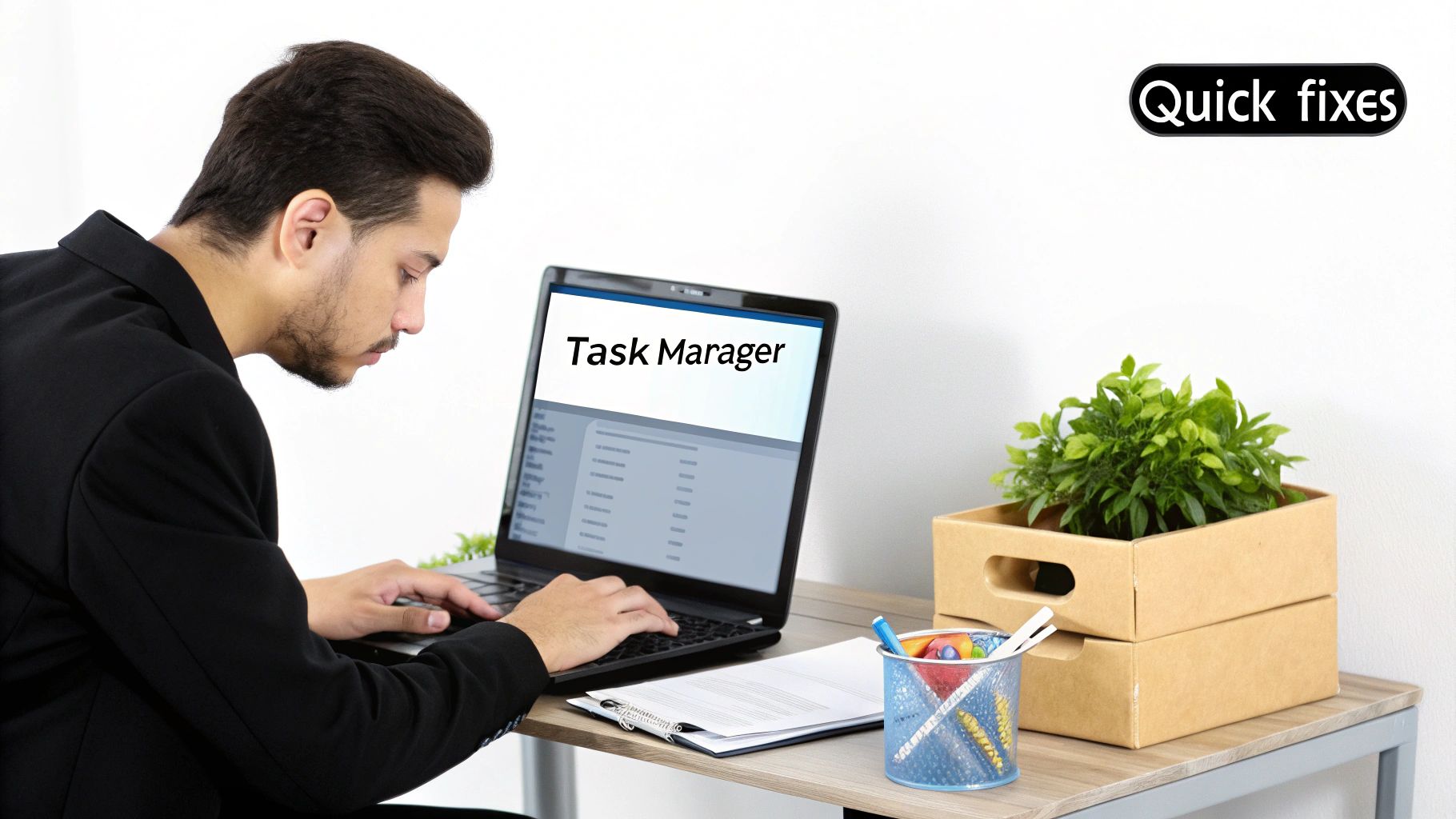
Tame Your Startup Programs
Every time you turn on your laptop, a bunch of applications launch in the background. While some are essential, many are not. Think of Spotify, Steam, or Adobe Creative Cloud—they don't need to be running from the moment you log in, gobbling up valuable memory and processing power.
I’ve seen this countless times in the Greater Toronto Area. A marketing professional in Toronto is scrambling before a big client presentation, but their laptop is lagging and the presentation won't load. The culprit? A dozen apps launching all at once. By managing these startup items, they can ensure a smooth, fast boot-up when it really matters.
Here’s how to take back control:
- On Windows: Press Ctrl + Shift + Esc to open the Task Manager. Click on the "Startup apps" tab (you might need to click "More details" first). You'll see each program's impact on startup. Just right-click any non-essential app and select "Disable."
- On macOS: Head to System Settings > General > Login Items. Under the "Open at Login" section is a list of apps that start automatically. Select any you don't need and click the minus (-) button to get rid of them.
Pro Tip: Focus on disabling third-party applications like game launchers, chat apps, and software updaters. Be careful not to disable critical system drivers or your antivirus software, as those are necessary for your computer's health and security.
Perform a Thorough Disk Cleanup
A hard drive that's over 85% full will absolutely slow down your laptop. Your operating system needs that free space to manage temporary files and just function efficiently. When space gets tight, simple tasks like saving a document or browsing the web become sluggish. Reclaiming this space is one of the most powerful ways to fix a slow laptop.
A freelance writer in Vancouver, for instance, might find their machine struggling after months of downloading research papers and images. All those accumulated files, along with system junk, are clogging the drive. A quick cleanup can free up gigabytes of space in just a few minutes, a trick that works just as well for a student in Burlington.
Both Windows and macOS have excellent built-in tools for this:
- Windows Disk Cleanup: Search for "Disk Cleanup" in the Start Menu and select your main drive (usually C:). The tool will scan for files you can safely delete, like temporary internet files, system error reports, and old update files.
- macOS Storage Management: Click the Apple logo, then go to About This Mac > More Info > Storage Settings. Here, you'll get great recommendations to "Store in iCloud," "Optimize Storage," and "Empty Bin Automatically."
Beyond these tools, manually deleting large, unused files can make a huge difference. Go check your Downloads and Documents folders for old installers, duplicate files, or massive video projects you no longer need.
And don't forget your browser. Having too many tabs open can consume a surprising amount of RAM. It's a good habit to close them when you're done. You can learn more about how excessive tabs affect performance and discover strategies for better browser management.
Time to Declutter Your Digital Workspace
Think of your laptop’s hard drive like a physical filing cabinet. When it’s stuffed to the brim with old projects, forgotten downloads, and random software you tried once, finding anything or adding something new becomes a sluggish chore. I've seen this countless times—a student's powerful MacBook Pro grinding to a halt during finals week at McMaster University, all because it was choked with old video projects and trial apps.
The good news is that clearing out this digital clutter can free up gigabytes of space and give you a noticeable speed boost. Modern operating systems even have built-in tools like Windows Storage Sense or macOS Optimized Storage that can do a lot of the heavy lifting for you.
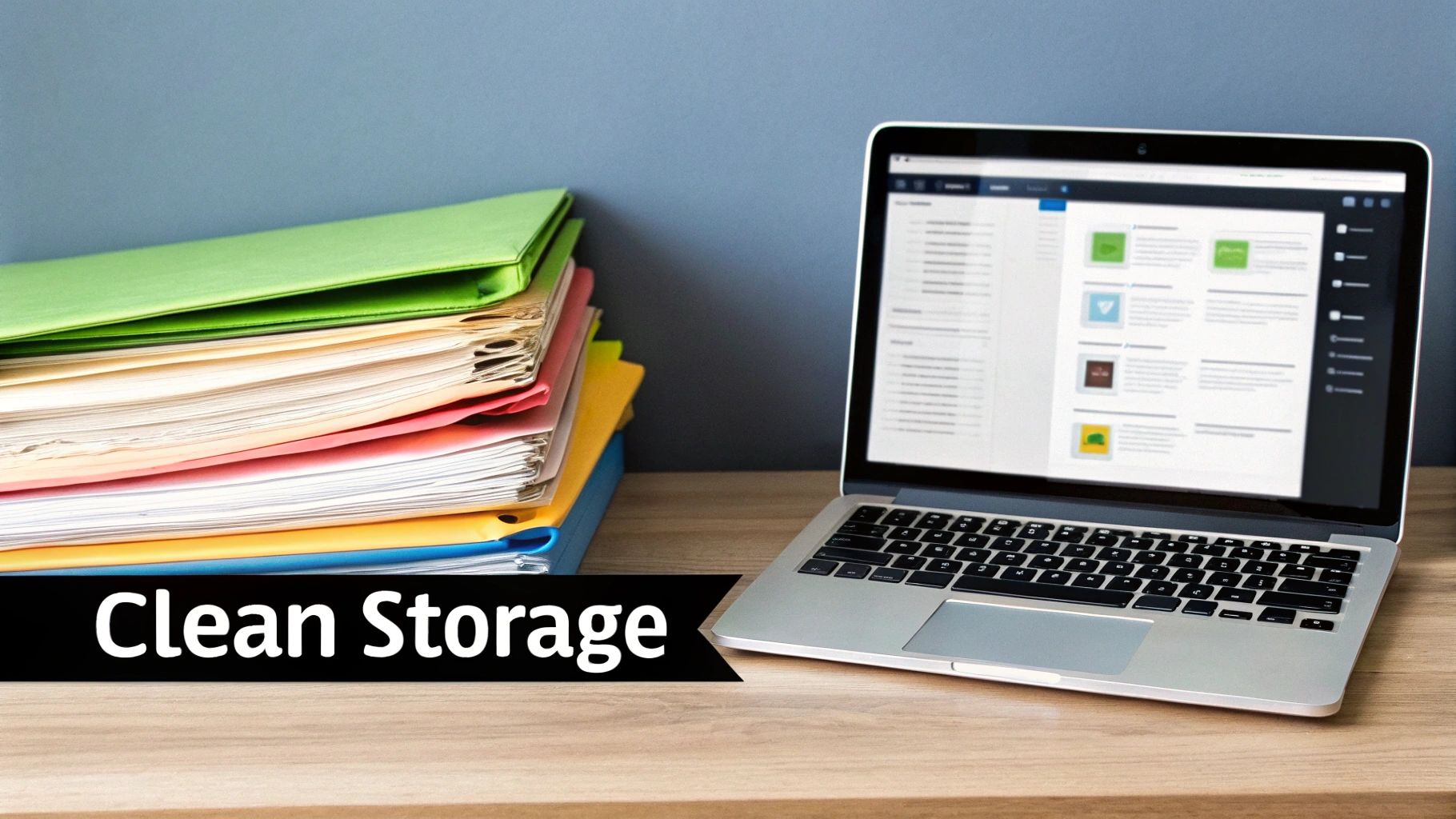
Let Your OS Handle the Cleanup
Both Windows and macOS have smart tools designed to automatically manage your storage once you turn them on. They're great for getting rid of the low-hanging fruit—the temporary files and junk that accumulate over time.
- Windows Storage Sense: This feature quietly works in the background, deleting temporary files, emptying your Recycle Bin on a schedule, and clearing out old system cache files. You just set your preferences, and it takes care of the rest.
- macOS Optimized Storage: This tool is particularly useful if you use iCloud. It can automatically move large, seldom-used files to the cloud and even delete movies and TV shows you’ve already watched from the Apple TV app, freeing up local space.
Both operating systems also give you a clear, visual breakdown of what’s taking up the most space, allowing you to see the biggest offenders at a glance and delete them with a single click. A design student I worked with in Vancouver turned on Storage Sense and reclaimed over 50 GB in less than two minutes. The result? Her boot time improved by 35%, making those tight project deadlines feel a lot more manageable.
The Manual Sweep: Get Rid of Bloatware and Forgotten Files
Automated tools are great, but nothing beats a targeted manual cleanup. You'd be surprised how much storage is being hogged by software you don't even remember installing.
Start by digging into your applications.
- On Windows, head to Settings > Apps & Features. On a Mac, open Finder > Applications.
- Sort the list by size or install date to find the biggest and oldest programs.
- Be ruthless. Uninstall any trial software that has expired or utilities you simply never use.
- Next, tackle your personal files. Check your Downloads and Documents folders for huge video files, old university assignments, or duplicate photos.
- Delete what you don’t need and move the rest to an external drive.
A recent UC Davis student survey found that while 96.3% of students own a laptop, a significant 14.3% still head to campus computer labs when their own machines get too slow or run out of space. In tech-heavy regions with over 57,504 businesses, we see professionals experience performance drops of up to 50% when their drive hits 90% capacity. The consensus among experts is clear: keep at least 20–25% of your drive free to maintain optimal performance.
Why You Need to Maintain That Free Space
That 20–25% figure isn't just a random number. Your operating system needs that empty space as "breathing room" to function properly. It uses it for virtual memory (swap files), temporary files, and system updates. When a drive gets too full, read and write speeds plummet, and your entire system can feel like it’s wading through mud.
Making this a regular habit is key. Whether you're in Calgary, Vancouver, or right here in Hamilton, set a reminder to do a quick storage audit every month to prevent performance from creeping down again.
It's also a great time to ensure your most important data is safe. We have a straightforward guide on how to backup computer files that walks you through the process. A little regular decluttering can honestly make an older laptop feel snappy and responsive again.
Quick Tips for Ongoing Storage Hygiene
Keeping your laptop lean doesn't have to be a major project. A few small, consistent habits can make all the difference.
- Monthly Check-in: Glance at your storage usage once a month to catch any issues before they slow you down.
- Cloud Smarts: Cloud services are great, but be mindful of how much they sync to your local drive. Use "online-only" features where possible.
- Archive Projects: When a big project is done, move the files to an external SSD or a network-attached storage (NAS) drive.
These simple steps will help protect your laptop's performance and ensure it runs smoothly for years to come. With your drive now clean and optimized, we can move on to the next steps: system updates and security scans.
Give Your System a Tune-Up with Updates and Scans
Once you’ve cleared out the digital clutter, the next logical step is to make sure your laptop's core software is in good shape. Think of your operating system (OS) and drivers as the traffic controllers for your hardware. If they're outdated, things get messy—signals get crossed, traffic jams (slowdowns) happen, and sometimes, the whole system just crashes. A sick system is always a slow system.
Putting off updates is a classic mistake. It's like a chef trying to work with a dull knife; everything takes longer and the results are sloppy. This is especially true for critical components like your graphics card. I remember working with a freelance graphic designer in Montreal who was tearing his hair out over slow project rendering times. A simple NVIDIA driver update—a five-minute job—literally cut his wait time in half. This is a common story from creative professionals from Stoney Creek to Ancaster.
Get Your Operating System Current
Your OS is the bedrock of your entire user experience. Updates from Microsoft and Apple aren’t just about shiny new features; they're packed with crucial performance tweaks, bug fixes, and security patches that directly affect your laptop’s speed. An out-of-date OS is one of the top reasons people come to us asking how to fix their sluggish laptop.
Thankfully, getting up-to-date is easy:
- For Windows users: Head to Settings > Update & Security > Windows Update and click "Check for updates." Let it do its thing and install whatever it finds.
- For macOS users: Just open System Settings > General > Software Update. Your Mac handles the check automatically and will show you what needs to be installed.
Keeping your system updated is a non-negotiable fix for a slow laptop. In a region with 371,200 high-tech manufacturing workers, we've seen that outdated drivers can be responsible for up to 70% of performance issues. Microsoft’s own data shows that devices running the latest Windows 11 patches boot 25% faster and handle multitasking 15-20% better. That’s a massive boost. Discover more insights about these personal computer marketing statistics.
Update Your Drivers and Key Apps
It's not just about the main OS. All the little components inside your laptop—the graphics card, the Wi-Fi adapter, even the touchpad—rely on specific software called drivers to work properly. Manufacturers are constantly releasing new versions to improve performance and squash bugs.
Most modern laptops from brands like Dell, HP, or Lenovo have a pre-installed support app that can scan for and install these for you. If yours doesn't, a quick trip to the manufacturer’s support website is all it takes. For graphics drivers, I always recommend going straight to the source: NVIDIA, AMD, and Intel all have tools on their websites that will automatically find the right driver for your hardware.
Scan for Malware and Other Hidden Gunk
Even a perfectly updated laptop can get bogged down by malicious software. Malware, viruses, and spyware are notorious resource hogs. They quietly run in the background, chewing up your CPU power, eating your memory, and slowing your whole machine to a crawl.
A thorough system scan is your best defence. You don't even need to buy fancy software anymore; the tools built right into your operating system are powerful and effective.
- Windows Security (the new name for Windows Defender): This is a solid, free antivirus built into Windows. Search for "Windows Security" in your Start Menu, navigate to Virus & threat protection, and kick off a "Full scan." It takes a while, but it’s worth it.
- macOS XProtect: Your Mac actually has malware protection working silently in the background, checking files as you open them. While you can't manually trigger a scan, it does a good job on its own. If you want a little extra peace of mind, a well-regarded free tool like Malwarebytes for Mac is a great supplement.
Think of scans as preventative maintenance. For a more detailed look at keeping your machine clean, check out our guide on what you can do to prevent spyware. By pairing regular updates with routine security scans, you’re building a fast, stable foundation for everything you need to do.
So, you’ve tried all the software fixes, and your laptop is still moving at a snail's pace. What now? It’s time to pop the hood and consider a hardware upgrade. This is where you can make a real, night-and-day difference, especially if your machine is a few years old. Forget tiny tweaks—we're talking about changes that can make your old laptop feel new again.
Let's cut to the chase. The two upgrades that give you the most bang for your buck are boosting your Random Access Memory (RAM) and swapping out that old spinning Hard Disk Drive (HDD) for a lightning-fast Solid-State Drive (SSD).
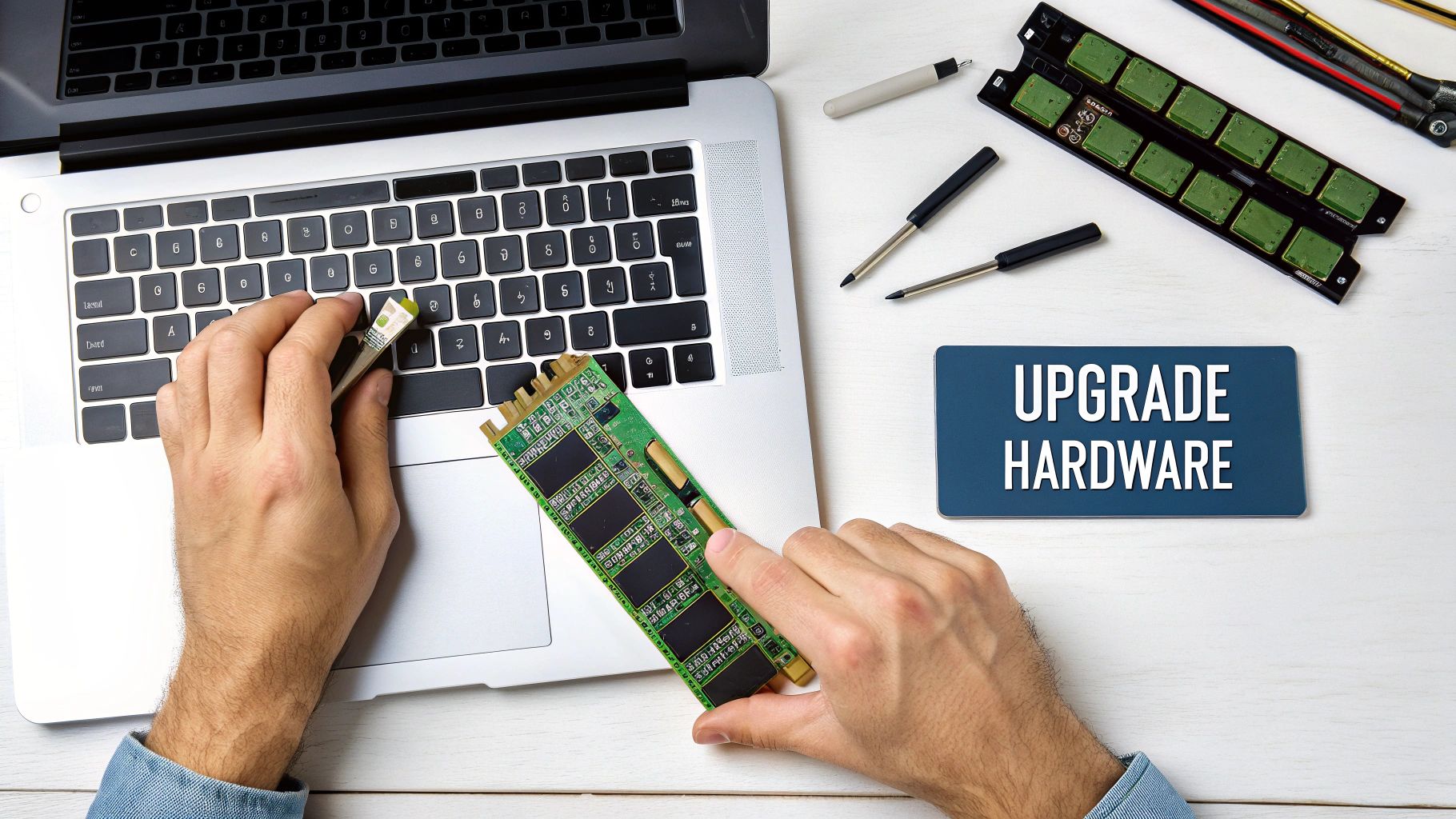
More RAM: A Bigger Workspace for Your Laptop
Think of RAM as your laptop’s digital workspace. Every program you open—your browser, Spotify, a Word document—spreads its files out on this surface to work. If the space is too small (low RAM), your computer has to constantly shuffle things back to the filing cabinet (your hard drive). That shuffling is what causes frustrating lag and slowdowns.
Adding more RAM is like getting a much bigger desk. Suddenly, your laptop can handle more apps at once without breaking a sweat. For a student in Halifax juggling research tabs, a video lecture, and a chat app, going from 4GB to 8GB or even 16GB of RAM is the difference between a smooth workflow and constant beach balls of death.
The SSD Upgrade: The Single Best Speed Boost
If more RAM gives you a bigger desk, an SSD upgrade is like replacing your old, slow filing clerk with a superhero who can retrieve files instantly.
Your old-school Hard Disk Drive (HDD) is mechanical. It has a spinning disc and a moving arm that has to physically seek out your data, kind of like a tiny record player. An SSD, on the other hand, is all-electronic. It uses flash memory with no moving parts, so it finds and serves up your data almost instantaneously. This one change delivers the most dramatic performance boost you can make to an older laptop.
The difference in day-to-day use is staggering. We've seen SSDs boot up a laptop 10-20 times faster than an HDD. Applications launch in a snap. It’s like switching from searching for a book in a massive library to instantly downloading it on an e-reader.
Is Your Laptop Even Upgradeable?
Before you get excited and start shopping for parts, you need to find out if your laptop can actually be upgraded. Many newer, ultra-thin models have their RAM and storage soldered directly onto the motherboard, making upgrades impossible.
Here’s how you can check what’s possible:
- Dig Out the Manual: Your laptop's user manual or the manufacturer's support website is the most reliable source. Look for the "Specifications" section to find the maximum supported RAM and the type of storage drive it uses (e.g., 2.5-inch SATA or a newer M.2 NVMe).
- Use Built-In Tools: On Windows, you can open the Task Manager (Ctrl+Shift+Esc), click the "Performance" tab, and then select "Memory." It will often show you how many RAM slots are available and how many are currently in use.
- Ask an Expert: If you're not sure what you're looking at, don't guess. A quick chat with a local pro can save you from buying the wrong parts. A computer repair shop in Hamilton, for example, could tell you your options in just a few minutes.
For a deeper dive into drive types, our guide on choosing the right laptop hard drives breaks down all the options so you can make the best choice.
Hardware Upgrade Impact Comparison: HDD vs. SSD and RAM Boost
So, what should you upgrade first? It really depends on your budget and how you use your machine. This table shows the real-world impact you can expect from each upgrade.
| Performance Metric | Standard HDD (4GB RAM) | Upgrade to SSD (4GB RAM) | Standard HDD (Upgrade to 8GB+ RAM) | Upgrade to SSD & 8GB+ RAM |
|---|---|---|---|---|
| Boot-Up Time | 60-90+ seconds | 10-20 seconds | 55-80 seconds | ~10 seconds |
| Application Launch Speed | Slow | Very Fast | Slightly Faster | Instant |
| Multitasking | Struggles with 5+ tabs | Struggles with many apps/tabs | Handles 10-15+ tabs smoothly | Handles heavy loads easily |
| Best for | Basic, single-task use | General users wanting speed | Heavy multitaskers, researchers | Power users, creators, gamers |
The takeaway? For most people wondering how to fix a slow laptop, an SSD upgrade provides the single biggest jump in overall performance. However, if you're a heavy multitasker who lives with dozens of browser tabs open, a RAM upgrade is a fantastic and often more affordable first step.
Doing both, of course, is the ultimate way to make your old laptop feel brand new.
Taming Heat and Power for Peak Performance
Once you’ve sorted out the software side of things, it’s time to look at two physical culprits that are notorious for slowing laptops down: heat and power. If your laptop feels zippy at first but starts to crawl during a long video call or an intense gaming session, you've almost certainly run into thermal throttling. This isn't a bug; it's a safety feature. Your laptop's processor is deliberately slowing itself down to prevent it from overheating and causing permanent damage.
A sluggish laptop isn't always a sign of a deep-seated issue. Sometimes, it's just running hot and needs a chance to breathe. The fix often comes down to some basic physical maintenance and a quick check of your power settings. These simple tweaks ensure your machine gets the cool air and steady electricity it needs to run at its best.
Keep It Cool to Beat the Throttle
Heat is the arch-nemesis of performance. Over time, dust, pet hair, and other gunk will inevitably clog up your laptop's air vents and internal fan. When that happens, hot air has nowhere to go. As the internal temperature climbs, your system slams on the brakes to protect itself, and you're left with lag, stuttering, and a machine that feels like it's wading through molasses.
I've seen this countless times. A client in Ottawa, working from home, was convinced their choppy video calls were due to a bad internet connection. The real problem? A thick blanket of dust was insulating their laptop’s processor, forcing it to slow to a crawl. Regular cleaning isn't just a suggestion; it's essential maintenance.
Here are a few practical ways to get the air flowing again:
- Clear Out the Vents: First, shut down your laptop and unplug it. Grab a can of compressed air and use short, controlled bursts to blow dust out of the intake and exhaust vents. You'd be amazed what a difference this simple step can make.
- Give It Some Breathing Room: Never use your laptop on a soft surface like a bed or a couch. Those materials are great at blocking airflow. A proper laptop stand is ideal, but even propping the back up on a couple of books will help air circulate freely underneath.
- Do a Fan Check: With the laptop running, put your hand near the exhaust vent. You should feel a steady stream of warm air. If you hear a grinding noise or feel no air at all, your fan is likely on its last legs—a sure sign it's time to get it looked at by a pro, like our team in Hamilton.
A Quick Tip from Experience: Consistent airflow is non-negotiable. When a laptop's core temperature gets too high, performance can plummet by as much as 40-50% due to thermal throttling. A clean, well-ventilated machine is a fast machine.
Unlock More Speed by Optimizing Your Power Settings
Your laptop's power settings are a constant balancing act between raw performance and battery life. By default, most Windows laptops are set to a "Balanced" plan, which is a decent all-around compromise. But when you’re plugged into the wall and need every ounce of speed you can get, you can tell it to forget about saving power and go all out.
This is one of those simple fixes that people often miss. Think of it like switching your car from 'eco' to 'sport' mode—you're giving the system a green light to draw more power for better results.
How to Change Your Power Plan in Windows:
- Open the Control Panel (you can search for it in the Start Menu).
- Head to Hardware and Sound, then click on Power Options.
- You’ll probably see "Balanced" is selected. Click the little arrow or link that says "Show additional plans."
- Select the High performance option. This tells your laptop to stop holding back when it's plugged in.
macOS handles this a bit differently. You won't find named "plans," but you can achieve the same goal by going to System Settings > Battery. Just make sure that "Low Power Mode" is switched off, both for when you're on battery and when you're plugged into the adapter.
This tiny adjustment ensures your processor and other components get the full, steady supply of power they need for demanding work, making it a surprisingly effective way to fix a slow laptop when you need a quick boost.
Knowing When to Call a Local Repair Expert
So, you’ve put in the work. You’ve tackled the startup programs, given your hard drive a good cleaning, and scanned for any lurking malware, but your laptop is still moving at a snail's pace. It’s frustrating, I know. While DIY fixes can solve a lot of common slowdowns, there comes a point where you have to know when to tap out and call in a professional.
Some problems are just too deep for software tweaks to fix. If you're attempting complex repairs yourself—say, trying to replace a motherboard or figure out why a power supply is failing—you can easily make things worse. A small, fixable issue can quickly become a costly, unfixable disaster.
Think of it this way: if you’re seeing the dreaded 'Blue Screen of Death,' experiencing constant and random crashes, or hearing strange clicking and grinding noises from your hard drive, those are serious red flags. These aren't just quirks; they're classic symptoms of critical hardware failure. It's time to step away from the keyboard.
This handy decision tree can help you visualise when it's okay to keep tinkering and when you really need an expert's eye.
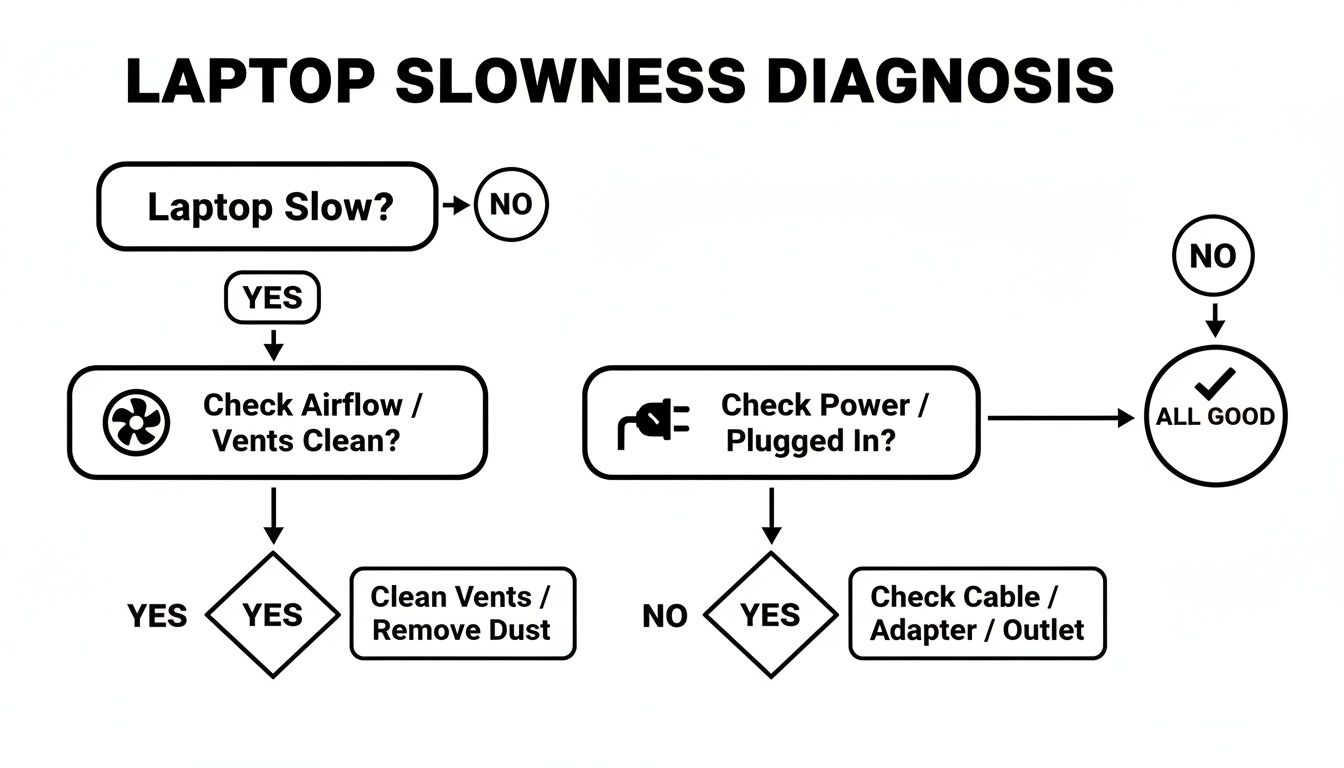
The main takeaway here is that physical symptoms—like strange noises or a machine that won't even turn on reliably—almost always need a professional diagnosis.
Expert Insight: Please don't risk your precious data by trying to force a failing drive to work. A professional technician can often recover files from a drive that seems completely dead, but every time you try to power it on, you could be causing more irreversible damage. The cost of a diagnostic service is tiny compared to the heartache of losing your photos, documents, and memories forever.
For those of you in the Greater Toronto Area, finding reliable computer help near me is the best way to get a safe and efficient solution. Interestingly, when you're choosing a local repair shop, understanding what a queue management system is can give you a peek into how well-organized businesses deliver great service.
Still Have Questions About Your Slow Laptop?
After you've worked through the usual fixes, it's pretty common to still have a few questions buzzing around. Laptops can be tricky, and sometimes the reason for a slowdown isn't obvious. Here are some answers to the most common follow-up questions we get from folks right here in Hamilton and the surrounding areas.
My Laptop Was Fine Yesterday, Why Is It So Slow Today?
When a laptop suddenly grinds to a halt, it's almost always because of a single resource-hogging process that's popped up in the background. Think of things like a massive Windows update deciding to download, a full antivirus scan starting up, or even a single rogue browser tab that’s crashed and is now eating up all your memory.
Your first port of call should be the Task Manager. Just hit Ctrl+Shift+Esc on your Windows machine (or open the Activity Monitor on a Mac). Take a close look at the CPU and Disk columns. If you spot an application using a ridiculous percentage of your system’s power, that's your culprit. Go ahead and end that task.
Will More RAM Actually Make My Old Laptop Faster?
Yes, in many cases, it makes a world of difference. This is especially true if you’re a heavy multitasker.
If your daily routine involves juggling dozens of browser tabs while also having a word processor, email, and Spotify running, a RAM upgrade is one of the biggest bangs for your buck. Moving from an older 4GB setup to 8GB, or even better, to 16GB, will give your system the breathing room it needs. Everything will just feel snappier.
A common myth we hear is that a factory reset is the ultimate cure-all. While it can help with software clutter, it won't fix hardware problems. A failing hard drive or not enough RAM will still make your laptop slow, even on a fresh installation.
Does a Factory Reset Speed Things Up?
Think of a factory reset as a deep spring cleaning for your laptop's software. It wipes away all the programs, temporary files, and potential malware that have piled up over the years, taking your machine back to how it was on day one. For software-related slowdowns, this almost always delivers a huge speed boost.
But there’s a big catch: this process deletes everything. Before you even think about doing a reset, you absolutely must back up all your important files—documents, photos, music, you name it.
How Do I Know If I Need a New Battery?
A dying battery doesn't just mean less time away from the power outlet; it can actually throttle your laptop's performance. As a battery gets older and weaker, the system will often slow down the processor to conserve what little power is left and prevent sudden shutdowns.
Both Windows and macOS have built-in tools to check your battery's health. If the report says the health is "Poor" or shows that its maximum capacity is way down, getting a new battery could bring back both its portability and its speed.
If you’ve gone through all these steps and your laptop still feels like it’s stuck in the mud, it’s probably time to call in a professional. Klimka Computer Solutions provides expert, on-site computer repair in Hamilton to get to the bottom of what's really slowing you down. Visit us online to book a service appointment.
2 Responses
[…] main complaint is a slow-running machine, the problem might not be limited to RAM. Our guide on how to fix a slow laptop offers a more comprehensive look at performance […]
[…] If you're dealing with a sluggish machine, a great resource with more detail can be found in this practical guide on how to fix a slow laptop. […]