
Staring at a stack of old discs and a brand-new laptop with no drive? You're not alone. An external DVD drive is a straightforward, affordable little gadget that plugs right into a USB port. In an instant, it gives your modern computer the power to read and write CDs and DVDs, connecting your physical media to today's tech.
Why You Still Need an External DVD Drive
In a world dominated by streaming and cloud storage, you might think the disc drive has gone the way of the dinosaur. But for a surprising number of people, it’s still an indispensable tool. Think of it less like a relic and more like a universal key—one that unlocks years of memories, software, and entertainment that purely digital systems have left behind.
For families in Ancaster or Dundas, it might be the only way to finally watch those precious wedding videos on DVD or digitize home movies from old CD-Rs. For a small business right here in Hamilton, it could be the key to installing legacy accounting software or accessing critical archived files burned to a disc years ago. It’s not just about nostalgia; it’s about pure practicality.
Bridging Physical Media and Modern Tech
The main job of an external DVD drive is simple: it connects your past to your present. This small device makes sure your physical media collection doesn't turn into a stack of useless coasters.
Here are a few common situations where one of these drives really saves the day:
- Accessing Archives: Finally getting to those family photos, videos, and important documents stored on old CDs and DVDs.
- Software Installation: Installing older programs or drivers that you only have on a physical disc.
- Entertainment: Enjoying your entire movie or music CD collection without having to re-buy digital versions.
- Data Backup: Creating physical, long-term backups of your most important files. This is a fantastic supplement to digital methods. For a complete strategy, you can explore insights on choosing the best external hard drive for backup.
You might be surprised to learn just how strong the demand for these drives still is. Here in Hamilton, Ontario, where families and small businesses from Stoney Creek to the Mountain count on reliable tech advice from experts like Klimka Computer Solutions, the need for external DVD drives is as real as ever. In fact, North America makes up 38% of the global CD and DVD drive market, which is expected to hit USD 0.84 billion by 2030—and Canada is a big part of that. This lasting demand is exactly why savvy locals turn to family-owned experts for honest, affordable service. You can learn more about the optical drive market trends and see the data for yourself.
An external DVD drive isn't just about playing old movies. It's a data recovery tool, an archivist's assistant, and a bridge to software that still runs a business. It’s an investment in accessibility.
To help put it all in perspective, here's a quick look at the most common reasons people are still buying external drives.
Top Reasons You Need an External DVD Drive Today
| Use Case | Why It's Still Relevant | Who It's For |
|---|---|---|
| Accessing Old Media | Decades of photos, home videos, and documents are stored on CDs/DVDs. | Families, genealogists, and anyone with a personal archive. |
| Legacy Software | Many specialized or older programs were only released on physical discs. | Small businesses, hobbyists, and professionals with specific software needs. |
| Physical Movie/Music Collections | You've spent years building a collection—why pay for it all over again digitally? | Film buffs, music lovers, and collectors. |
| Creating Physical Backups | Discs offer a cheap, durable, and offline way to back up essential files. | Photographers, writers, and anyone wanting a "cold storage" backup. |
Ultimately, this simple device offers peace of mind. It ensures that no matter how technology changes, you won't lose access to the data you already own. For a small investment, you get a powerful tool that keeps your physical media from gathering dust.
Choosing the Right Drive for Your Laptop
Picking out the right external DVD drive for a laptop can feel a bit like a guessing game. With so many different cables, ports, and operating systems out there, it's easy to feel lost. But it’s not as complicated as it seems—think of it like finding the right charger for your phone. Once you know what you're looking for, the choice becomes clear.
Your first and most important job is to take a look at the USB ports on your laptop. That little port is the gateway, carrying both the data from your disc and the power to make the drive spin. Nailing this part is the key to a hassle-free, plug-and-play experience.
Not sure if you even need one? This quick decision tree can help you figure it out.
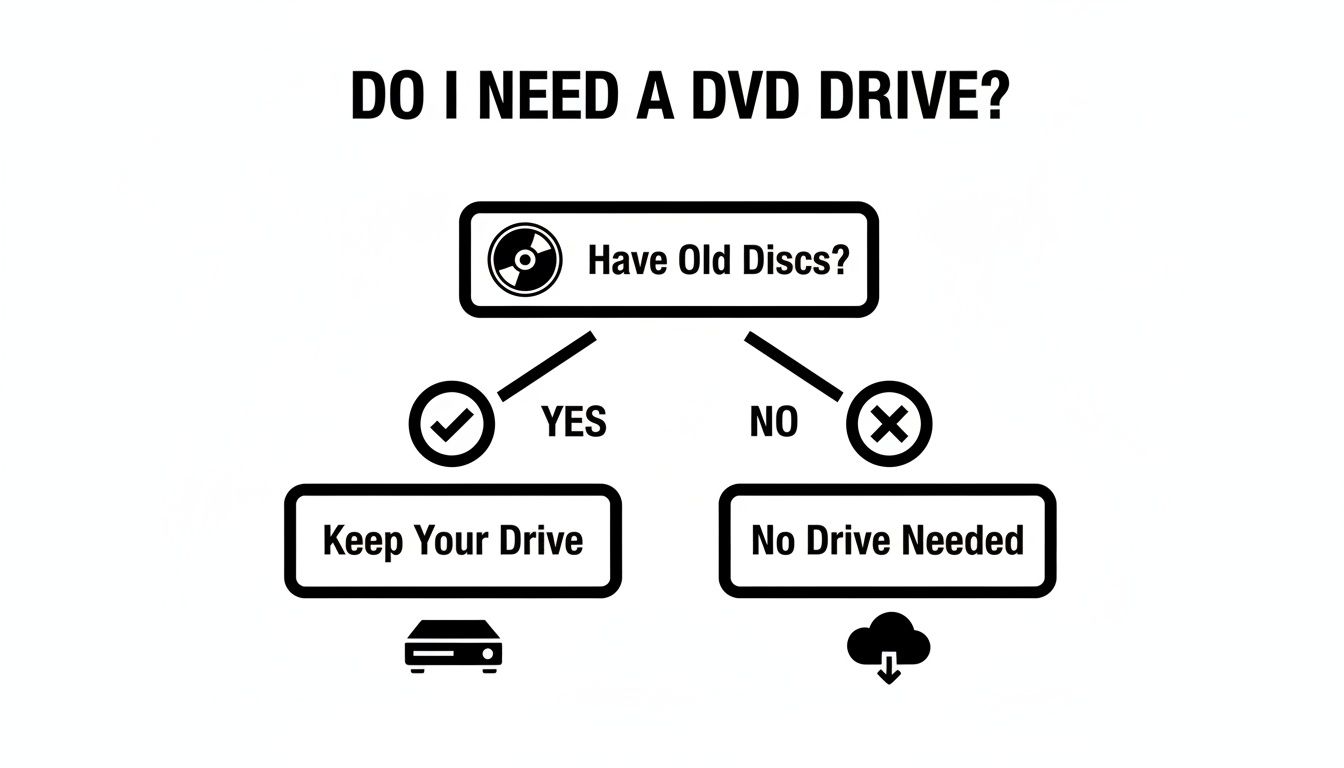
As you can see, if you've got a stack of old discs gathering dust, an external drive is definitely the way to go.
Decoding Your Laptop Ports
Most modern laptops will have one of two kinds of USB ports. Figuring out which one you have is the first step to choosing the right drive.
-
USB-A: This is the classic, rectangular port that’s been around for ages. You’ve seen it a thousand times. It's still common on many laptops, and drives that use this connection are usually easy to find and quite affordable.
-
USB-C: This is the newer, smaller, oval-shaped port. The best part? It's reversible, so you can't plug it in the wrong way. USB-C is the current standard and often delivers faster data speeds.
Go ahead and take a peek at the sides of your laptop. If you see that familiar rectangular shape, you’ll want a drive with a USB-A cable. If you spot the smaller oval, a USB-C drive is your best match, though you can always grab an adapter if you find a great deal on a USB-A drive.
To make things easier, here’s a quick-glance table to match your setup.
USB Port and OS Compatibility Checklist
| Connection Type | Best For | Windows Compatibility | macOS Compatibility |
|---|---|---|---|
| USB-A | Laptops with older, rectangular ports | Universally compatible | Works on older MacBooks; requires an adapter for newer models |
| USB-C | Modern laptops and MacBooks with oval ports | Most modern PCs (Windows 10/11) | Standard on all recent MacBooks |
| Y-Cable (Dual USB-A) | Laptops with low-power USB ports | Universally compatible | Works on older MacBooks; may need an adapter |
This checklist should give you a clear idea of what to look for based on the machine you're using.
Power and Cable Considerations
Next up, you need to think about how the drive gets its juice. Some beefier drives, especially older ones or those that play Blu-ray discs, need a little more power than a single USB port can deliver.
This is why you'll see two main types of cables:
-
Single-Cable Drives: The vast majority of external DVD drives today use just one USB cable for both power and data. It's clean, simple, and the most convenient option for keeping your desk clutter-free.
-
Dual-Cable (Y-Cable) Drives: These come with a unique "Y" shaped cord that has two USB plugs on one end. One plug handles data and some power, while the second one plugs into another USB port just to draw extra power. You might need this if your drive isn't being recognized, which can sometimes happen with laptops that have low-power ports.
Making Sure It Works With Your OS
The final piece of the puzzle is your operating system (OS). The good news is that almost every external DVD drive on the market is built to work with both Windows and macOS right out of the box. They're what we call "plug-and-play"—you just connect it, and it works. No complicated software installation needed.
That said, it never hurts to quickly scan the product description to make sure it’s compatible with your specific version, whether that's Windows 11 or the latest release of macOS. Here in Hamilton, the team at Klimka Computer Solutions often helps people make sure their new gear plays nicely with their current computers.
Compatibility isn't just a tech spec on a box. It’s what makes the difference between a handy tool and a frustrating paperweight. Getting the port, power, and OS right from the start means your drive will work the moment you plug it in.
Getting this simple check right saves a ton of headaches down the road. For many laptop users in Hamilton, Ontario, external DVD drives became essential when manufacturers stopped including internal optical drives around 2025. This shift naturally pushed people toward portable solutions. For broader storage needs beyond discs, our article on the best external hard drives for backup is a great resource.
Understanding Drive Specs and Disc Formats
When you start shopping for an external DVD drive for a laptop, it’s easy to get lost in a sea of technical jargon. You'll see terms like "8x speed" and "DVD-RW" thrown around, and it can feel a bit overwhelming. But don't worry—these are just signposts that tell you how the drive performs and what it can do. Figuring them out is the key to getting the right tool for the job without spending extra on features you don't actually need.
Think of it like buying a car. You wouldn't get a race car just to run errands, and a tiny hatchback isn't going to haul a load of lumber. It’s the same idea here. A drive's specs tell you how fast it is and what kind of discs it works with, making sure it’s a good fit for what you have in mind.
Decoding Read and Write Speeds
One of the first specs you'll bump into is a number followed by an "x," like 8x or 24x. This is all about speed. Put simply, the higher the number, the faster the drive. These speeds are split into two key jobs: reading and writing.
-
Read Speed: This is how fast the drive can pull information from a disc. A zippy read speed means movies will play smoothly and software will install without making you wait forever. For most people, an 8x DVD read speed is plenty for watching films and everyday tasks.
-
Write Speed (or "Burning" Speed): This tells you how quickly the drive can save information onto a blank disc. If you plan on backing up important files or creating your own home movie collection, a faster write speed will save you a ton of time. For example, burning a full 4.7 GB DVD at 8x takes about six or seven minutes, but at 24x, you could be done in just a couple of minutes.
A family in Hamilton looking to archive old home videos would be perfectly happy with a standard 8x drive. On the other hand, a local Dundas business that needs to burn dozens of data discs for clients would find a faster 24x drive to be a smart investment.
The Alphabet Soup of Disc Formats
Next up is the jumble of letters you’ll see: DVD-R, DVD+R, DVD-RW, and so on. These different formats aren't always interchangeable, so it’s important to make sure your drive supports the type of disc you want to use. It’s a bit like knowing if your car takes petrol or diesel—using the wrong one just won't work.
Let’s break down the most common formats you'll come across:
-
DVD-R and DVD+R: These are your "write-once" options. Once you record data on them, it’s there for good. They’re fantastic for creating permanent archives, sharing photos with family, or making movie discs that can play in most standard DVD players. The "+" and "-" are just competing formats from different companies; luckily, most modern drives handle both without any issue.
-
DVD-RW and DVD+RW: The "RW" here stands for Re-Writable. You can write data to these discs, erase it, and then write something new hundreds of times. They’re perfect for temporary backups or for moving large files between computers when you know you'll want to use the disc again later.
-
DVD-RAM: This is a less common but very durable rewritable format. It's often favoured by professionals for data archiving because it's so reliable and has an incredibly long lifespan.
-
Dual Layer (DL): These discs have two recording layers, which almost doubles their storage space from the standard 4.7 GB to 8.5 GB. This is a huge help when you’re backing up larger files or creating high-quality video projects without having to compress them.
Since modern laptops ditched built-in CD/DVD drives entirely by 2025, Hamilton, Ontario residents are turning to external options, with local heroes like Klimka Computer Solutions providing on-site expertise since 2015. Dual Layer DVD+R, the fastest-growing category, meets high-capacity needs for HD content, relevant for local custom PC builds. In Hamilton's ecosystem, where peripheral exports face hurdles, external drives ensure reliability with Klimka's 30-day warranty, bridging old media to new tech seamlessly. Discover more insights about the computer peripheral manufacturing industry in Canada.
Choosing the right disc format is all about your goal. For permanent memories like a wedding video, use a DVD-R. For a temporary project file you'll update next week, a DVD-RW is the smart, reusable choice.
Finally, remember that storage capacity is also a factor when choosing media. While a standard DVD holds 4.7 GB—which is similar to the size of some older laptop hard drives—a dual-layer disc can hold much more. By matching the drive’s specs and disc formats to your daily tasks, you’ll end up with a tool that serves you well for years to come.
A Simple Step-By-Step Setup Guide
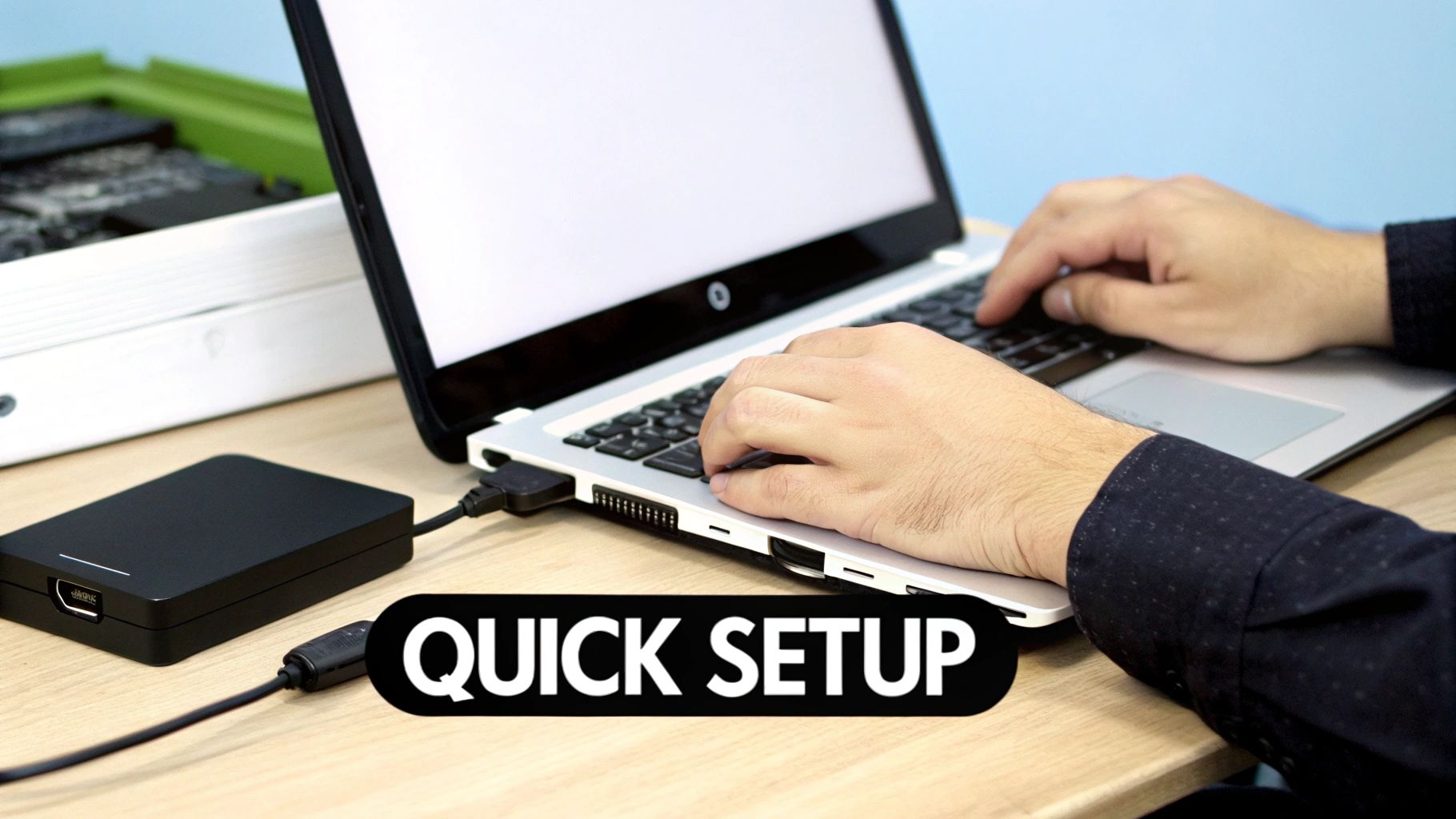
Getting your new external DVD drive up and running is usually a refreshingly simple process. The good news is that most modern drives are "plug-and-play," which means your laptop should recognize and configure the device automatically, often in just a few seconds.
Let's walk through getting that new piece of hardware connected and ready to use in minutes.
Connecting Your Drive
Honestly, the entire process should take less time than making a cup of tea. Just follow these quick steps.
-
Unbox Everything: First things first, carefully remove the external DVD drive and its USB cable from the packaging. The vast majority of drives use a single cable for both power and data, keeping things tidy.
-
Find the Right Port: Grab that USB cable. Plug one end into the back of your new drive and the other into an open USB port on your laptop. Pro tip: try to plug it directly into the laptop instead of a USB hub, as this guarantees the drive gets enough power to run properly.
-
Give It a Moment: Once it's plugged in, you should see a small light on the drive blink or turn on. You might even hear the disc mechanism spin for a second. That's a great sign! Your laptop will now automatically install any drivers it needs, and you’ll usually see a small notification pop up when it’s ready to go.
-
Check for the Drive: Now, open File Explorer on a Windows PC (or Finder on a Mac). You should see your new drive listed alongside your other devices, likely labelled something like "DVD RW Drive." It’s now waiting for you to pop in a disc.
This plug-and-play simplicity is one of the best things about modern computer accessories. Of course, technology doesn't always cooperate perfectly.
What to Do If It Doesn't Connect
If your drive lights up but doesn't appear on your computer, don't worry just yet. A few simple troubleshooting steps can often fix the problem right away.
- Try a Different USB Port: Not all USB ports are created equal; some deliver more power than others. Unplug the drive and connect it to a different port on your laptop.
- Restart Your Laptop: It's a classic for a reason. The old "turn it off and on again" trick often works wonders. Leave the drive plugged in and give your computer a restart so it can try to detect the hardware again.
- Check Device Manager (Windows): Right-click the Start button, choose "Device Manager," and look for "DVD/CD-ROM drives." If you see your drive with a little yellow warning icon, you may need to update its driver.
A seamless setup is the goal, but if technology throws you a curveball, a methodical approach is your best friend. Start with the simplest solution—like swapping ports—before moving on to more technical steps.
For more complex situations, like needing to reinstall your entire operating system from a disc, our guide on how to reinstall the Windows operating system provides detailed instructions. And as you set up your new gear, keeping your workspace neat can make a big difference. For some great tips, check out this resource on organizing desk cables effectively.
For those in the Hamilton area who'd rather skip the setup entirely, Klimka Computer Solutions offers an on-site service. We can make sure your new external DVD drive for a laptop is connected, configured, and working perfectly with your machine—saving you the time and hassle.
Troubleshooting Common Drive Problems
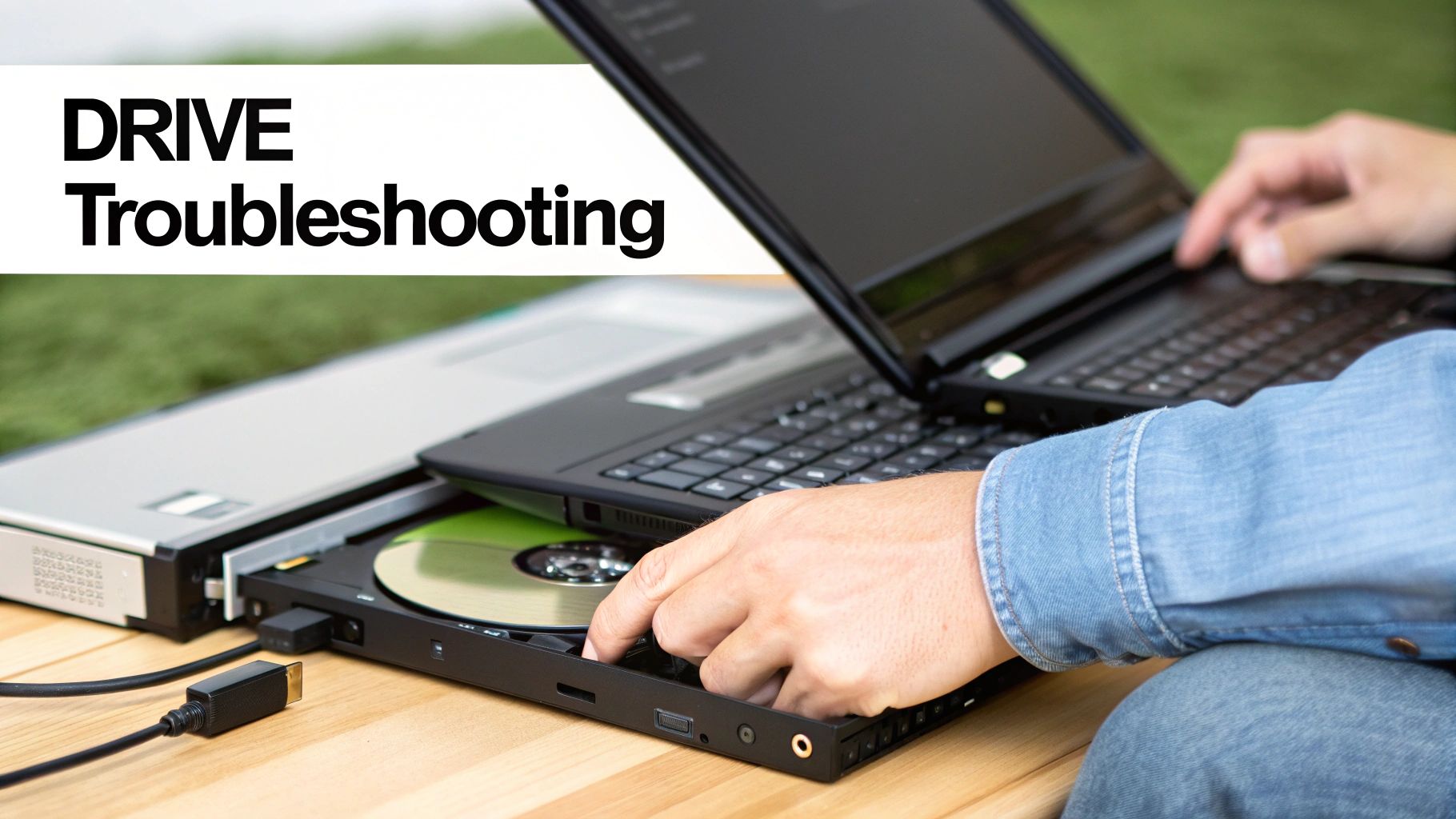
So, what happens when "plug-and-play" decides not to play? You've connected your new external DVD drive for a laptop, the light blinks, you hear a promising whir, and then… absolutely nothing. It’s a frustrating moment, but don't panic. More often than not, the fix is surprisingly simple, and you can sort it out yourself with a few quick checks.
Think of this section as your first-aid kit for those common glitches. We'll walk through the most frequent hiccups, from a drive playing hide-and-seek with your computer to a disc that refuses to come out.
Issue 1: My Laptop Doesn’t Recognize the Drive
This is, by far, the most common problem we see. The drive has power, but your computer is acting like it doesn't exist. Before you jump to the conclusion that the drive is a dud, run through this simple checklist.
-
Try a Different USB Port: Sometimes the simplest solution is the right one. Unplug the drive and connect it to another USB port on your laptop. Certain ports deliver more stable power than others, and this quick switch can make all the difference.
-
Plug Directly into the Laptop: If you're using a USB hub, unplug the drive from it and connect it straight to your laptop. Hubs have to split power between multiple devices, and your drive might not be getting enough juice to spin up properly.
-
Restart Your Computer: The old "turn it off and on again" advice is a classic for a reason. With the drive still plugged in, give your laptop a full restart. This forces the operating system to re-scan for new hardware from a clean slate.
If those first steps don’t get you anywhere, it’s time to dig a little deeper into your system’s settings.
Issue 2: The Drive Has Power But Still Won’t Appear
When the basics fail, the problem often lies with software drivers or a system setting. Your laptop might sense the device is connected but has no idea what to do with it.
It's a classic scenario: the drive's light is on, you can hear the disc spinning, but it’s completely invisible in File Explorer. This usually points to a communication breakdown between the hardware and your operating system, not a broken drive.
Here’s a more advanced sequence you can try:
- Check Device Manager (Windows): Right-click the Start button and select "Device Manager." Look for a category called DVD/CD-ROM drives. If you see your drive listed there (maybe with a little yellow warning icon), right-click it, choose "Uninstall device," then unplug the drive and plug it back in.
- Update USB Drivers: While you're in Device Manager, find and expand "Universal Serial Bus controllers." Right-click each "USB Root Hub" entry and select "Update driver." This ensures your laptop's ports are running the latest software.
- Run the Hardware Troubleshooter: Windows has a helpful built-in tool for this. In Windows 11, press the Windows key + R, type
msdt.exe -id DeviceDiagnostic, and hit Enter. Just follow the on-screen prompts and let Windows try to find and fix the issue automatically.
Issue 3: The Disc Won’t Eject
A stuck disc can be nerve-wracking, especially if it’s holding important files or a favourite movie. Fortunately, almost every external drive has a manual override for exactly this situation.
Take a close look at the front of the drive's tray. You should spot a tiny pinhole. Unfold a paperclip, gently push the straight end into this hole until you feel a slight click, and the tray will pop open just enough for you to grab it.
If troubleshooting starts to feel overwhelming or the problem just won't go away, it might be a sign of a deeper hardware or software conflict. For anyone in Hamilton and the surrounding area, this is the perfect time to call in a professional. At Klimka Computer Solutions, we deal with these kinds of peripheral problems every day, offering fast, honest diagnostics to get your gear working without the headache.
Hamilton's Go-To Support for Laptop Needs
Let's be honest—sometimes dealing with tech, like an external DVD drive for a laptop, can be a real headache. You might be struggling to get a new drive working, trying to rescue old family photos from a finicky disc, or figuring out why your computer suddenly won't recognise the drive.
When you hit a wall, having a local expert to call on makes a world of difference. That’s where we come in. Here at Klimka Computer Solutions, we’ve been helping folks in Hamilton with their tech troubles since 2015. As a family-owned business, our goal is simple: provide honest, affordable solutions that just plain work.
Your Local Tech Partner
We get it. You don't want to spend hours troubleshooting; you just want your gear to do its job. Our services are built around solving the exact kinds of problems you might face with an external drive or any other computer issue.
Here’s a glimpse of how we can help:
- Peripheral Setup: Bought a new external drive? We’ll get it unboxed, connected, and running smoothly with your laptop, no fuss.
- Data Recovery: If you have priceless files trapped on an old or damaged disc, don't give up hope. We're skilled at recovering data from all kinds of media.
- Hardware Diagnostics: When your drive or laptop starts acting up, we can pinpoint the real problem quickly, saving you the guesswork and frustration.
At Klimka Computer Solutions, we believe in doing things right. That means fast, trustworthy, and affordable service for our Hamilton neighbours. We stand by our work, which is why every job comes with a 30-day service warranty for your peace of mind.
You don't have to tackle computer problems on your own. If you're running into issues, big or small, check out our complete list of expert computer repairs in Hamilton to see everything we can do for you.
Whether you're right here in Hamilton, or in Ancaster or Stoney Creek, we’re the team you can count on. Give us a shout today and let us handle the tech stress for you.
Frequently Asked Questions
It's one thing to plug in an external DVD drive, but it's another to get it working exactly how you need it to. We get a lot of questions from our clients here in Hamilton about the finer points of using these devices, from advanced tasks to compatibility quirks.
Let’s clear up some of the most common ones with practical, straightforward answers.
Can I Make My Laptop Boot from an External DVD Drive?
You absolutely can, and it's one of the most powerful things you can do with one. This is how technicians often handle tasks like reinstalling an operating system from scratch or running powerful diagnostic tools that can't be run from inside Windows.
The trick is to tell your computer to look at the external drive before it tries to load its main operating system. To do this, you’ll need to restart your computer and jump into its BIOS or UEFI settings menu. This usually involves tapping a specific key like F2, F12, or DEL the moment it powers on. From there, find the "Boot Order" or "Boot Priority" section and move your USB drive to the top of the list.
If that sounds a bit too technical for your comfort, don't worry. Here at Klimka Computer Solutions, we can handle any OS installations or complex troubleshooting for you right here in Hamilton.
Will an External DVD Drive Work with My Smart TV or Gaming Console?
This is a really common question, but unfortunately, the answer is almost always no. An external DVD drive for a laptop is built to talk to a computer's operating system (like Windows or macOS), which has all the right drivers and software to make sense of the data.
Smart TVs, PlayStation consoles, and Xbox systems just don't have that software built-in. When you plug the drive into their USB port, they don't know what to do with it and won't recognize it as a media player. It’s a bit of a letdown, but these drives are designed purely for computer use.
Do I Need to Install Special Software to Watch DVDs?
More often than not, yes. It might seem strange, but modern operating systems often don't include a DVD player right out of the box. While older versions of Windows had it built-in, Microsoft removed it from Windows 10 and 11 to cut down on licensing fees.
The go-to solution for almost everyone is the free VLC Media Player. It’s a fantastic, open-source program that plays just about every video file imaginable—including DVDs—with no fuss.
Mac users are often in better luck, as macOS typically includes the necessary software. If you're struggling to get the right program installed, our peripheral setup service can get everything running smoothly for you.
Is It Better to Get a Blu-ray Drive Instead of a DVD Drive?
This really boils down to two things: what you want to watch and what you want to spend. If you have a collection of Blu-ray movies or you're keen on watching things in true high definition, then a Blu-ray drive is the obvious choice.
The best part about Blu-ray drives is that they are fully backward-compatible. This means they can read and write all your old CDs and DVDs, no problem. The trade-off is the price—they do cost a bit more than a simple DVD-only drive. If you just need to access old software, pull data from archived discs, or watch your existing DVD collection, a standard external DVD drive will do the job perfectly and save you some money.
If you're in Hamilton and need a hand choosing, setting up, or fixing your tech, Klimka Computer Solutions is ready to help. We offer honest, reliable on-site service for everything from simple peripheral setups to complex data recovery. Visit our website to see how we can make your technology work for you: https://klimkacomputersolutions.com
No Responses